
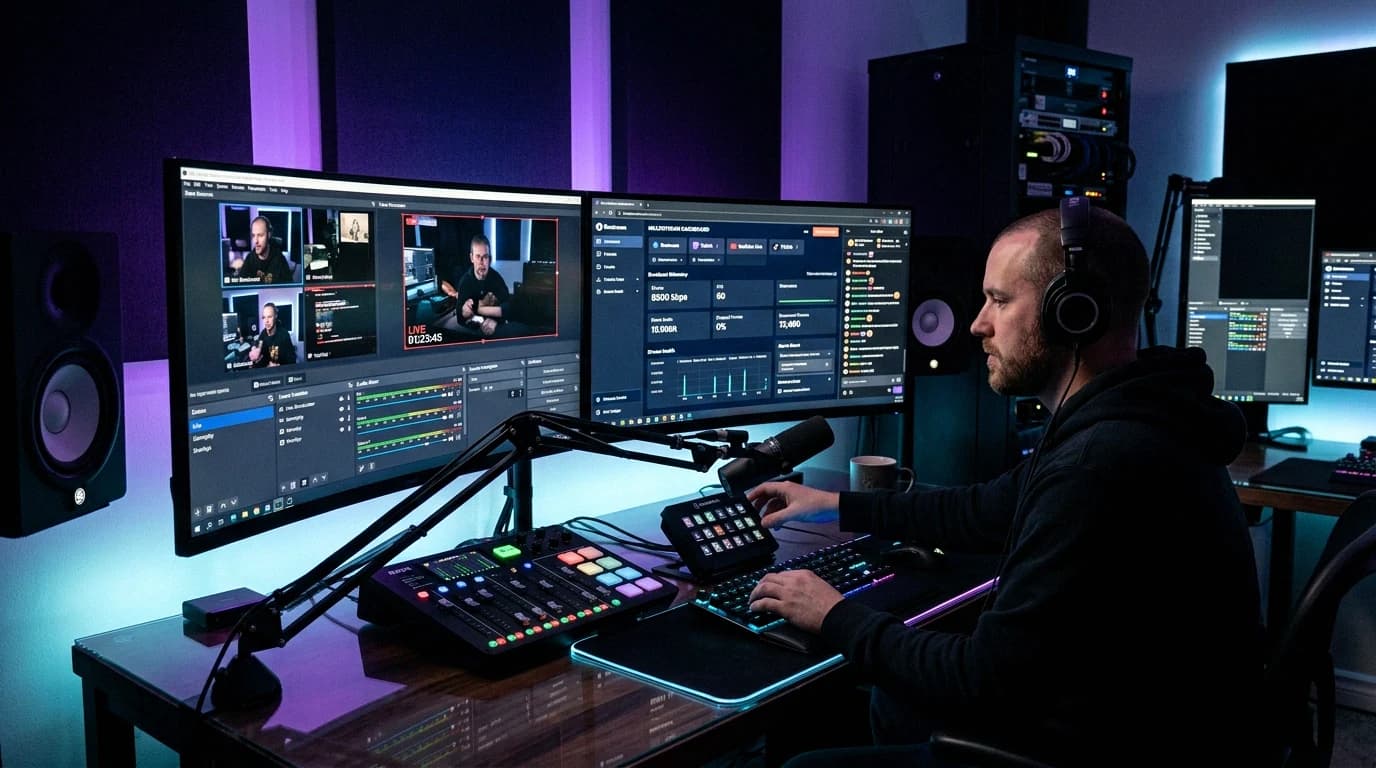
Your 24/7 stream dropped during the night, and you heard about it from a viewer the next morning. A pgrep ffmpeg check would not have helped: it only lists processes that match a name. It can't tell you whether your video reaches the platform, or whether YouTube still shows the broadcast as live. A stream can break in the encoder, on the way to the platform, at the platform or on the server itself. This guide sets up a small watchdog on a Linux VPS that checks each of these once a minute and alerts you on Discord or by email when the state changes. Commands are for Ubuntu 24.04 and Debian 12.
Quick answer: Check three things from three places. On the VPS, let systemd restart the encoder and confirm that the ingest keeps acknowledging new bytes (the bytes_acked counter in ss -i). At the platform, ask the API: YouTube's videos.list returns liveBroadcastContent set to live, and Twitch's Get Streams lists your channel with type set to live. From outside, have the watchdog ping a heartbeat monitor such as Healthchecks.io or Uptime Kuma, which alerts you when the pings stop, even if the whole VPS is down. Alert only when the state changes, after two failed checks in a row.
What Can Break, and Which Check Sees It
- The encoder crashes. systemd restarts it; the watchdog sees the service down or the restart count rising.
- The encoder runs, but nothing reaches the ingest. Only the byte counter shows this.
- The upload works, but the platform shows no live broadcast. YouTube's API treats your stream (the data your encoder sends) and the broadcast (the video viewers open) as separate resources with separate statuses. Only the platform API sees this.
- The VPS hangs or loses its network. Nothing on the server can report that; only an outside monitor that stops receiving heartbeats notices.
- The stream is live but frozen, black or silent. None of these checks looks at the picture. YouTube's Live Control Room shows stream health messages, and a quick daily look as a viewer catches the rest.
Step 1: Let systemd Restart the Encoder
Our 24/7 stream setup guide runs FFmpeg in a while true loop inside a systemd service. That keeps the stream going but hides every crash: systemd only sees the loop script, which never exits, so its restart count stays at zero however often FFmpeg dies. Make FFmpeg the service's own process and let Restart= do the looping.
Keep the stream key in a file that only root can read:
sudo tee /etc/stream.env >/dev/null <<'EOF'
VIDEO=/home/streamer/stream-content/lofi-video.mp4
RTMP_URL=your-stream-url-from-youtube-studio
STREAM_KEY=your-stream-key
EOF
sudo chmod 600 /etc/stream.env
Then replace the unit with this one, where streamer is the account that owns your video files:
# /etc/systemd/system/24-7-stream.service
[Unit]
Description=24/7 live stream
Wants=network-online.target
After=network-online.target

[Service]
User=streamer
EnvironmentFile=/etc/stream.env
ExecStart=ffmpeg -nostats -loglevel level+warning -re -stream_loop -1 -i ${VIDEO} \
  -c:v libx264 -preset veryfast -b:v 3000k -maxrate 3000k -bufsize 6000k -pix_fmt yuv420p -g 60 \
  -c:a aac -b:a 128k -ar 44100 -f flv ${RTMP_URL}/${STREAM_KEY}
Restart=always
RestartSec=10

[Install]
WantedBy=multi-user.target
sudo systemctl daemon-reload
sudo systemctl enable 24-7-stream
sudo systemctl restart 24-7-stream
What changed:
-nostatsturns off the progress line FFmpeg otherwise updates every 0.5 seconds, and-loglevel level+warningkeeps only warnings and errors, each tagged with its level, such as[warning]or[error].Restart=alwaysstarts FFmpeg again afterRestartSec=10, however it exits, unless you stop it yourself. systemd's default start limit, 5 starts within 10 seconds, can't trigger with a 10-second pause, so it keeps trying. A service that crashes every few minutes therefore looks active most of the time, which is why the watchdog reports the restart counter (systemctl show -p NRestarts --value 24-7-stream).- systemd fills in the
${...}variables from the environment file, andnetwork-online.targetdelays the start until the network management software reports the network as up. - The file keeps the key out of the unit, but FFmpeg still gets it on its command line, which other accounts on the server can read with
ps. Our stream key guide covers this and the other places a key leaks from.
Step 2: Check That the Ingest Receives Data
The ingest server acknowledges the bytes it receives, and the kernel keeps a running total per connection, which ss -i prints as bytes_acked. ss can also filter on a service's control group, so you see only FFmpeg's connections, on any port:
CG=$(systemctl show -p ControlGroup --value 24-7-stream)
ss -Htni state established "cgroup = $CG" | grep -o 'bytes_acked:[0-9]*'
Run it twice, a few seconds apart. A growing number means the ingest is taking your stream; a number that stands still means nothing gets through; no line means there is no connection at all. -H drops the header, -t shows TCP sockets, -n shows port numbers and -i adds TCP details. For OBS in a desktop session rather than a service, filter on the port instead: '( dport = :1935 )' matches plain RTMP, whose default port is 1935. The YouTube RTMPS server built into OBS uses port 443, which your browser shares, so with RTMPS use the WebSocket check in the OBS section below.
Step 3: Ask the Platform
YouTube. Without OAuth, a request needs an API key: create one in the Google Cloud console under Credentials (Create credentials > API key), in a project with the YouTube Data API enabled. Then ask about your broadcast, using the video ID from its watch URL (the part after watch?v=):
curl -fsS "https://www.googleapis.com/youtube/v3/videos?part=snippet&id=VIDEO_ID&key=API_KEY" \
  | jq -r '.items[0].snippet.liveBroadcastContent'
live means an active broadcast, upcoming a scheduled one, and none neither, so for your stream it ended. Each call costs 1 unit of the default 10,000 a day; a check every minute uses 1,440. If your broadcast gets a new video ID each time it starts, search.list with your channelId, eventType=live and type=video finds the current one, but search has its own quota of 100 calls a day, so once every 15 minutes at most. Quotas reset at midnight Pacific Time.
liveStreams.list in the Live Streaming API says more: status.streamStatus is active while YouTube receives data, and status.healthStatus.status is good, ok, bad or noData. It needs OAuth instead of an API key, and if your OAuth consent screen is for external users and still in Testing, Google's refresh tokens expire after 7 days, so a script built on one stops working a week later.
Twitch. Get Streams with user_login only returns channels that are broadcasting, so an empty data list means offline. An app access token works, from the client credentials flow with your registered app's client ID and secret:
curl -fsS -d client_id=CLIENT_ID -d client_secret=CLIENT_SECRET \
  -d grant_type=client_credentials https://id.twitch.tv/oauth2/token
curl -fsS "https://api.twitch.tv/helix/streams?user_login=yourchannel" \
  -H "Authorization: Bearer ACCESS_TOKEN" -H "Client-Id: CLIENT_ID" | jq -r '.data[0].type // "offline"'
Tokens expire, and the API answers 401 once one is no longer valid; the Twitch check in step 4 then fetches a new one.
After an alert, open YouTube Studio's Live Control Room: its stream health messages carry a timestamp, red for critical problems and yellow for moderate ones. Our YouTube health dashboard guide explains the common warnings and has a short daily check.
Step 4: Put It Together in a Watchdog
Install the tools, then put the settings in a root-only file. Leave a line empty to skip that alert; step 5 explains the HEARTBEAT lines, and our Discord webhook guide shows where to create a webhook.
sudo apt install curl jq iproute2
sudo tee /etc/stream-watchdog.env >/dev/null <<'EOF'
SERVICE=24-7-stream.service
YT_API_KEY=your-api-key
YT_VIDEO_ID=your-video-id
DISCORD_WEBHOOK=https://discord.com/api/webhooks/your-webhook
HEARTBEAT_OK=https://hc-ping.com/your-uuid
HEARTBEAT_FAIL=https://hc-ping.com/your-uuid/fail
EOF
sudo chmod 600 /etc/stream-watchdog.env
Save the script as /usr/local/bin/stream-watchdog and run sudo chmod 755 /usr/local/bin/stream-watchdog:
#!/bin/bash
# stream-watchdog: one check of a 24/7 stream, started every minute by a timer.
STATE=${STATE_DIRECTORY:-/var/lib/stream-watchdog}
problems=()

# 1. Is the encoder running, and how often has systemd restarted it?
systemctl is-active --quiet "$SERVICE" || problems+=("$SERVICE is not running")
restarts=$(systemctl show -p NRestarts --value "$SERVICE")

# 2. Does the ingest acknowledge new bytes? Two readings, 5 seconds apart.
cg=$(systemctl show -p ControlGroup --value "$SERVICE")
acked() {
  [ -n "$cg" ] || { echo 0; return; }
  ss -Htni state established "cgroup = $cg" | grep -o 'bytes_acked:[0-9]*' |
    awk -F: '{ sum += $2 } END { print sum + 0 }'
}
a=$(acked); sleep 5; b=$(acked)
[ "$b" -gt "$a" ] || problems+=("no new bytes acknowledged by the ingest")

# 3. Does YouTube list the broadcast as live?
yt=$(curl -fsS -m 10 "https://www.googleapis.com/youtube/v3/videos?part=snippet&id=$YT_VIDEO_ID&key=$YT_API_KEY" |
  jq -r '.items[0].snippet.liveBroadcastContent // "video not found"')
[ "$yt" = live ] || problems+=("YouTube: ${yt:-no answer}")

# One line per run for the journal. A failure counts after two runs in a row.
fails=$(cat "$STATE/fails" 2>/dev/null || echo 0)
if [ ${#problems[@]} -eq 0 ]; then
  fails=0
  line="OK, restarts: $restarts"
else
  fails=$((fails + 1))
  list=$(printf '%s; ' "${problems[@]}")
  line="FAIL $fails: ${list%; }, restarts: $restarts"
fi
echo "$fails" > "$STATE/fails"
echo "$line"

# Discord: one message when the stream goes down, one when it is back.
notify() {
  [ -n "$DISCORD_WEBHOOK" ] || return 0
  jq -n --arg c "$1" '{content: $c}' |
    curl -fsS -m 10 -o /dev/null -H 'Content-Type: application/json' -d @- "$DISCORD_WEBHOOK"
}
alerted=$(cat "$STATE/alerted" 2>/dev/null || echo no)
if [ "$fails" -ge 2 ] && [ "$alerted" = no ]; then
  notify "Stream down. $line" && echo yes > "$STATE/alerted"
elif [ "$fails" -eq 0 ] && [ "$alerted" = yes ]; then
  notify "Stream back up. $line" && echo no > "$STATE/alerted"
fi

# Heartbeat for the outside monitor: OK, or a failure after two runs.
hb=$HEARTBEAT_OK
[ "$fails" -ge 2 ] && hb=$HEARTBEAT_FAIL
[ -z "$hb" ] || curl -fsS -m 10 --retry 5 -o /dev/null "$hb"
Two units run it once a minute:
# /etc/systemd/system/stream-watchdog.service
[Unit]
Description=24/7 stream watchdog

[Service]
Type=oneshot
EnvironmentFile=/etc/stream-watchdog.env
StateDirectory=stream-watchdog
StateDirectoryMode=0700
ExecStart=/usr/local/bin/stream-watchdog
# /etc/systemd/system/stream-watchdog.timer
[Unit]
Description=Run the stream watchdog every minute

[Timer]
OnCalendar=minutely
AccuracySec=5s

[Install]
WantedBy=timers.target
sudo systemctl daemon-reload
sudo systemctl enable --now stream-watchdog.timer
How it behaves:
- Each run writes one line to the journal, such as
OK, restarts: 0orFAIL 2: no new bytes acknowledged by the ingest; YouTube: none, restarts: 3. - Nothing is sent until a problem shows up in two runs in a row, so a restart between the two byte readings doesn't wake you; until then the outside monitor keeps getting its OK ping. Then you get one Discord message when the stream goes down and one when it is back, far below Discord's webhook rate limits; if Discord can't be reached, the next run tries again.
StateDirectory=gives the script/var/lib/stream-watchdog, kept root-only by0700.AccuracySec=defaults to 1 minute, a window after each scheduled time in which systemd picks when to start the run; 5 seconds keeps each run close to the start of the minute.
For Twitch, replace check 3 with this block and add TWITCH_CLIENT_ID, TWITCH_CLIENT_SECRET and TWITCH_LOGIN to the settings file:
# 3. Does Twitch list the channel as live? (use instead of the YouTube check)
twitch() {
  curl -sS -m 10 -o "$STATE/twitch.json" -w '%{http_code}' \
    -H "Authorization: Bearer $(cat "$STATE/token" 2>/dev/null)" \
    -H "Client-Id: $TWITCH_CLIENT_ID" "https://api.twitch.tv/helix/streams?user_login=$TWITCH_LOGIN"
}
code=$(twitch)
if [ "$code" = 401 ]; then   # no token yet, or it expired: get a new app access token
  curl -fsS -m 10 -d "client_id=$TWITCH_CLIENT_ID" -d "client_secret=$TWITCH_CLIENT_SECRET" \
    -d grant_type=client_credentials https://id.twitch.tv/oauth2/token | jq -r .access_token > "$STATE/token"
  code=$(twitch)
fi
if [ "$code" != 200 ]; then
  problems+=("Twitch API: HTTP $code")
elif [ "$(jq -r '.data[0].type // "offline"' "$STATE/twitch.json")" != live ]; then
  problems+=("Twitch: offline")
fi
Test the chain: run sudo systemctl stop 24-7-stream, wait two minutes, check Discord and journalctl -u stream-watchdog -n 5, then start the stream again.
Step 5: Add a Heartbeat From Outside the VPS
A frozen or offline VPS can't send its own alert. You need a dead man's switch: a service elsewhere that expects a ping every minute and raises the alarm when the pings stop.
- Healthchecks.io stays silent while pings arrive on time and alerts once a check runs late by more than its grace time. Create a check with a Period of 1 minute, the shortest it accepts, and lower the Grace Time from its default of an hour to 1 or 2 minutes, or a dead VPS goes unnoticed for an hour. Use the ping URL for
HEARTBEAT_OKand the same URL plus/failforHEARTBEAT_FAIL; signalling a failure "minimizes the delay" before you hear about it. Alerts go through the integrations you add, email among them. The Hobbyist plan is free for 20 jobs (pricing, checked 31 October 2026). - Uptime Kuma has a Push monitor type: set
HEARTBEAT_OK=https://kuma.example.com/api/push/TOKEN?status=up&msg=OKand the same URL withstatus=downforHEARTBEAT_FAIL. Raise its Heartbeat Interval from the default 60 to 90 seconds: with the default of no retries, a push that arrives more than a second late already marks the monitor down. It notifies through Discord, email over SMTP and many other services. Run it on a machine other than the stream VPS; our status page guide sets it up.
If You Stream With OBS
OBS has its own Automatically Reconnect setting (see our OBS auto reconnect guide). By default it waits 2 seconds before the first retry, makes each wait about 1.5 times longer up to 15 minutes, and stops the stream after 25 failed attempts. Every attempt leaves a Reconnecting in line in the files under Help > Log Files > Show Log Files, so counting those lines shows how often the connection dropped.
For scripts, use the WebSocket server that OBS 28 and later include: open Tools > WebSocket Server Settings, tick Enable WebSocket server, keep Enable Authentication on and note the Server Password. The default port is 4455. The GetStreamStatus request returns outputActive, outputReconnecting, outputBytes, outputSkippedFrames and outputTotalFrames. outputActive stays true while OBS is still retrying, so false means it gave up or someone stopped the stream. With the obsws-python library:
sudo apt install python3-venv
python3 -m venv ~/obs-check
~/obs-check/bin/pip install obsws-python
# ~/obs-check.py: print the stream status, and start the stream again if OBS gave up
import obsws_python as obs

cl = obs.ReqClient(host="localhost", port=4455, password="YOUR_PASSWORD", timeout=5)
s = cl.get_stream_status()
print(f"active={s.output_active} reconnecting={s.output_reconnecting} "
      f"bytes={s.output_bytes} skipped={s.output_skipped_frames}/{s.output_total_frames}")
if not s.output_active:
    cl.start_stream()
Run it every minute with ~/obs-check/bin/python ~/obs-check.py, from the watchdog or its own timer, and pause it before you end a stream on purpose. If you'd rather not set up OBS on a server yourself, our 24/7 streaming VPS has OBS preinstalled with browser access.
What to Log
Keep the logs that tell you, after an alert, what happened and when:
- Watchdog results:
journalctl -u stream-watchdog --since today | grep FAILlists each failed check with its reason. - Encoder messages:
journalctl -u 24-7-stream --since -2hshows FFmpeg's warnings and errors between systemd's restart lines, so you can read what FFmpeg said just before it stopped. - OBS sessions: the files under Help > Log Files, with their
Reconnecting inlines. - The platform's view: the timestamped health messages in Live Control Room.
Keep the journal across reboots, or a crash that ends in a reboot takes its evidence along. By default the journal goes to disk only if /var/log/journal exists, and without a cap it may take 10% of the file system, up to 4 GB. These commands create the folder, cap the journal at 500 MB and apply the change; restarting journald like this is safe for running services:
sudo mkdir -p /var/log/journal /etc/systemd/journald.conf.d
sudo systemd-tmpfiles --create --prefix /var/log/journal
printf '[Journal]\nSystemMaxUse=500M\n' | sudo tee /etc/systemd/journald.conf.d/size.conf
sudo systemctl restart systemd-journald
journalctl --disk-usage
After a reboot, journalctl -b -1 -u 24-7-stream shows the encoder's log from the boot before.
If It Still Fails
- No alert during the test: check the timer with
systemctl list-timers stream-watchdog.timerand readjournalctl -u stream-watchdog -n 20. An emptyDISCORD_WEBHOOKskips Discord silently. - The byte check always fails: run the step 2
sscommand by hand. No output means the connection isn't in that control group, as with OBS in a desktop session; use the port filter or the OBS WebSocket check. - YouTube says
noneorvideo not found: the broadcast ended or has a new video ID. Update the ID, or switch tosearch.list. - YouTube says
no answer: curl writes the HTTP error to the journal, and the Quotas page in the Google Cloud console shows whether the daily quota ran out. - Alerts for short hiccups: wait for three failed runs by changing both
-ge 2tests to-ge 3. - Graphs over weeks: that needs a metrics stack; see Prometheus uptime alerts for 24/7 streams.
FAQ
How often should the watchdog check? Once a minute. With the two-run rule you hear about a drop about two minutes after it starts, and the YouTube check uses 1,440 of your 10,000 daily API units.
Why not just check that FFmpeg is running?
Running is not the same as live. pgrep finds a process by name; it can't see a connection that sends nothing, a broadcast the platform ended, or an encoder that restarted dozens of times but looks active at every check.
Will the alerts flood my Discord channel? No. You get one message when the stream goes down and one when it is back, and only after two failed runs in a row. A stream that stays down all day sends one message, not 1,440.
Should the monitor run on the same VPS as the stream? The watchdog has to, because it reads the encoder's service and connections. The heartbeat monitor must not: on the same server, one crash takes both down and nobody gets told. On a Space-Node VPS you have full root access on KVM, so you can add the units and timer above yourself.
Can I get the alerts by email instead of Discord?
Yes, through the outside monitor: Healthchecks.io sends email through its integrations and Uptime Kuma through your SMTP server, so the VPS needs no mail setup. Leave DISCORD_WEBHOOK empty if email is enough.
Sources
All opened on 31 October 2026:
- YouTube Data API: videos resource, videos.list, search.list, quota costs, getting started, credentials, liveStreams, liveStreams.list
- Google: OAuth 2.0 refresh token expiration
- YouTube Help: live stream metrics, live streaming error messages
- Twitch: Get Streams, client credentials flow, authentication and expired tokens
- FFmpeg: ffmpeg, ffmpeg on Debian 12, codecs, protocols, x264 presets
- iproute2, procps and proc: ss(8), ss(8) on Debian 12, pgrep(1), ps(1), proc_pid_cmdline(5), proc(5)
- systemd: systemd.service, systemd.exec, systemd.unit, systemd.timer, systemd.time, systemd.syntax, systemd-system.conf, systemctl, journalctl, journald.conf, journald.conf on Ubuntu 24.04 and Debian 12, systemd-journald.service on Ubuntu 24.04, D-Bus API and on Debian 12, network-online.target
- Discord: Execute Webhook
- Healthchecks.io: overview, configuring checks, management API limits, pinging API, shell scripts, notifications, pricing
- Uptime Kuma: README, push endpoint, push endpoint in 1.23, push check, monitor defaults
- OBS: reconnect logic, default retry settings, menu labels, built-in servers, obs-websocket README, GetStreamStatus, stream request handler, obs-websocket labels, obsws-python
- Tools: jq manual, curl man page, Python venv, python3-venv on Ubuntu 24.04 and Debian 12