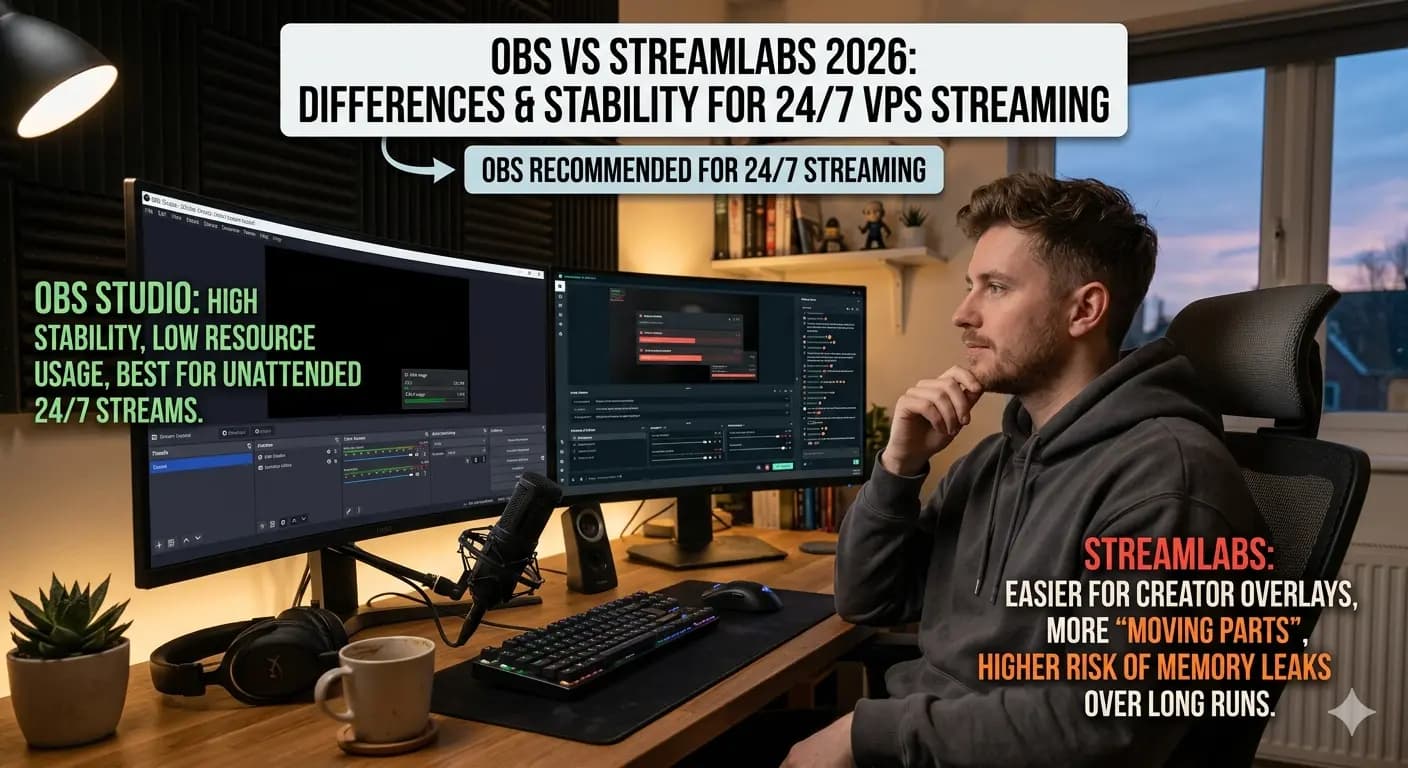
Running a 24/7 stream from a VPS frees your personal computer and internet connection. Whether it's a lo-fi radio, gameplay restream, or content hub, here's how to set it up reliably.
Why Stream from a VPS?
Running a 24/7 stream from your home PC has problems:
- Your PC runs 24/7 (power costs, wear)
- Your internet upload is dedicated to the stream
- Any disruption (Windows update, power outage) kills the stream
- You can't use your PC for other tasks without quality drops
A VPS handles all of this with:
- 99.9% uptime guarantees
- Dedicated bandwidth
- No impact on your personal setup
- Remote management from anywhere
Hardware Requirements
Encoding With CPU (x264)
FFmpeg encoding on CPU requires significant processing power:
| Resolution | Preset | CPU Cores Needed | RAM |
|---|---|---|---|
| 720p30 | medium | 2-4 cores | 2GB |
| 1080p30 | medium | 4-6 cores | 4GB |
| 1080p60 | medium | 6-8 cores | 4GB |
| 4K30 | fast | 8+ cores | 8GB |
VPS Plan Selection
On Space-Node VPS hosting, a 4-core VPS with 8GB RAM handles 1080p30 streaming comfortably, with headroom for audio processing and source management.
FFmpeg 24/7 Stream Setup
Basic Stream Command
ffmpeg -re -stream_loop -1 -i /videos/playlist.mp4 \
    -c:v libx264 -preset medium -b:v 4500k -maxrate 4500k -bufsize 9000k \
    -c:a aac -b:a 192k -ar 44100 \
    -f flv rtmp://live.twitch.tv/app/YOUR_STREAM_KEY
Playlist Streaming
Create a playlist file (playlist.txt):
file '/videos/video1.mp4'
file '/videos/video2.mp4'
file '/videos/video3.mp4'
Stream the playlist on loop:
ffmpeg -re -stream_loop -1 -f concat -safe 0 -i playlist.txt \
    -c:v libx264 -preset medium -b:v 4500k \
    -c:a aac -b:a 192k \
    -f flv rtmp://live.twitch.tv/app/YOUR_STREAM_KEY
With Overlay
Add now-playing text or logo overlay:
ffmpeg -re -stream_loop -1 -i /videos/playlist.mp4 \
    -i /assets/logo.png \
    -filter_complex "[0:v][1:v] overlay=10:10" \
    -c:v libx264 -preset medium -b:v 4500k \
    -c:a aac -b:a 192k \
    -f flv rtmp://live.twitch.tv/app/YOUR_STREAM_KEY
Automated Recovery
systemd Service
Create /etc/systemd/system/stream.service:
[Unit]
Description=24/7 Live Stream
After=network.target

[Service]
Type=simple
User=stream
ExecStart=/usr/bin/ffmpeg -re -stream_loop -1 -i /videos/playlist.mp4 -c:v libx264 -preset medium -b:v 4500k -c:a aac -b:a 192k -f flv rtmp://live.twitch.tv/app/KEY
Restart=always
RestartSec=10

[Install]
WantedBy=multi-user.target
Enable and start:
sudo systemctl enable stream
sudo systemctl start stream
If FFmpeg crashes or the connection drops, systemd restarts it within 10 seconds.
Monitoring
Watch your stream status:
journalctl -u stream -f    # Live logs
systemctl status stream     # Current status
Multi-Platform Streaming
Stream to Twitch and YouTube simultaneously using multiple FFmpeg processes or a restreaming setup:
# Twitch
ffmpeg -re -i source.mp4 -c:v libx264 -b:v 4500k -f flv rtmp://live.twitch.tv/app/TWITCH_KEY &

# YouTube
ffmpeg -re -i source.mp4 -c:v libx264 -b:v 4500k -f flv rtmp://a.rtmp.youtube.com/live2/YOUTUBE_KEY &
Each output doubles CPU usage. A 4-core VPS handles dual-platform at 1080p30.
Content Management
Remote Upload
Upload new content via SFTP:
sftp user@your-vps-ip
put new_video.mp4 /videos/
Automatic Playlist Update
A script that shuffles and updates the playlist:
#!/bin/bash
find /videos -name "*.mp4" | shuf | sed "s/^/file '/" | sed "s/$/'/" > /videos/playlist.txt
Run via cron to shuffle daily:
0 0 * * * /scripts/shuffle_playlist.sh
A VPS-based stream runs indefinitely with minimal intervention. Set it up once, upload content periodically, and your channel stays live around the clock.