Quick answer: Running a 24/7 live stream requires a VPS (€10-30/month) with OBS or FFmpeg looping your content. A 4GB VPS handles 720p easily; 8GB for 1080p. Use FFmpeg for simple loops, or install a full OBS setup for overlays and dynamic content. This guide shows both methods, plus how to automate recovery after crashes.
Why Use a VPS for 24/7 Streaming?
Running a 24/7 stream from your home PC has problems:
- Electricity costs (€20-50/month for a running PC)
- Wear on hardware (fans, drives, GPU)
- Internet instability (router resets, ISP maintenance)
- Can't turn off your computer ever
A VPS solves all of this:
- €10-30/month all-inclusive
- Your PC can stay off
- Datacenter internet (stable, fast)
- No local hardware wear
- Accessible from anywhere
Popular 24/7 Stream Types
| Stream Type | Content | Resources Needed | Example |
|---|---|---|---|
| Lo-fi radio | Looping video + music | Low (2GB) | "lofi hip hop radio" |
| Ambient/relaxation | Nature footage + sounds | Low (2GB) | "Cozy fireplace 4K" |
| News ticker | Scrolling text + audio | Low (2GB) | Crypto price feeds |
| Music visualizer | Audio-reactive graphics | Medium (4GB) | DJ sets with visuals |
| TV channel | Scheduled programming | Medium-High (4-8GB) | Community TV |
| IPTV restream | External source relay | Medium (4GB) | Sports bars |
| Security cam | IP camera relay | Low (2GB) | Nature cams, city views |
VPS Requirements for 24/7 Streaming
| Quality | Resolution | Bitrate | RAM | CPU | Storage | Monthly Cost |
|---|---|---|---|---|---|---|
| Basic | 720p 30fps | 2500 kbps | 2GB | 2 cores | 50GB | €5-10 |
| Standard | 720p 60fps | 4000 kbps | 4GB | 2-4 cores | 80GB | €10-15 |
| High | 1080p 30fps | 4500 kbps | 4GB | 4 cores | 100GB | €15-25 |
| Premium | 1080p 60fps | 6000 kbps | 8GB | 4-6 cores | 150GB | €25-40 |
| Ultra (GPU) | 1080p 60fps+ | 8000+ kbps | 8GB+ GPU | 4+ cores | 200GB | €50-80 |
For most 24/7 streams, a €15-20/month VPS is plenty.
Method 1: FFmpeg Loop (Simple, Low Resource)
Best for: Lo-fi radio, ambient streams, simple video loops.
Step 1: Prepare Your Content
Upload your video file(s) to the VPS:
# Create content directory
mkdir -p /home/user/stream-content
cd /home/user/stream-content

# Upload via SCP from your local machine
scp lofi-video.mp4 user@YOUR_VPS_IP:/home/user/stream-content/
Or download directly:
# Download a video (if you have the URL)
wget https://example.com/your-video.mp4 -O stream-video.mp4
Step 2: Install FFmpeg
sudo apt update
sudo apt install ffmpeg -y
Step 3: Create Streaming Script
nano /home/user/stream.sh
Add this content:
#!/bin/bash
# 24/7 Streaming Script - Loops video to RTMP

VIDEO_FILE="/home/user/stream-content/lofi-video.mp4"
STREAM_KEY="YOUR_YOUTUBE_STREAM_KEY"
RTMP_URL="rtmp://a.rtmp.youtube.com/live2"

while true; do
    ffmpeg -re -stream_loop -1 -i "$VIDEO_FILE" \
        -c:v libx264 -preset veryfast -b:v 3000k -maxrate 3000k -bufsize 6000k \
        -pix_fmt yuv420p -g 60 \
        -c:a aac -b:a 128k -ar 44100 \
        -f flv "${RTMP_URL}/${STREAM_KEY}"

    echo "Stream crashed, restarting in 5 seconds..."
    sleep 5
done
Make it executable:
chmod +x /home/user/stream.sh
Step 4: Run as Background Service
sudo tee /etc/systemd/system/24-7-stream.service << 'EOF'
[Unit]
Description=24/7 Live Stream
After=network.target

[Service]
Type=simple
User=root
WorkingDirectory=/home/user
ExecStart=/home/user/stream.sh
Restart=always
RestartSec=10

[Install]
WantedBy=multi-user.target
EOF

sudo systemctl daemon-reload
sudo systemctl enable 24-7-stream
sudo systemctl start 24-7-stream
Step 5: Check Status
# View service status
sudo systemctl status 24-7-stream

# View logs
journalctl -u 24-7-stream -f
Method 2: Multiple Videos Playlist
Loop through multiple videos in sequence:
#!/bin/bash
# playlist-stream.sh - Loops through multiple videos

PLAYLIST_DIR="/home/user/stream-content/videos"
STREAM_KEY="YOUR_STREAM_KEY"
RTMP_URL="rtmp://a.rtmp.youtube.com/live2"

while true; do
    for video in "$PLAYLIST_DIR"/*.mp4; do
        echo "Now playing: $video"
        ffmpeg -re -i "$video" \
            -c:v libx264 -preset veryfast -b:v 3000k -maxrate 3000k -bufsize 6000k \
            -pix_fmt yuv420p -g 60 \
            -c:a aac -b:a 128k -ar 44100 \
            -f flv "${RTMP_URL}/${STREAM_KEY}"
    done
    echo "Playlist complete, restarting..."
done
Method 3: OBS Studio on VPS (Full Features)
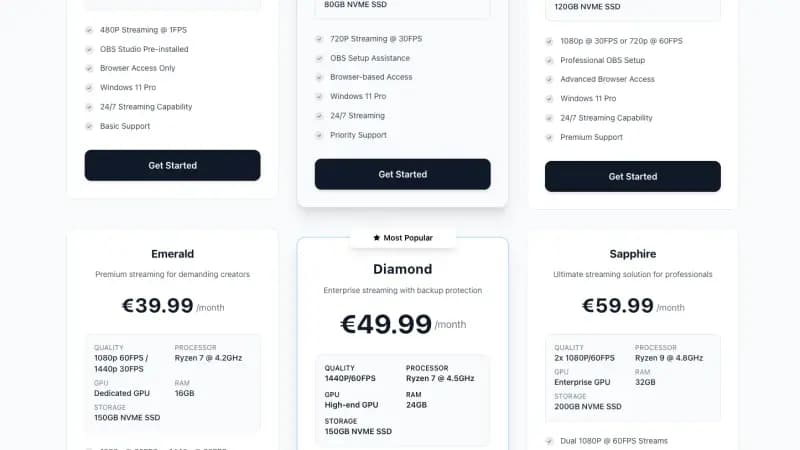
Best for: Dynamic content, overlays, chat integration, scene switching. If you would rather skip the desktop environment and VNC steps below, our 24/7 streaming VPS comes with OBS pre-installed on Windows and runs in your browser.
Step 1: Install Desktop Environment
# Install XFCE (lightweight)
sudo apt update
sudo apt install xfce4 xfce4-goodies -y

# Install VNC server
sudo apt install tigervnc-standalone-server -y

# Set VNC password
vncpasswd

# Create VNC config
mkdir -p ~/.vnc
echo 'startxfce4' > ~/.vnc/xstartup
chmod +x ~/.vnc/xstartup
Step 2: Start VNC Server
# Start VNC on display :1
vncserver :1 -geometry 1920x1080 -depth 24

# Kill it when needed
# vncserver -kill :1
Step 3: Install OBS Studio
# Add OBS repository
sudo add-apt-repository ppa:obsproject/obs-studio -y
sudo apt update
sudo apt install obs-studio -y
Step 4: Connect via VNC
Use a VNC client (RealVNC, TigerVNC Viewer) to connect:
- Server: YOUR_VPS_IP:5901
- Password: (what you set with vncpasswd)
Step 5: Configure OBS
-
Open OBS
-
Settings → Stream:
- Service: YouTube / Twitch / Custom
- Server: (appropriate URL)
- Stream Key: YOUR_KEY
-
Settings → Output:
- Encoder: x264 (or NVENC if GPU available)
- Bitrate: 3000-6000 kbps
- Preset: veryfast
-
Add Sources:
- VLC Video Source for playlists
- Media Source for single videos
- Browser sources for overlays
Step 6: Auto-Start OBS
Create startup script:
nano ~/start-obs.sh
#!/bin/bash
export DISPLAY=:1
obs --startstreaming --minimize-to-tray &
Add to VNC startup:
nano ~/.vnc/xstartup
#!/bin/bash
startxfce4 &
sleep 5
/home/user/start-obs.sh
Platform-Specific Settings
YouTube 24/7 Stream
RTMP_URL="rtmp://a.rtmp.youtube.com/live2"
STREAM_KEY="xxxx-xxxx-xxxx-xxxx-xxxx"
YouTube settings:
- Go to YouTube Studio → Go Live → Stream
- Copy your stream key
- Set as "Unlisted" or "Public"
- Enable DVR for replay
Twitch 24/7 Stream
RTMP_URL="rtmp://live.twitch.tv/app"
STREAM_KEY="live_xxxxxxxx_xxxxxxxxxxxxxx"
Note: Twitch has a 48-hour continuous stream limit. The stream will auto-end, and you'll need to restart.
Kick 24/7 Stream
RTMP_URL="rtmp://ingest.kick.com/live"
STREAM_KEY="your_kick_stream_key"
Advanced: Scheduled Programming (Linear TV)
Create a TV-style channel with scheduled shows:
Install at (scheduler)
sudo apt install at -y
Create Schedule Script
nano /home/user/tv-schedule.sh
#!/bin/bash
# tv-schedule.sh - Change videos at specific times

MORNING_SHOW="/home/user/content/morning-show.mp4"
AFTERNOON_SHOW="/home/user/content/afternoon-show.mp4"
EVENING_SHOW="/home/user/content/evening-show.mp4"
NIGHT_MUSIC="/home/user/content/night-music.mp4"

HOUR=$(date +%H)

if [ $HOUR -ge 6 ] && [ $HOUR -lt 12 ]; then
    VIDEO="$MORNING_SHOW"
elif [ $HOUR -ge 12 ] && [ $HOUR -lt 18 ]; then
    VIDEO="$AFTERNOON_SHOW"
elif [ $HOUR -ge 18 ] && [ $HOUR -lt 23 ]; then
    VIDEO="$EVENING_SHOW"
else
    VIDEO="$NIGHT_MUSIC"
fi

# Stream the appropriate video
ffmpeg -re -stream_loop -1 -i "$VIDEO" \
    -c:v libx264 -preset veryfast -b:v 3000k \
    -c:a aac -b:a 128k \
    -f flv "rtmp://a.rtmp.youtube.com/live2/YOUR_KEY"
Run with Cron
crontab -e
Add:
0 * * * * pkill ffmpeg && /home/user/tv-schedule.sh &
This restarts the stream every hour with the appropriate content.
Adding Dynamic Overlays
Scrolling Text (News Ticker)
ffmpeg -re -stream_loop -1 -i video.mp4 \
    -vf "drawtext=fontfile=/usr/share/fonts/truetype/dejavu/DejaVuSans.ttf:\
    text='BREAKING NEWS - This is your scrolling ticker text':\
    fontcolor=white:fontsize=24:box=1:boxcolor=red@0.8:\
    x=w-mod(t*100\,w+tw):y=h-50" \
    -c:v libx264 -preset veryfast -b:v 3000k \
    -c:a copy -f flv rtmp://a.rtmp.youtube.com/live2/KEY
Current Time Overlay
ffmpeg -re -stream_loop -1 -i video.mp4 \
    -vf "drawtext=fontfile=/usr/share/fonts/truetype/dejavu/DejaVuSans.ttf:\
    text='%{localtime\:%H\\\:%M\\\:%S}':\
    fontcolor=white:fontsize=32:x=10:y=10" \
    -c:v libx264 -preset veryfast -b:v 3000k \
    -c:a copy -f flv rtmp://a.rtmp.youtube.com/live2/KEY
Image Overlay (Logo)
ffmpeg -re -stream_loop -1 -i video.mp4 -i logo.png \
    -filter_complex "overlay=W-w-10:10" \
    -c:v libx264 -preset veryfast -b:v 3000k \
    -c:a copy -f flv rtmp://a.rtmp.youtube.com/live2/KEY
Monitoring Your Stream
Check If Stream Is Running
# Check process
ps aux | grep ffmpeg

# Check systemd service
systemctl status 24-7-stream
Stream Health Monitoring Script
nano /home/user/monitor.sh
#!/bin/bash
# monitor.sh - Restart stream if FFmpeg dies

while true; do
    if ! pgrep -x "ffmpeg" > /dev/null; then
        echo "$(date): FFmpeg not running, restarting..."
        systemctl restart 24-7-stream
    fi
    sleep 60
done
Discord/Telegram Alerts
#!/bin/bash
DISCORD_WEBHOOK="https://discord.com/api/webhooks/YOUR_WEBHOOK"

if ! pgrep -x "ffmpeg" > /dev/null; then
    curl -H "Content-Type: application/json" \
         -d '{"content": "⚠️ 24/7 Stream is DOWN! Attempting restart..."}' \
         $DISCORD_WEBHOOK
    systemctl restart 24-7-stream
    sleep 30
    if pgrep -x "ffmpeg" > /dev/null; then
        curl -H "Content-Type: application/json" \
             -d '{"content": "✅ 24/7 Stream is back UP!"}' \
             $DISCORD_WEBHOOK
    fi
fi
Add to cron (every 5 minutes):
*/5 * * * * /home/user/monitor.sh
Bandwidth and Storage Calculations
Streaming Bandwidth
| Quality | Bitrate | Per Hour | Per Day | Per Month |
|---|---|---|---|---|
| 720p30 | 2,500 kbps | 1.1 GB | 26 GB | 790 GB |
| 720p60 | 4,000 kbps | 1.8 GB | 43 GB | 1.3 TB |
| 1080p30 | 4,500 kbps | 2.0 GB | 48 GB | 1.4 TB |
| 1080p60 | 6,000 kbps | 2.7 GB | 65 GB | 1.9 TB |
Make sure your VPS has enough bandwidth. Most Space-Node plans include 5-10TB/month - plenty for 24/7 streaming.
Storage for Content
| Content Type | Size (1 hour) | For 24h Loop |
|---|---|---|
| 720p video | 1-2 GB | 1-2 GB |
| 1080p video | 2-4 GB | 2-4 GB |
| Audio only | 100-200 MB | 100-200 MB |
| 4K video | 8-15 GB | 8-15 GB |
A 50GB VPS can store 10-20 hours of 1080p content - enough for most loop-based streams.
Cost Comparison: VPS vs Home PC
Home PC (Running 24/7)
| Cost | Monthly |
|---|---|
| Electricity (150W average) | €25-40 |
| Internet (already paying) | €0 |
| Hardware depreciation | €10-20 |
| Total | €35-60 |
VPS (Space-Node)
| Plan | Monthly |
|---|---|
| 4GB VPS (720p-1080p30) | €10-15 |
| 8GB VPS (1080p60) | €20-30 |
| Total | €10-30 |
VPS is 50-70% cheaper than running a home PC 24/7, plus you get better reliability.
Troubleshooting
Stream Keeps Stopping
# Check if FFmpeg crashed
journalctl -u 24-7-stream -n 50

# Common causes:
# - Out of memory → upgrade VPS
# - Video file corrupted → re-encode
# - Network timeout → add reconnect logic
Audio/Video Sync Issues
# Re-encode video with fixed sync
ffmpeg -i input.mp4 -c:v libx264 -c:a aac -async 1 output.mp4
High CPU Usage
# Use faster preset (lower quality but less CPU)
-preset ultrafast  # instead of veryfast

# Or use hardware encoding if available
-c:v h264_nvenc  # NVIDIA GPU
-c:v h264_vaapi  # Intel/AMD GPU
Black Screen on Platform
- Check your stream key is correct
- Verify RTMP URL is right
- Make sure video file exists and plays locally
- Check FFmpeg error output
Frequently Asked Questions
How long can I stream continuously?
YouTube: Unlimited (officially supported)
Twitch: 48 hours max, then auto-ends
Kick: No official limit documented
Do I need a GPU for 24/7 streaming?
No. CPU encoding (x264) works fine for 720p-1080p. GPU helps for 1080p60 or higher, or if you need lower latency encoding.
Will my video quality degrade over time?
No. Each loop re-reads the original file. Quality stays consistent.
Can I monetize a 24/7 stream?
YouTube: Yes, if you meet Partner requirements and content is original
Twitch: Yes, with affiliate/partner status
Check each platform's ToS for automated content rules.
What if my VPS reboots?
With systemd service enabled, the stream auto-starts after reboot. You might lose 1-2 minutes during the restart.
Conclusion
Running a 24/7 live stream is easier and cheaper than most people think:
- €10-20/month VPS is all you need
- FFmpeg handles simple loops perfectly
- OBS adds overlays and dynamic content
- Systemd keeps everything running automatically
Whether you're building a lo-fi radio channel, nature cam, or community TV station - a VPS is the smart way to do it.
Ready to start your 24/7 stream? Space-Node's VPS hosting runs in the Netherlands, from €5.50/month for VPS-S with NVMe storage and a 10 TB monthly transfer allowance. The VPS plans are out of stock until about the end of October. If you want OBS pre-installed and browser access instead, see our streaming VPS plans.
Related guides: