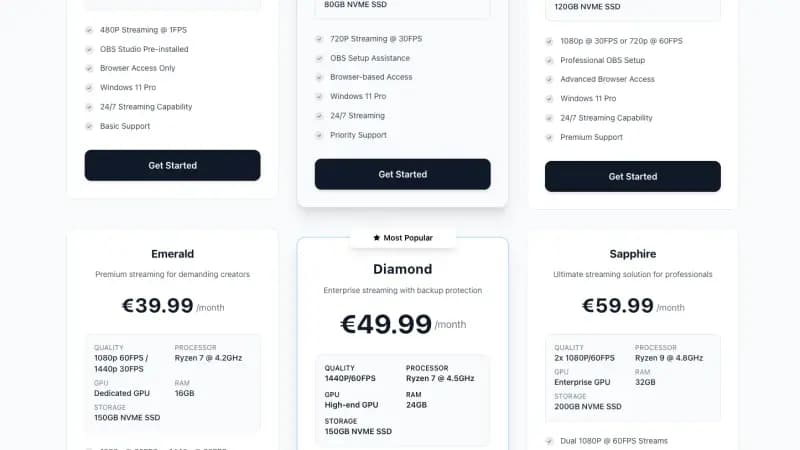
Quick answer: You can run OBS Studio on a Linux VPS using a virtual desktop (VNC/RDP). A 4GB VPS handles 720p60, 8GB for 1080p60. Install XFCE + OBS, connect via VNC client, configure your stream settings, and run 24/7. What it costs depends on the resolution and frame rate you need; see the requirements table below.
Why Run OBS on a VPS?
Running OBS locally has limitations:
- Eats your CPU/GPU while gaming
- Requires your PC running for 24/7 streams
- Home internet can be unreliable
- Electricity costs add up for a PC that is on day and night
Cloud OBS solves these:
- Dedicated encoding power
- Datacenter internet (1Gbps+, stable)
- Access from anywhere (phone, laptop, tablet)
- Datacenter power and cooling instead of your living room
- No hardware to buy up front, just a monthly fee
Use Cases for Cloud OBS
| Use Case | Description | Why Cloud OBS |
|---|---|---|
| 24/7 Radio/TV | Lo-fi streams, ambient channels | Runs forever without home PC |
| Remote production | Stream from anywhere | Access OBS via phone/laptop |
| Gaming without lag | Offload encoding | Local PC focuses on game |
| Multi-cam events | Church, conferences | Central production hub |
| Backup streaming | Failover if home fails | Redundancy for important streams |
| Team streaming | Multiple operators | Everyone can access same OBS |
VPS Requirements
| Quality Target | CPU | RAM | Storage | Bandwidth | Price |
|---|---|---|---|---|---|
| 720p30 | 2 cores | 2GB | 40GB | 5TB | €5-10 |
| 720p60 | 2 cores | 4GB | 60GB | 10TB | €10-15 |
| 1080p30 | 4 cores | 4GB | 80GB | 10TB | €15-25 |
| 1080p60 | 4 cores | 8GB | 100GB | 15TB | €25-40 |
| 1080p60 (GPU) | 4 cores + GPU | 8GB+ | 100GB | 15TB | €50-100 |
For most streamers, a €15-25/month VPS (4GB RAM, 4 cores) handles 1080p30 perfectly.
Step 1: Choose Your VPS
Order a VPS with:
- Ubuntu 22.04 or Debian 12
- At least 4GB RAM for serious streaming
- Location close to your audience (or streaming platform servers)
Space-Node's VPS servers are in the Netherlands, a central location if most of your viewers are in Europe.
Step 2: Initial Server Setup
SSH into your VPS:
ssh root@YOUR_VPS_IP
Update the system:
apt update && apt upgrade -y
Create a non-root user (recommended):
adduser streamer
usermod -aG sudo streamer
Step 3: Install Desktop Environment
XFCE is lightweight and works great for remote OBS:
apt install xfce4 xfce4-goodies dbus-x11 -y
For a slightly more modern look, you can use XFCE with arc-theme:
apt install arc-theme papirus-icon-theme -y
Step 4: Install VNC Server
Option A: TigerVNC (Recommended)
apt install tigervnc-standalone-server tigervnc-common -y
Switch to your user and set VNC password:
su - streamer
vncpasswd
# Enter password (max 8 characters used)
Create VNC startup file:
mkdir -p ~/.vnc
nano ~/.vnc/xstartup
Add this content:
#!/bin/bash
unset SESSION_MANAGER
unset DBUS_SESSION_BUS_ADDRESS
exec startxfce4
Make it executable:
chmod +x ~/.vnc/xstartup
Start VNC server:
vncserver :1 -geometry 1920x1080 -depth 24
Option B: x11vnc (Simpler, Full Desktop)
apt install x11vnc xvfb -y
Start virtual display + VNC:
Xvfb :0 -screen 0 1920x1080x24 &
x11vnc -display :0 -forever -passwd YOUR_PASSWORD -bg
Step 5: Secure VNC with SSH Tunnel
VNC traffic is unencrypted by default. Use SSH tunneling:
On your local machine:
ssh -L 5901:localhost:5901 streamer@YOUR_VPS_IP
Then connect your VNC client to: localhost:5901
This encrypts all VNC traffic through SSH.
Step 6: Install OBS Studio
Switch to root or use sudo:
# Add OBS repository
sudo add-apt-repository ppa:obsproject/obs-studio -y
sudo apt update

# Install OBS
sudo apt install obs-studio -y
Also install useful plugins:
# VLC for video sources
sudo apt install vlc -y

# FFmpeg for recording/streaming
sudo apt install ffmpeg -y

# PulseAudio for audio management
sudo apt install pulseaudio pavucontrol -y
Step 7: Connect and Configure OBS
Connect via VNC Client
Use a VNC client on your local machine:
- Windows: RealVNC Viewer, TightVNC
- Mac: Screen Sharing, RealVNC
- Linux: Remmina, TigerVNC Viewer
- Mobile: VNC Viewer (iOS/Android)
Connect to: YOUR_VPS_IP:5901 (or localhost:5901 if using SSH tunnel)
First OBS Launch
Open terminal in VNC session and start OBS:
obs
Run through the auto-configuration wizard:
- Select "Optimize for streaming"
- Choose your resolution (720p or 1080p)
- Let OBS test your system
Configure Stream Settings
Go to Settings → Stream:
For YouTube:
- Service: YouTube - RTMPS
- Server: Primary YouTube ingest server
- Stream Key: (from YouTube Studio → Go Live → Stream)
For Twitch:
- Service: Twitch
- Server: Auto (or closest EU server)
- Stream Key: (from Twitch Dashboard → Settings → Stream)
For Kick:
- Service: Custom
- Server: rtmp://ingest.kick.com/live
- Stream Key: (from Kick Dashboard)
Configure Output Settings
Settings → Output → Streaming:
Encoder: x264 (or NVENC if GPU available)
Rate Control: CBR
Bitrate: 4500 (for 1080p30) or 6000 (for 1080p60)
Keyframe Interval: 2
Preset: veryfast (good balance)
Profile: main (for compatibility)
Settings → Video:
Base Resolution: 1920x1080
Output Resolution: 1920x1080 (or 1280x720)
FPS: 30 or 60
Step 8: Add Your Content Sources
For 24/7 Video Loops
Add a VLC Video Source:
- Sources → Add → VLC Video Source
- Add your video files or folder
- Check "Loop playlist"
For Live Camera/Capture
You'll need to send your local video to the VPS. Options:
Option 1: NDI (Best quality)
On local PC:
- Install OBS + NDI plugin
- Enable NDI output in OBS
On VPS OBS:
- Install obs-ndi plugin
- Add NDI Source pointing to your IP
Option 2: SRT/RTMP Relay
On VPS, run nginx-rtmp and accept your local stream, then use Media Source in OBS to capture it.
For Browser Sources
Works the same as local OBS:
- Sources → Add → Browser
- Enter URL (StreamElements, Streamlabs overlays, etc.)
Step 9: Auto-Start OBS on Boot
Create systemd service for VNC:
sudo nano /etc/systemd/system/vncserver@.service
[Unit]
Description=VNC Server for display %i
After=network.target

[Service]
Type=forking
User=streamer
Group=streamer
WorkingDirectory=/home/streamer

ExecStartPre=/bin/sh -c '/usr/bin/vncserver -kill :%i > /dev/null 2>&1 || :'
ExecStart=/usr/bin/vncserver :%i -geometry 1920x1080 -depth 24
ExecStop=/usr/bin/vncserver -kill :%i

[Install]
WantedBy=multi-user.target
Enable it:
sudo systemctl daemon-reload
sudo systemctl enable vncserver@1
sudo systemctl start vncserver@1
Create OBS auto-start script:
nano /home/streamer/start-obs.sh
#!/bin/bash
export DISPLAY=:1

# Wait for desktop to be ready
sleep 10

# Start OBS and begin streaming
obs --startstreaming --minimize-to-tray &
chmod +x /home/streamer/start-obs.sh
Add to XFCE autostart:
mkdir -p /home/streamer/.config/autostart
nano /home/streamer/.config/autostart/obs.desktop
[Desktop Entry]
Type=Application
Name=OBS Studio
Exec=/home/streamer/start-obs.sh
Hidden=false
NoDisplay=false
X-GNOME-Autostart-enabled=true
Step 10: Sending Local Video to Cloud OBS
If you want to stream your gameplay from your home PC but encode on the VPS:
Method 1: RTMP Relay
On VPS, install nginx-rtmp:
sudo apt install nginx libnginx-mod-rtmp -y
Add to /etc/nginx/nginx.conf:
rtmp {
    server {
        listen 1935;
        chunk_size 4096;

        application live {
            live on;
            record off;
        }
    }
}
Restart nginx:
sudo systemctl restart nginx
On your local PC (OBS):
- Settings → Stream → Custom
- Server: rtmp://YOUR_VPS_IP/live
- Stream Key: mystream
On VPS OBS:
- Add Media Source
- Uncheck "Local File"
- Input: rtmp://localhost/live/mystream
Method 2: SRT (Better for unstable internet)
On VPS:
# Install SRT
sudo apt install srt-tools -y

# Start SRT listener
srt-live-transmit srt://:9999?mode=listener -v file://con | ffmpeg -i - -c copy -f flv rtmp://localhost/live/srt-input &
On local OBS:
- Settings → Stream → Custom
- Server: srt://YOUR_VPS_IP:9999
- Stream Key: (leave empty)
Method 2: RDP (Windows-like Experience)
Prefer RDP over VNC? Install xrdp:
sudo apt install xrdp -y
sudo systemctl enable xrdp
Configure XFCE for xrdp:
echo "startxfce4" > ~/.xsession
Connect with any RDP client:
- Windows: Remote Desktop Connection
- Mac: Microsoft Remote Desktop
- Linux: Remmina
Connect to: YOUR_VPS_IP:3389
Performance Optimization
Reduce CPU Usage
In OBS Settings → Output:
Preset: ultrafast (lowest quality, lowest CPU)
OR
Preset: veryfast (good balance)
Use Hardware Encoding (If GPU Available)
Some VPS providers offer GPU instances:
Encoder: NVENC H.264 (for NVIDIA)
OR
Encoder: VA-API H.264 (for Intel/AMD)
Optimize X11 Performance
Disable compositor for lower latency:
# In XFCE Settings → Window Manager Tweaks → Compositor
# Uncheck "Enable display compositing"
Or via terminal:
xfconf-query -c xfwm4 -p /general/use_compositing -s false
Monitoring and Alerts
Monitor OBS via Script
nano /home/streamer/monitor-obs.sh
#!/bin/bash
DISCORD_WEBHOOK="https://discord.com/api/webhooks/YOUR_WEBHOOK"

if ! pgrep -x "obs" > /dev/null; then
    curl -H "Content-Type: application/json" \
         -d '{"content": "⚠️ OBS is not running! Starting it now..."}' \
         $DISCORD_WEBHOOK

    export DISPLAY=:1
    obs --startstreaming &

    sleep 30

    if pgrep -x "obs" > /dev/null; then
        curl -H "Content-Type: application/json" \
             -d '{"content": "✅ OBS is back online!"}' \
             $DISCORD_WEBHOOK
    fi
fi
Add to crontab:
crontab -e
*/5 * * * * /home/streamer/monitor-obs.sh
Check Stream Status
# Check if OBS is running
pgrep -x obs && echo "OBS Running" || echo "OBS Not Running"

# Check network output (streaming?)
ss -tulpn | grep obs
Multi-User Access
Let multiple team members control OBS:
Create Additional VNC Displays
# User 1 - Display :1
vncserver :1 -geometry 1920x1080

# User 2 - Display :2 (view only)
vncserver :2 -geometry 1920x1080
Use a Collaborative VNC Solution
Install noVNC for browser-based access:
sudo apt install novnc websockify -y

# Start noVNC
websockify --web /usr/share/novnc 6080 localhost:5901 &
Access via browser: http://YOUR_VPS_IP:6080/vnc.html
Security Best Practices
Firewall Configuration
# Install UFW
sudo apt install ufw -y

# Allow SSH
sudo ufw allow 22

# Allow VNC only from your IP
sudo ufw allow from YOUR_HOME_IP to any port 5901

# Enable firewall
sudo ufw enable
Use SSH Keys
# On your local machine
ssh-keygen -t ed25519

# Copy to server
ssh-copy-id streamer@YOUR_VPS_IP

# Disable password auth on server
sudo nano /etc/ssh/sshd_config
# Set: PasswordAuthentication no
sudo systemctl restart sshd
VNC Security
- Always use SSH tunnel for VNC
- Change default VNC port
- Use strong VNC password
- Consider xrdp with TLS instead
Cost Analysis
VPS Streaming vs Local PC
| Factor | Home PC 24/7 | VPS |
|---|---|---|
| Hardware | You buy it and replace it | Part of the monthly price |
| Electricity | On your own bill, 24 hours a day | Included |
| Upload | Shared with everyone in your house | The provider's uplink (a 1 Gbps port on Space-Node VPS plans) |
| Power cuts and router trouble | Take the stream down | Not your problem; the hardware and network are the provider's job |
| Software upkeep | You | Still you: a VPS gives you root access, it is not a managed service |
What the VPS costs depends on how much CPU OBS needs for your resolution and frame rate, so start from the requirements table at the top of this guide.
VPS vs Managed Streaming
| Solution | Monthly Cost | What You Get |
|---|---|---|
| Restream | Free plan (2 channels, with Restream branding), Standard $19/month | Multistreaming and a browser studio |
| StreamYard | Check streamyard.com for current plans | Browser streaming |
| Cloud OBS (VPS) | Whatever your VPS costs | Full OBS, any features |
| Custom server | Whatever your server costs | Total control |
Restream's prices are from restream.io/pricing, checked on 28 September 2026.
Troubleshooting
VNC Connection Refused
# Check if VNC is running
vncserver -list

# Restart VNC
vncserver -kill :1
vncserver :1 -geometry 1920x1080
OBS Won't Start (Display Error)
# Make sure DISPLAY is set
export DISPLAY=:1
obs
Audio Issues (No Sound)
# Start PulseAudio
pulseaudio --start

# Or in OBS, set audio to "pulse" device
High Latency/Lag in VNC
- Lower VNC color depth:
-depth 16 - Use tighter encoding in VNC client
- Consider RDP instead (more efficient)
- Check network between you and VPS
OBS Streaming But No Video on Platform
- Verify stream key is correct
- Check RTMP URL (some platforms change these)
- Look at OBS → Help → Log Files for errors
- Ensure firewall allows outbound 1935 (RTMP)
Frequently Asked Questions
Can I stream games this way?
Yes, but with extra steps. Your game runs locally, you capture it, send via NDI/RTMP to the VPS, and the VPS re-encodes and streams to Twitch/YouTube.
Does VPS OBS support all plugins?
Most Linux-compatible plugins work. Some Windows-only plugins (like some Snap Camera) won't work.
Is there input lag for live shows?
The VNC connection adds some lag, depending on your connection and the distance to the VPS. For pre-recorded/24/7 content, this doesn't matter. For live shows, you'd use NDI or RTMP relay and just control OBS remotely.
Can I use NVENC on VPS?
Only on GPU VPS instances. Most VPS are CPU-only, so you'll use x264 encoding.
What's the maximum stream quality?
Depends on VPS CPU. A 4-core VPS handles 1080p30 easily. For 1080p60 or 4K, you need 6+ cores or GPU instance.
Conclusion
Running OBS on a VPS is the professional approach to streaming:
- Better reliability than home internet
- Lower total cost than running a PC 24/7
- Access from anywhere via VNC/RDP
- Perfect for 24/7 streams and automated content
Setup takes about 30 minutes, and you'll have a cloud streaming server that runs indefinitely.
Ready to move OBS to the cloud? Space-Node VPS hosting runs KVM servers in the Netherlands with full root access and a 1 Gbps port, from €5.50/month for VPS-S (2 vCores, 4GB RAM). The VPS plans are out of stock until about the end of October. If you would rather skip the Linux and VNC setup, our streaming VPS plans are Windows machines with OBS preinstalled.
Related guides: