Quick answer: AzuraCast is free, open-source software that runs your own radio station on a VPS. A €5-10/month VPS handles 100+ listeners easily. Install with one Docker command, upload your music, and you're broadcasting. This guide covers complete setup, AutoDJ configuration, and going live with DJs.
Why Host Your Own Radio Station?
Traditional Radio Hosting Problems
| Service | Monthly Cost | Listeners | Storage | Limitations |
|---|---|---|---|---|
| Live365 | €50-200 | 500-2500 | Limited | Platform lock-in |
| Radionomy | €15-50 | 1000-5000 | 50GB | Forced ads |
| Caster.fm | €9-29 | 100-500 | 10-50GB | Bandwidth limits |
| Shoutcast Hosting | €10-50 | Varies | Limited | Often oversold |
Self-Hosted with AzuraCast
| VPS Cost | Listeners | Storage | Features |
|---|---|---|---|
| €5/month | 100-200 | 40GB | Basic AutoDJ |
| €10/month | 300-500 | 80GB | Full features |
| €20/month | 1000+ | 150GB+ | Multiple stations |
| €30+/month | 2000+ | 300GB+ | High availability |
Benefits:
- No listener limits (only bandwidth)
- Unlimited storage (your VPS disk)
- Multiple stations on one server
- No ads unless you want them
- Full control over everything
- Professional web interface
What is AzuraCast?
AzuraCast is a free, open-source web radio management suite that includes:
- AutoDJ (Liquidsoap): Automatic music rotation, scheduling, jingles
- Streaming (Icecast/Shoutcast): Compatible with all radio directories
- Web Interface: Modern dashboard for management
- Live DJ Support: RTMP and direct source connections
- Analytics: Listener stats, song history, reports
- Podcasting: Built-in podcast hosting
- API: Full REST API for custom apps
VPS Requirements
| Use Case | CPU | RAM | Storage | Bandwidth | Cost |
|---|---|---|---|---|---|
| Solo hobby station | 1 core | 1GB | 20GB | 2TB | €5 |
| Small community radio | 2 cores | 2GB | 50GB | 5TB | €10 |
| Professional station | 2-4 cores | 4GB | 100GB | 10TB | €15-25 |
| Multi-station hub | 4 cores | 8GB | 200GB | 20TB | €30-50 |
Bandwidth calculation:
- 128kbps MP3 × 100 listeners = 12.8 Mbps
- Per month: ~4.1 TB
- Most VPS plans include 5-10TB, plenty for small-medium stations
Step 1: Prepare Your VPS
Order a VPS with:
- Ubuntu 22.04 or Debian 12
- At least 2GB RAM (recommended)
- Docker support
SSH into your server:
ssh root@YOUR_VPS_IP
Update the system:
apt update && apt upgrade -y
Step 2: Install Docker
AzuraCast runs in Docker containers for easy installation and updates:
# Install Docker
curl -fsSL https://get.docker.com -o get-docker.sh
sh get-docker.sh

# Install Docker Compose
apt install docker-compose-plugin -y

# Verify installation
docker --version
docker compose version
Step 3: Install AzuraCast
One-command installation:
mkdir -p /var/azuracast
cd /var/azuracast

curl -fsSL https://raw.githubusercontent.com/AzuraCast/AzuraCast/main/docker.sh > docker.sh
chmod a+x docker.sh
./docker.sh install
The installer will ask:
- Release channel: Choose
stablefor production - Let's Encrypt: Say
yesif you have a domain name pointed to your server - Domain name: Enter your domain (e.g., radio.example.com)
Installation takes 5-10 minutes.
Step 4: Initial Setup
Access AzuraCast at: http://YOUR_VPS_IP or https://your-domain.com
Create Admin Account
- Click "Create Account"
- Enter your email and password
- This becomes your super-admin account
Create Your First Station
- Go to System Administration → Stations
- Click Add Station
- Fill in:
- Name: My Radio Station
- Short Name: myradio (used in URLs)
- Frontend: Icecast (recommended) or Shoutcast
- Backend: Liquidsoap (for AutoDJ)
- Click Save
Step 5: Configure Your Station
Station Settings
Go to your station's dashboard → Settings:
General:
- Station name and description
- Genre (for directories)
- Website URL
Frontend (Icecast):
- Port: 8000 (default)
- Max listeners: Set based on your bandwidth
- Stream format: MP3 128kbps (most compatible)
Backend (Liquidsoap):
- Enable AutoDJ: Yes
- Crossfade duration: 3-5 seconds
- Enable song requests: Yes/No
Stream Mount Points
Default mount points:
/radio.mp3- MP3 stream (most compatible)/radio.ogg- Ogg Vorbis (better quality, less compatible)
Your stream URLs will be:
http://YOUR_IP:8000/radio.mp3https://your-domain.com/radio.mp3
Step 6: Upload Your Music
Via Web Interface
- Go to Media → Music Files
- Click Upload Files
- Drag and drop your music
Via SFTP (For Large Libraries)
Use SFTP client (FileZilla, WinSCP):
- Server: YOUR_VPS_IP
- Port: 2022 (AzuraCast SFTP)
- Username: Your station's short name
- Password: Found in Station → SFTP Users
Upload to /media folder.
Organize with Playlists
- Go to Media → Playlists
- Create playlists:
- General Rotation: Main music library
- New Releases: Play more frequently
- Late Night: Different vibe
- Jingles: Station IDs, ads
Configure playlist weight and scheduling:
- Weight: Higher = plays more often
- Schedule: Specific times of day
Step 7: Set Up AutoDJ
Playlist Configuration
Go to Media → Playlists, create:
Main Rotation:
- Type: Default Playlist
- Weight: 3 (plays 3x more than weight 1)
- Include: All general music
Jingles:
- Type: Once Per X Songs
- Play every: 5 songs
- Include: Station IDs, bumpers
Scheduled Shows:
- Type: Scheduled
- Schedule: Monday 20:00-22:00
- Include: Specific genre/vibe
Crossfade Settings
Go to Station Settings → Backend:
Crossfade Duration: 4 seconds
Apply Crossfade to Playlists: Yes
Smart Mixing
AzuraCast automatically:
- Balances playlist weights
- Avoids repeating artists too soon
- Follows scheduling rules
- Handles requests and dedications
Step 8: Enable Live DJs
Create DJ Account
- Go to Station → Streamers/DJs
- Click Add Streamer
- Fill in:
- Username: dj-name
- Password: Strong password
- Display Name: DJ Cool Name
DJ Connection Settings
For BUTT (Broadcast Using This Tool):
- Server: YOUR_VPS_IP
- Port: 8006 (Icecast source port)
- Password: DJ password
- Mount: /live
For Mixxx:
- Type: Icecast 2
- Host: YOUR_VPS_IP
- Port: 8006
- Mount: /live
- User: dj-username
- Password: DJ password
For OBS/Broadcasting Software: Use RTMP connection:
- Server: rtmp://YOUR_VPS_IP:1935/live
- Stream Key: dj-username?password=djpassword
DJ Priority
Configure when DJ takes over from AutoDJ:
- Go to Station Settings
- AutoDJ Queue Length: Set to 2-3 songs
- When DJ connects, AutoDJ fades out after current song
Step 9: Add Listener Analytics
Built-in Analytics
AzuraCast automatically tracks:
- Current listeners
- Peak listeners (hourly, daily, monthly)
- Listener locations
- Songs played and listener counts per song
- Average listening time
Access via: Reports → Statistics
Export Options
- CSV export for spreadsheets
- API endpoints for custom dashboards
- Webhook integration for Discord notifications
Discord Notifications
- Go to Station → Web Hooks
- Add webhook type: Discord
- Enter Discord webhook URL
- Configure events:
- Song changes
- Listener milestones
- DJ connections
Step 10: Submit to Radio Directories
Get your station listed in radio directories for more listeners.
Directory Information
Go to Station Settings → Profile and fill in:
- Genre
- Description
- Website
- Logo (250×250 minimum)
Shoutcast Directory
- Create account at shoutcast.com
- Get DNAS auth hash
- In AzuraCast, go to Station → Mount Points
- For your main mount, add:
- Shoutcast Directory: Enable
- Auth hash: Your Shoutcast hash
TuneIn
- Apply at tunein.com/broadcasters
- Submit your stream URL
- Once approved, listeners find you in TuneIn app
Radio Garden
- Visit radio.garden/add
- Submit your station with location
- Appears on global radio map
Radio Browser
- Automatic via Icecast directory
- Or submit at radio-browser.info
Advanced: Multiple Stations
AzuraCast supports unlimited stations on one server.
Create Additional Station
- System Administration → Stations → Add Station
- Each station gets:
- Unique ports
- Separate media library
- Independent DJs
- Own analytics
Example Multi-Station Setup
| Station | Port | Genre |
|---|---|---|
| Main Radio | 8000 | Various |
| EDM Channel | 8010 | Electronic |
| Chill Lounge | 8020 | Ambient |
| Talk Radio | 8030 | Talk/Podcast |
Resource usage: Add ~200MB RAM per active station.
Custom Domain Setup
Point Domain to Server
Add DNS records:
A     radio.example.com    → YOUR_VPS_IP
AAAA  radio.example.com    → YOUR_VPS_IPv6 (optional)
Enable HTTPS
AzuraCast includes Let's Encrypt:
cd /var/azuracast
./docker.sh update-self
./docker.sh letsencrypt-create
Enter your domain when prompted.
Stream URLs
After setup:
https://radio.example.com/radio.mp3https://radio.example.com/radio.ogg
Embedding Your Player
Simple HTML5 Player
<audio controls>
    <source src="https://radio.example.com/radio.mp3" type="audio/mpeg">
    Your browser does not support audio.
</audio>
AzuraCast Public Page
AzuraCast includes a public player page:
https://radio.example.com/public/station-name
Features:
- Now playing info
- Song history
- Request songs
- Schedule display
Custom Widget
<iframe
    src="https://radio.example.com/public/station-name/embed"
    width="300" height="150"
    frameborder="0">
</iframe>
Mobile Apps
Recommend These to Listeners
| App | Platform | Features |
|---|---|---|
| TuneIn | iOS/Android | If listed in TuneIn directory |
| Radio Garden | iOS/Android | If submitted to Radio Garden |
| Simple Radio | iOS/Android | Add any stream URL |
| VLC | All platforms | Direct stream URL |
Your Own App
Use the AzuraCast API to build custom mobile apps:
- Now playing endpoint
- Song history
- Listener count
- Request system
API documentation: Your AzuraCast URL + /api
Performance Optimization
Reduce CPU Usage
# In Station Settings → Backend
Liquidsoap Quality: Medium (default) or Low (if CPU constrained)
Caching
Enable CloudFlare or similar CDN for the web interface (not streams).
Memory Limits
Edit docker-compose.override.yml:
services:
  web:
    mem_limit: 512m
  mariadb:
    mem_limit: 256m
  redis:
    mem_limit: 64m
Monitoring
# Check resource usage
docker stats

# View logs
./docker.sh logs

# Check specific service
docker logs azuracast_web
Backup Your Station
Automatic Backups
- Go to System Administration → Backups
- Configure:
- Frequency: Daily
- Storage: Local or remote (S3, SFTP)
- Include media: Yes (large) or No (config only)
Manual Backup
cd /var/azuracast
./docker.sh backup

# Backup saved to /var/azuracast/backups/
Restore
./docker.sh restore /path/to/backup.zip
Security Configuration
Firewall Setup
# Install UFW
apt install ufw -y

# Allow SSH
ufw allow 22

# Allow HTTP/HTTPS
ufw allow 80
ufw allow 443

# Allow streaming ports
ufw allow 8000  # Icecast listener port
ufw allow 8006  # Icecast source port (DJs)

# Allow SFTP
ufw allow 2022

# Enable firewall
ufw enable
Secure Admin Access
- Use strong passwords
- Enable 2FA: System Administration → Users → Your user → Enable 2FA
- Limit admin IPs if possible
DJ IP Restrictions
In Streamer settings:
- Set allowed IP ranges
- Limit connection attempts
Troubleshooting
No Audio / Stream Offline
# Check if services are running
./docker.sh up -d

# Restart services
./docker.sh restart

# Check logs
./docker.sh logs
AutoDJ Not Playing
- Check Media → Music Files - files uploaded?
- Check Playlists - are songs assigned to playlists?
- Check station is started: Station dashboard → Start
DJs Can't Connect
- Verify port 8006 is open in firewall
- Check DJ credentials are correct
- Ensure station allows live streamers
High CPU Usage
# Check which container is using CPU
docker stats

# Usually Liquidsoap (AutoDJ)
# Reduce quality or simplify playlists
Out of Disk Space
# Check disk usage
df -h

# Remove old logs
./docker.sh logs --clear

# Remove old backups
rm /var/azuracast/backups/old-backup.zip
Cost Analysis
Self-Hosted AzuraCast
| Component | Monthly Cost |
|---|---|
| VPS (4GB) | €10-15 |
| Domain (optional) | €1-2 |
| Total | €11-17 |
Commercial Alternatives
| Service | Listeners | Price |
|---|---|---|
| Live365 Starter | 500 | €50/month |
| Radionomy Pro | 1000 | €29/month |
| Caster.fm Premium | 500 | €29/month |
Savings
Self-hosting saves €200-400/year while getting more listeners, storage, and control.
Frequently Asked Questions
Is AzuraCast really free?
Yes, completely open-source and free. No hidden fees, no listener limits, no ads.
Can I monetize my station?
Yes. Insert your own ads, accept donations, sell sponsorships. You keep 100% of revenue.
What music formats are supported?
MP3, FLAC, OGG, AAC, and most audio formats. AzuraCast transcodes as needed.
How many listeners can I handle?
Depends on bandwidth. A 10TB/month VPS can handle ~500 concurrent 128kbps listeners 24/7.
Can I schedule pre-recorded shows?
Yes. Create scheduled playlists for specific times. Perfect for talk shows, themed hours, or syndicated content.
Does it work with SAM Broadcaster?
Yes. Configure SAM to output to Icecast source port (8006) as an external encoder.
Conclusion
Running your own internet radio station with AzuraCast is:
- Affordable: €10-15/month vs €50+ for commercial hosting
- Powerful: AutoDJ, live DJs, analytics, podcasting
- Scalable: Add stations and listeners as you grow
- Professional: Submit to directories, embed on websites
Setup takes about 30 minutes, and you'll have a professional radio station running 24/7.
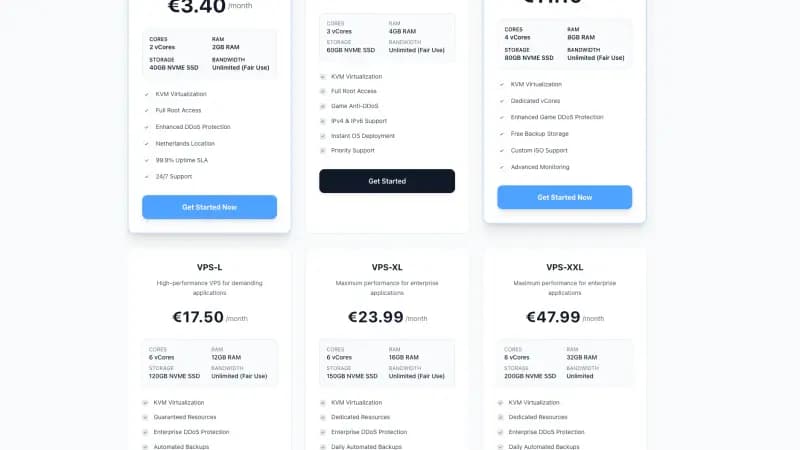
Ready to start your radio station? Space-Node VPS hosting runs in the Netherlands, from €5.50/month for VPS-S (4GB RAM, 2 vCores, NVMe storage). The VPS plans are out of stock until about the end of October. For a radio stream with video through OBS, see our streaming VPS plans.
Related guides: