 Quick answer: An IRL streaming backpack needs four components: a camera, an encoder (like LiveU Solo or a phone), a bonded internet connection, and a remote server to receive your stream. A VPS that only relays the stream costs a few euros a month, more if it also runs OBS. Managed services like Psynaps charge $94 to $269 a month (their own site, 28 September 2026), and for that you also get bonding and support that you would otherwise build yourself. Your stream tas sends video to your server, which handles scene switching and forwards to Twitch/Kick/YouTube.
What is a Stream Tas (Streaming Backpack)?
A "stream tas" is Dutch slang for a streaming backpack - a portable kit that lets you broadcast live from anywhere. IRL streamers like JakenBakeLIVE, Jinny, and countless others use these setups to stream while walking, traveling, or doing outdoor activities.
The basic idea:
- Camera captures video
- Encoder compresses and sends it over mobile internet
- Your VPS server receives the stream
- Server adds overlays, alerts, and forwards to streaming platforms
Without a server in the middle, every dropout on your mobile connection reaches the platform directly. A VPS running OBS or a failover script can cover those gaps with a BRB scene, and gives you control over scenes and overlays.
IRL Streaming Setup Components
| Component | Budget Option | Professional Option | Purpose |
|---|---|---|---|
| Camera | Smartphone | Sony ZV-E10 + capture card | Video capture |
| Encoder | Phone app (Larix) | LiveU Solo / TVU One | Compress & send video |
| Internet | Phone hotspot | 4G/5G bonding modem | Connectivity |
| Battery | 20,000mAh powerbank | Multiple V-mount batteries | Power everything |
| Backpack | Any backpack | Pelican case / hardshell | Carry & protect gear |
| Server | VPS (€10-30/mo) | Dedicated server (€50+/mo) | Receive, process, forward |
Why You Need a VPS for IRL Streaming
The Problem with Direct Streaming
When you stream directly from your phone to Twitch:
- One connection = single point of failure
- Mobile networks drop packets constantly
- No scene switching without a PC at home
- No overlays or alerts on the go
- Longer dropouts on your 4G connection end the stream
How a VPS Solves This
Your VPS acts as a "relay station":
[Camera] → [Encoder] → [Mobile Internet] → [VPS Server] → [Twitch/Kick/YouTube]
                                               ↓
                                    [OBS for overlays]
                                    [Scene switching]
                                    [Chat alerts]
                                    [Stream protection]
Benefits:
- The leg from the server to Twitch runs over a datacenter connection instead of mobile data
- With OBS or a failover script on the server, the stream can stay live on a BRB scene while your phone reconnects
- Run OBS on the server for professional overlays
- Switch scenes remotely from your phone
- Stream to multiple platforms simultaneously
Budget IRL Setup (Under €500)
This setup works for beginners and streams perfectly fine in 720p-1080p.
Hardware List
| Item | Model | Price | Notes |
|---|---|---|---|
| Camera | Smartphone (iPhone 15/Samsung S24) | €0-800 | Use what you have |
| Encoder App | Larix Broadcaster | Free / €10 | SRT/RTMP from phone |
| Hotspot | Phone 5G connection | Included | Your mobile data plan |
| Powerbank | Anker 26800mAh | €50 | Powers phone 3-4x |
| Backpack | Any sturdy bag | €30 | Preferably with straps |
| Gimbal | DJI Osmo Mobile 6 | €150 | Stabilization |
| VPS Server | Space-Node VPS-S (4GB) | €5.50/mo | RTMP/SRT ingest (out of stock until about the end of October) |
| Total | ~€250 + phone |
Software Setup
- Larix Broadcaster on your phone (iOS/Android)
- NGINX-RTMP on your VPS for ingest
- OBS Studio on VPS for overlays (optional but recommended)
Professional IRL Setup (€1,500+)
For serious IRL streamers who need reliability and quality.
Hardware List
| Item | Model | Price | Notes |
|---|---|---|---|
| Camera | Sony ZV-E10 + 16-50mm | €700 | Interchangeable lenses |
| Capture Card | Elgato Cam Link 4K | €100 | HDMI to USB |
| Encoder | LiveU Solo PRO | Ask LiveU or a reseller | Professional bonding |
| Bonding Modem | Peplink MAX BR1 | €400 | Multi-SIM failover |
| SIM Cards | 2-3 different networks | Check the providers | Redundancy |
| Battery | 2x V-mount 99Wh | €300 | All-day power |
| Backpack | Pelican 1510 case | €200 | Weatherproof |
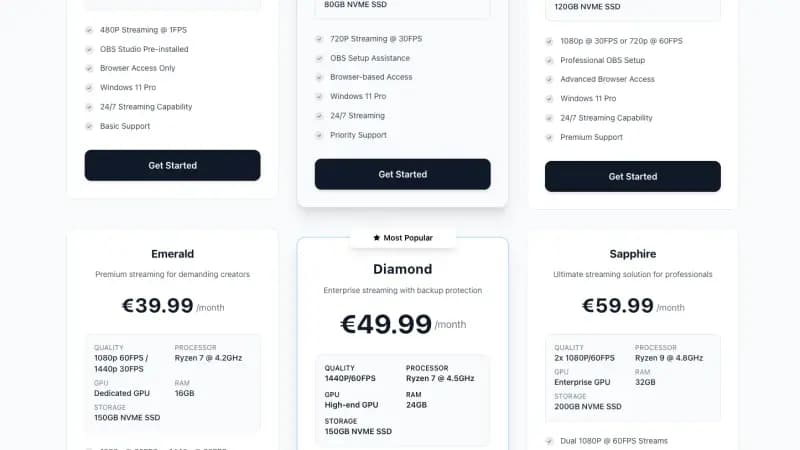
| Cloud OBS | Space-Node streaming VPS Emerald (16GB, dedicated GPU) | €39.99/mo | OBS at 1080p60 |
| Total | ~€1,700 + the LiveU encoder + monthly costs |
Gear prices are rough street prices and change often, so check them before you buy.
Setting Up Your VPS for IRL Streaming
Step 1: Get a VPS
You need a VPS with:
- Good network (1Gbps preferred)
- Low latency to your streaming platform
- Enough RAM for OBS (4-8GB minimum)
- Located close to your audience
Recommended specs:
| Streaming Quality | RAM | CPU | Bandwidth | Monthly Cost |
|---|---|---|---|---|
| 720p30 relay only | 2GB | 2 cores | 1TB | €5-10 |
| 720p60 with OBS | 4GB | 4 cores | 2TB | €10-20 |
| 1080p60 with OBS | 8GB | 4-6 cores | 5TB | €20-40 |
| 1080p60 with GPU | 8GB + GPU | 4+ cores | Unlimited | €50-80 |
Space-Node VPS plans start at €5.50/month for VPS-S (2 vCores, 4GB RAM, NVMe storage, a 1 Gbps port) in the Netherlands. They are out of stock until about the end of October.
Step 2: Install NGINX-RTMP
SSH into your VPS and run:
# Update system
sudo apt update && sudo apt upgrade -y

# Install dependencies
sudo apt install build-essential libpcre3 libpcre3-dev libssl-dev zlib1g-dev unzip git -y

# Download NGINX and RTMP module
cd /tmp
wget http://nginx.org/download/nginx-1.24.0.tar.gz
git clone https://github.com/arut/nginx-rtmp-module.git
tar -xzf nginx-1.24.0.tar.gz
cd nginx-1.24.0

# Compile with RTMP support
./configure --with-http_ssl_module --add-module=../nginx-rtmp-module
make -j$(nproc)
sudo make install

# Create directories
sudo mkdir -p /var/www/html/hls
sudo chown -R www-data:www-data /var/www/html
Step 3: Configure NGINX for RTMP
Edit the config file:
sudo nano /usr/local/nginx/conf/nginx.conf
Replace contents with:
worker_processes auto;
events {
    worker_connections 1024;
}

rtmp {
    server {
        listen 1935;
        chunk_size 4096;

        # Your IRL ingest point
        application live {
            live on;
            record off;

            # Allow publishing from anywhere (or restrict to your IP)
            allow publish all;
            deny publish all;  # Uncomment to restrict

            # Push to Twitch (replace with your key)
            push rtmp://live.twitch.tv/app/YOUR_STREAM_KEY;

            # Push to Kick (replace with your key)
            # push rtmp://ingest.kick.com/live/YOUR_KICK_KEY;

            # Push to YouTube (replace with your key)
            # push rtmp://a.rtmp.youtube.com/live2/YOUR_YOUTUBE_KEY;

            # HLS output for web player (optional)
            hls on;
            hls_path /var/www/html/hls;
            hls_fragment 3;
            hls_playlist_length 60;
        }

        # Optional: SRT to RTMP conversion
        application srt-input {
            live on;
            record off;

            exec_push ffmpeg -i rtmp://localhost/srt-input/$name
                -c copy -f flv rtmp://localhost/live/$name;
        }
    }
}

http {
    sendfile on;
    tcp_nopush on;
    directio 512;

    server {
        listen 80;

        location /hls {
            types {
                application/vnd.apple.mpegurl m3u8;
                video/mp2t ts;
            }
            root /var/www/html;
            add_header Cache-Control no-cache;
            add_header Access-Control-Allow-Origin *;
        }

        location /stat {
            rtmp_stat all;
            rtmp_stat_stylesheet stat.xsl;
        }
    }
}
Step 4: Start NGINX
# Test configuration
sudo /usr/local/nginx/sbin/nginx -t

# Start NGINX
sudo /usr/local/nginx/sbin/nginx

# Create systemd service for auto-start
sudo tee /etc/systemd/system/nginx-rtmp.service << 'EOF'
[Unit]
Description=NGINX RTMP Server
After=network.target

[Service]
Type=forking
ExecStart=/usr/local/nginx/sbin/nginx
ExecReload=/usr/local/nginx/sbin/nginx -s reload
ExecStop=/usr/local/nginx/sbin/nginx -s quit
PIDFile=/usr/local/nginx/logs/nginx.pid

[Install]
WantedBy=multi-user.target
EOF

sudo systemctl enable nginx-rtmp
sudo systemctl start nginx-rtmp
Step 5: Open Firewall Ports
# UFW firewall
sudo ufw allow 1935/tcp  # RTMP
sudo ufw allow 80/tcp    # HTTP (for HLS)
sudo ufw allow 8890/udp  # SRT (if using)
sudo ufw reload
Configuring Your Encoder
Using Larix Broadcaster (Phone)
- Download Larix Broadcaster from App Store / Play Store
- Open app → Settings → Connections
- Add new connection:
| Setting | Value |
|---|---|
| Name | My VPS |
| URL | rtmp://YOUR_VPS_IP/live |
| Stream name | irl-stream |
| Username | (leave blank) |
| Password | (leave blank) |
- Video settings:
| Setting | Recommended |
|---|---|
| Resolution | 1280x720 or 1920x1080 |
| Framerate | 30 fps (saves battery) |
| Bitrate | 3000-5000 kbps |
| Codec | H.264 |
| Profile | Main or High |
- Enable "Auto-reconnect" in settings
- Go live!
Using LiveU Solo
- Connect LiveU Solo to your camera via HDMI
- Access web interface at the LiveU IP
- Configure output:
| Setting | Value |
|---|---|
| Protocol | RTMP |
| URL | rtmp://YOUR_VPS_IP/live |
| Stream Key | your-stream-name |
| Video Bitrate | 4000-6000 kbps |
| Audio Bitrate | 128 kbps |
- Enable "Reconnect on disconnect"
- Start streaming
Adding OBS to Your VPS (Remote Scene Switching)
For overlays, alerts, and scene switching, install OBS on your VPS with a virtual display.
Install Desktop Environment
# Install lightweight desktop
sudo apt install xfce4 xfce4-goodies -y

# Install VNC server
sudo apt install tigervnc-standalone-server tigervnc-common -y

# Set VNC password
vncpasswd

# Start VNC server
vncserver :1 -geometry 1920x1080 -depth 24
Install OBS Studio
# Add OBS repository
sudo add-apt-repository ppa:obsproject/obs-studio -y
sudo apt update

# Install OBS
sudo apt install obs-studio -y
Configure OBS
-
Connect to VNC using a VNC viewer
-
Open OBS
-
Add "Media Source" pointing to your RTMP input:
- Local file: OFF
- Input: rtmp://localhost/live/irl-stream
- Enable "Show nothing when playback ends"
-
Add overlays, alerts, chat widgets
-
Configure output to Twitch/Kick/YouTube
Remote Control OBS
Install obs-websocket for remote control:
# Install via OBS plugins or built-in
# Enable in OBS → Tools → WebSocket Server Settings
Use Streamer.bot or Touch Portal on your phone to switch scenes while streaming IRL.
Latency: Direct vs VPS
Every extra hop adds some delay. How much depends on your encoder, the SRT latency you set, the buffer on the relay and the platform's own player, so any fixed number would be wrong for half the setups out there.
| Method | What changes |
|---|---|
| Phone → Twitch direct | Fewest hops, but every drop on your mobile connection reaches Twitch |
| Phone → VPS → Twitch | One extra hop. The VPS has a stable line to Twitch, and OBS on the VPS can show a BRB scene when the phone drops |
| Phone → VPS (SRT) → Twitch | SRT resends lost packets within the latency window you set. A bigger window hides more loss and adds more delay |
| LiveU → VPS → Twitch | Bonding over several modems, plus the relay hop |
To see your own delay, film a clock with the phone and compare it with what the stream shows.
Cost Comparison: VPS vs Commercial Services
| Service | Monthly Cost | What you get |
|---|---|---|
| Space-Node VPS-S (4GB) | €5.50 | Your own NGINX or SRT relay with multi-platform push. No GPU; out of stock until about the end of October |
| Space-Node streaming VPS | €19.99 (Gold) to €29.99 (Platinum) | Windows with OBS preinstalled: 720p30 on Gold, 1080p30 or 720p60 on Platinum |
| Psynaps | $94 to $269 | A personal ingest ($94) or a cloud OBS server ($125 to $269), with support |
| IRL Toolkit | $129 to $179 | Cloud OBS with RTMP, SRT and SRTLA ingest, a dashboard and a chat bot |
| Restream | Free plan, paid from $19 | Multistreaming to several platforms; no bonding |
| Castr.io | Check castr.com | Cloud streaming |
Prices are from each provider's own site, checked on 28 September 2026.
Bottom line: a relay VPS costs far less, but it does not do everything a managed service does. What the $94 to $269 buys is bonding support, a finished dashboard and someone to call. If you can do without those, build it yourself.
Troubleshooting Common Issues
Stream Won't Connect
# Check if NGINX is running
sudo systemctl status nginx-rtmp

# Check if port 1935 is open
sudo netstat -tlnp | grep 1935

# Test locally
ffmpeg -re -i test.mp4 -c copy -f flv rtmp://localhost/live/test
High Latency
- Use SRT instead of RTMP (built-in error correction)
- Lower bitrate if mobile connection is unstable
- Check VPS location (closer = faster)
Stream Keeps Dropping
- Enable "auto-reconnect" in your encoder
- Use bonded internet (multiple SIM cards)
- Increase buffer settings in NGINX
OBS Won't Capture RTMP Input
- Make sure stream is active first
- Use correct local URL: rtmp://localhost/live/streamname
- Check that OBS Media Source is configured correctly
Pro Tips for IRL Streaming
- Pre-stream checklist: Charge batteries, test connection, check audio levels
- Backup stream key: Keep a spare on your phone in case you need to reconfigure
- Data management: Use unlimited data SIM or monitor usage carefully
- Audio quality: Wind muffs and a decent lapel mic matter more than video
- Chat interaction: Use TTS (text-to-speech) so you can hear chat while moving
- Emergency stop: Have a quick way to end stream if needed
- Test before going live: Do a 5-minute test stream before every real stream
Frequently Asked Questions
How much mobile data does IRL streaming use?
At 4000 kbps (decent 720p), you'll use about 1.8GB per hour. A 4-hour stream = 7GB. Get an unlimited data plan or multiple SIMs.
Can I use my home PC instead of a VPS?
Yes, but your home IP is exposed, your PC must stay on, and power or internet outages at home kill your stream. A VPS keeps running when your home connection does not, and a relay VPS costs a few euros a month.
What happens if my mobile connection drops?
If OBS on the VPS has a BRB scene set up, the stream stays live and shows that scene while you reconnect. A plain NGINX relay without OBS or a failover script cannot do that: when the phone drops, the push to Twitch stops too. Without any VPS, the platform sees the stream stop as soon as your phone loses its connection.
Is SRT better than RTMP for IRL?
Yes. SRT has built-in error correction for unstable connections. It's the professional standard now. See our SRT vs RTMP guide for details.
Can I stream to multiple platforms at once?
Absolutely. Configure NGINX to push to Twitch, Kick, and YouTube simultaneously from one ingest stream. Free restreaming.
How do I add alerts and donations?
Run OBS on your VPS, add browser sources for StreamElements or Streamlabs alerts. They work exactly like on your home PC.
Conclusion
Building an IRL streaming backpack with a VPS backend is the smart way to stream in 2026. You get:
- Stability from datacenter-grade connectivity
- Control with full OBS running in the cloud
- Features like overlays, alerts, and multi-platform
- Savings compared to $100+/month managed services
Start with a budget setup and upgrade as you grow. A small relay VPS covers the basics; add OBS in the cloud when you want overlays and a BRB scene.
Ready to build your IRL streaming setup? Space-Node's VPS hosting runs in the Netherlands, close to European IRL streamers. VPS-S starts at €5.50/month with NVMe storage, a 1 Gbps port and DDoS protection. The VPS plans are out of stock until about the end of October. For cloud OBS with overlays, see our streaming VPS plans.
Related guides: