
Quick answer: LiveReacting is a browser studio built around ready made templates for reactions, quizzes and watch parties. That is genuinely convenient for a one-off interactive show. If you run this format regularly and want full control over audio routing, webcam framing, overlays and what happens when something breaks, rebuilding the same show in OBS on your own streaming server gives you that control without losing the parts of the format that made it work in the first place.
What a LiveReacting show is actually made of
Strip away the platform and a reaction or watch party show is a handful of layers stacked together: a webcam or two, the video or content being reacted to, a chat panel, sometimes a poll or quiz overlay, and some kind of branding. LiveReacting packages that as templates inside a browser studio. OBS does the same job with sources and scenes, the difference is you are assembling the layers yourself instead of picking from a preset.
Rebuilding the layers in OBS
- List every visible layer first. Webcam, reaction content, chat, poll or quiz widget, timer, branding. Write this down before touching OBS, it becomes your source list.
- Add each layer as its own OBS source. Webcam as a Video Capture Device, browser based quiz or poll tools as Browser Sources cropped and positioned like any other layer, chat as a Browser Source pointed at your platform's chat overlay URL.
- Set up audio monitoring so nothing echoes. This is the step people skip and regret. Open Advanced Audio Properties in OBS and separate your microphone, desktop audio and any browser source audio into their own tracks with correct monitoring settings, otherwise a browser sourced quiz tool with its own sound will double up against your desktop audio.
- Build three scenes minimum: Starting Soon, Live, and Backup. The backup scene should not depend on anything that can fail mid show, no live browser tool, no external feed, just a static branded screen you can cut to instantly.
- Rehearse privately before you send traffic to it. Run one full private test covering every layer you built, webcam framing, audio levels, and the actual transition between scenes, before switching your public stream key over.
Where this format needs more headroom than a simple loop
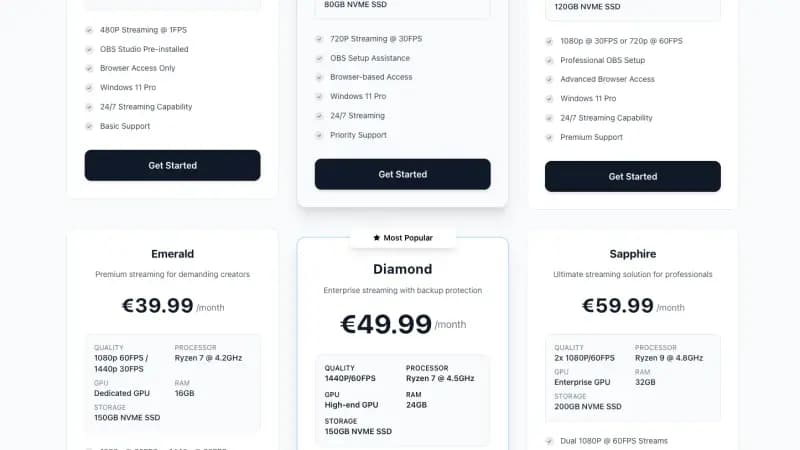
A reaction or watch party show is more demanding than a lofi loop or a static playlist because you are running a live webcam, live browser sources and live audio mixing simultaneously, and any of those can drop frames if the underlying machine is underpowered. Our own recommendation on the LiveReacting alternative comparison page is Platinum as the minimum for smooth 1080p30 with a webcam, browser source and chat running together, and Diamond if you want headroom for 1080p60. Both of those plans include a dedicated GPU, which matters here because you are encoding a live composited scene continuously rather than a single pre-rendered file.
Handling the moment something breaks
This is the real argument for building your own scene setup instead of trusting a closed studio: when a browser tool freezes, a webcam disconnects, or an overlay stops responding, you can see exactly which layer failed and fix that one thing, instead of waiting on a platform status page or restarting the whole show. Keep your Backup scene one hotkey away at all times, and get in the habit of cutting to it the moment something looks wrong rather than trying to troubleshoot live on camera.
Running 24/7 content between live shows
If your reaction or watch party show only runs a few times a week, you do not have to leave the channel dark the rest of the time. Keep a safe loop, an ambient scene, or a simple waiting screen running continuously between live episodes, then switch to your Live scene when the host joins. This is one of the practical advantages of owning the whole OBS setup instead of only having access to a show specific tool, the same server can carry both the interactive show and the 24/7 filler content around it.
Getting started
Read the full feature comparison on our LiveReacting alternative page, or go straight to streaming VPS plans if you already know you want Platinum or Diamond for a webcam plus browser source setup. OBS Studio comes pre installed on every plan, and support can help with the first scene collection if you want a hand setting up audio routing correctly the first time.