
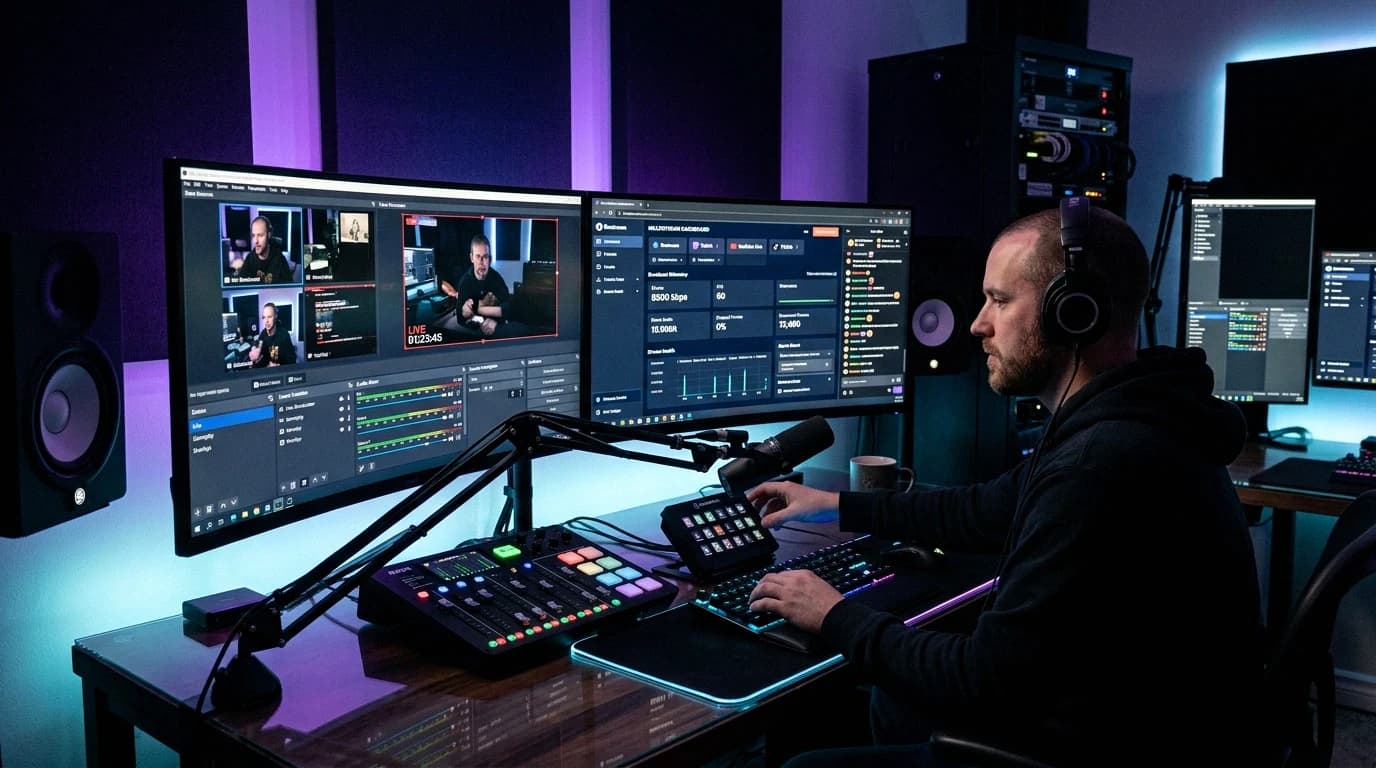
You want to go live on YouTube, and the Go Live button asks for a phone number, tells you to wait, or is not there at all. Going live takes a one-time setup step and then a choice between three ways of streaming, each with its own rules. This guide follows YouTube Help as it reads on 8 November 2026.
Quick answer: To go live on YouTube, first verify your channel with a phone number and enable live streaming. YouTube says enabling it for the first time "may take up to 24 hours", and you need to be at least 16 with no live streaming restrictions in the past 90 days. Then pick a method. On a computer, click Create, then Go Live, and choose Webcam to stream from your browser, or open the Stream tab to copy the stream URL and stream key into an encoder such as OBS. In the YouTube app, tap Create, then Live; that route needs at least 50 subscribers. YouTube's requirements for webcam and encoder streaming list no subscriber minimum.
Step 1: Enable Live Streaming on Your Channel
YouTube's getting started page sets the conditions: "To live stream, you need to have no live streaming restrictions in the past 90 days and you need to verify your channel." It adds: "You must be at least 16 years old to live stream."
- Verify your channel. Go to youtube.com/verify, enter a phone number and type in the code YouTube sends by text or voice call. One number can be linked to "no more than 2 channels per year".
- Enable live streaming and allow for the wait. YouTube's encoder guide: "Enabling a live stream for the first time may take up to 24 hours." The mobile page: "You may need to wait 24 hours before you can start your first live stream." The wait happens once; after that YouTube says you can go live right away.
- Check that it worked. In YouTube Studio on a computer, click Settings, then Channel, then Feature eligibility. Features you can use show "Enabled". YouTube lists "Live streaming on a computer" as an intermediate feature that needs phone verification and has a daily limit. The Status and features page shows strikes and whether you currently have access to live streaming.
Under 16, you can only appear in a live stream with an adult visibly present. Our YouTube live streaming requirements post covers those age rules, the default privacy per age and a side by side table of the three methods.
Webcam, Mobile or Encoder: Pick How to Go Live
YouTube lists four methods: mobile, webcam, encoder and console. Consoles stream from the device itself following the console maker's manual, so this guide covers the other three. In YouTube's words:
- Mobile: "Good for vlogging and quick updates from your phone or tablet." Needs 50 subscribers.
- Webcam: "Quickly live stream from your computer using a webcam." Nothing to install.
- Encoder: "Encoders let you stream gameplay, overlays, and use hardware like preamps, mics, and cameras." This is the OBS route.
Webcam and mobile give you less control. YouTube says they "are always set up for interactivity", so you cannot choose a latency, and "Disabling DVR is not supported for webcam and mobile streaming."
How to Go Live on YouTube with a Webcam
The quickest way to go live from a PC or laptop, from YouTube's webcam article:
- Make sure live streaming is enabled. Webcam streaming "is compatible with Chrome 60+ and Firefox 53+."
- Sign in to YouTube and, in the upper right, click Create, then Go Live.
- On the left, select Webcam.
- Enter a title and description and choose a privacy setting. You can also schedule the stream for later here.
- Click Next. Your camera takes a thumbnail.
- Check that the right webcam and microphone are selected, then click Go Live.
- When you are done, click End Stream at the bottom.
Once live, Share Screen (bottom center, next to the mic button) shares your screen, a window or a browser tab, as long as a webcam and microphone are connected. Popout dashboard, in the lower left of the stream dashboard, opens the Live Control Panel, a compact view of the Live Control Room for webcam and encoder streams.
How to Go Live on YouTube from Your Phone
YouTube's mobile article starts its list of requirements with "At least 50 subscribers." The others: no live streaming restrictions within the last 90 days, a verified channel, live streaming turned on, and "An Android 8.0+ device or an iOS 8+ device."
- Open the YouTube app.
- At the bottom, tap Create, then Live. Your first mobile stream may take up to 24 hours to start.
- Tap Edit for visibility and audience, Schedule for later, Screencast (streams your phone's screen) and live chat options.
- Tap Go live, and tap Finish to end. You get a recap with stream stats and an archive on your channel.
With 50 to 999 subscribers, YouTube "may limit the number of viewers on your mobile live stream" and sets the archive to private by default. What changes at 1,000, and why the Live option can be missing, is in our mobile live streaming requirements post.
How to Go Live on YouTube with OBS or Another Encoder
An encoder is "streaming software or a hardware encoder". It lets you share your screen or gameplay, use external audio and video hardware, and run "an advanced production (like a few cameras and microphones)". OBS Studio is on YouTube's list of verified encoders as "Open Broadcaster Software", described as "Open source software for video recording and live streaming at no charge."
The steps for a stream that starts now:
- Go to YouTube Studio.
- In the top right, click Create, then Go Live to open the Live Control Room.
- Click the Stream tab.
- First live stream: edit your stream and click Create stream. Streamed before: "Your previous stream settings will load, including your stream key, which means you won't need to update your encoder."
- In your encoder's stream settings, select YouTube if it is offered. Otherwise paste the stream URL into the server field; YouTube notes "It may say RTMP server."
- Paste the stream key where it says Stream Key.
- Start the stream in your encoder. "A watch page is now created for your stream, and you're now live on YouTube." Notifications go out to subscribers.
- To end, stop sending from your encoder.
That is the YouTube side. For the OBS side, three guides go deeper without repeating each other:
- Where each field goes in OBS, which YouTube server to pick and what OBS's key errors mean: where to find your YouTube stream key for OBS.
- Software or hardware encoding, and H.264, HEVC or AV1: best encoder for YouTube Live.
- Resolution, frame rate, bitrate and keyframe values: YouTube Live encoder settings.
Stream Keys and Persistent Stream Keys
YouTube's explanation: "Stream keys are like your YouTube stream's password and address. They tell your encoder where to send your feed and let YouTube accept it." Treat it like a password and keep it off screen.
You usually do not need a new key per stream. The Stream tab loads your previous key, and Reuse settings on an old stream does the same: "The new stream will copy the previous stream's metadata, settings, and the stream key."
What many guides call a persistent stream key, YouTube calls a custom stream key: "To reuse the same stream key, create a custom stream key." In the Stream tab, under Select stream key, click Create new stream key, enter your settings and click Create. A custom key also gives you Turn on manual settings under Stream Resolution, although YouTube recommends its default automatic detection.
- Limits: "There is a limit of 10 active streams allowed per channel and 3 active streams per stream key." Both apply at the same time.
- Reset: if the key leaked, click Reset next to your hidden key in the Stream key section and paste the new key into your encoder. "You must be a channel owner or manager to reset a stream key."
- Vertical: a second key lets an encoder send a separate vertical stream. In the Stream tab's vertical preview, choose Encoder, select RTMP(S) and pick the second key.
How to Schedule a Live Stream on YouTube
A scheduled stream "may show up in your subscribers feed as upcoming", and viewers can click "Notify me" for a reminder. For an encoder stream:
- In YouTube Studio, click Create, then Go Live.
- Open the Manage tab and click Schedule stream.
- Choose Reuse settings from a previous stream, or Create new.
- When it is time, start your encoder.
- In the Live Control Room, wait for the stream preview to show up, then click Go live.
- To end, click End Stream and stop your encoder.
With Auto-start and Auto-stop on, YouTube says "you can start or stop streaming from your encoder". For a scheduled webcam stream, open the Live Control Room, select Manage, click the stream and click Go Live. On mobile, schedule under Edit, then start with Create, Live, Calendar, your stream and Go live.
Channels with more than 1,000 subscribers and no Community Guidelines strikes can add a trailer of 15 seconds to 3 minutes to streams scheduled from the Manage tab.
Choose a Latency Setting
Latency is the delay between your camera and your viewers' screens. For encoder streams, open the stream dashboard in the Live Control Room, click Stream Settings and choose under Stream latency:
| Setting | YouTube says it is best for | What viewers get | Limits |
|---|---|---|---|
| Normal latency | Non-interactive live streams | "the highest quality setting for viewers since it has the lowest amount of viewer buffering" | All resolutions and live features |
| Low latency | Limited audience interaction, such as polls | "Most viewers of a low-latency stream will experience latency less than 10 seconds." | No 4K |
| Ultra-low latency | Highly interactive live streams with real-time engagement | "Most viewers of an ultra-low latency stream will experience latency less than 5 seconds." | No 4K, more chance of buffering |
If you answer chat, pick low or ultra-low. If you do not interact, normal gives the smoothest playback. A 4K stream is always set to normal latency.
Why YouTube Won't Let You Go Live
From YouTube's restrictions and getting started pages, the usual causes:
- Not verified, or enabled less than 24 hours ago. Go back to step 1.
- Under 16. The minimum age applies to every method.
- A strike. "A strike will prevent you from live streaming for 14 days." A Community Guidelines warning on a live stream expires after 90 days if you take the policy training; break the same policy within those 90 days and it becomes a strike.
- Copyright. Your active live stream gets a copyright strike, or it matches another copyrighted live broadcast.
- Many videos with features disabled. Live streaming "may also be disabled" for such channels.
- Firearms. Live streams that show someone holding, handling or transporting a firearm are not allowed.
- The daily limit. "If you've reached your daily limit for creating live streams, you can try again in 24 hours."
- Too many active streams. "Once either limit is reached, you will not be able to start additional streams."
- Mobile only: fewer than 50 subscribers, or a device older than Android 8.0 or iOS 8.
Do not use a second channel to get around a restriction: YouTube calls that circumvention, which "may result in termination of your account." If the stream starts but chat is missing, check the audience setting, because for content made for kids YouTube turns off live chat, live chat replay and Super Chat.
Checklist Before Your First YouTube Stream
- Access: channel verified, 24 hours passed, and "Enabled" next to live streaming under Feature eligibility.
- Upload speed: "We recommend running a speed test to test your upload bitrate." Pick a bitrate from the encoder settings guide that fits it.
- A real test: "Tests should include audio and movement in the video similar to what you'll be doing in the stream." A private or unlisted stream works for that, as does Practice Mode in the app, which YouTube is still rolling out (tap Create, Go live, then Practice mode below Next). For OBS checks, see OBS test stream and bandwidth test.
- Privacy: on a computer the default is public at 18 or over and private from 13 to 17; on mobile, 13 to 17 defaults to unlisted. You can always change it.
- Latency: low or ultra-low if you talk with chat, normal if not.
- Vertical version: streams from the Live Control Room go out horizontal and vertical by default, the vertical one as a center crop. Adjust it beforehand: "You can't add the vertical format once the stream has started."
- Length and backup: streams under 12 hours are archived, but "If your stream exceeds 12 hours, it may not be captured at all." YouTube recommends "recording a local archive as a backup". More in our duration and archive limits post.
- During the stream: YouTube asks you to "monitor the stream health and review messages"; our stream health guide explains the warnings.
When OBS Should Not Run on Your Own PC
Some streams do not need your own PC at all, such as a music or replay channel that should stay live while your computer is off. For those, our streaming plans give you a remote machine that you open in your web browser. You configure OBS there with your YouTube stream key and click Start Streaming, the same steps as above. The plans encode on the CPU, so use OBS's software encoder there and choose a plan by the stream quality it lists: Gold lists 720p at 30 fps, Sapphire two 1080p streams at 60 fps.
FAQ
How do I go live on YouTube for the first time?
Verify your channel at youtube.com/verify, enable live streaming and allow up to 24 hours. Then click Create, then Go Live on a computer and choose Webcam, or use the Stream tab with an encoder such as OBS. With 50 or more subscribers you can also tap Create, then Live in the YouTube app.
Can I go live on YouTube with 0 subscribers?
Yes, from a computer. YouTube's conditions for enabling live streaming are a verified channel, no restrictions in the past 90 days and a minimum age of 16, with no subscriber count. Only the app asks for "At least 50 subscribers."
How long does it take for live streaming to be enabled on YouTube?
Up to 24 hours: "Enabling a live stream for the first time may take up to 24 hours." It only applies the first time.
Does my YouTube stream key change every time I stream?
No. The Stream tab loads your previous key, so your encoder keeps working. For a key you keep on purpose, create a custom stream key under Select stream key. The key changes only when a channel owner or manager clicks Reset.
Why can't I go live on YouTube?
Usually an unverified channel, less than 24 hours since you enabled live streaming, a strike, or the daily limit for creating live streams. On mobile, fewer than 50 subscribers also blocks you. The Status and features page shows whether you currently have access.
Sources
All opened on 8 November 2026:
- Get started with live streaming (YouTube Help)
- Create a live stream via webcam (YouTube Help)
- Create a live stream on mobile (YouTube Help)
- Create a YouTube live stream with an encoder (YouTube Help)
- Manage live stream settings (YouTube Help)
- Understand live streaming latency (YouTube Help)
- Avoid restrictions on YouTube live streaming (YouTube Help)
- Verify your YouTube account (YouTube Help)
- Learn about feature access for YouTube Creators (YouTube Help)
- Choose live encoder settings, bitrates, and resolutions (YouTube Help)
- Archive live streams (YouTube Help)
- Turn on DVR on live streams (YouTube Help)