If your stream drops randomly, it is often because of unstable bitrate or keyframe settings. Here is a stable baseline for 1080p60.

Table of Contents
- Video settings
- Audio settings
- Keyframes and GOP
- Network stability
- Hosting recommendation
1. Video settings
Resolution: 1920x1080
FPS: 60
Bitrate: 6000-9000 kbps CBR (pick what you can hold consistently)
Quick OBS Settings for Most People
If you do not know what to pick, start with this. It works for most 1080p60 YouTube streams.
| Setting | Value |
|---|---|
| Encoder | NVENC if available, otherwise x264 veryfast |
| Rate control | CBR |
| Bitrate | 8000 kbps |
| Keyframe interval | 2 seconds |
| Preset | Quality |
| Profile | High |
| Look ahead | Off |
| Psycho visual tuning | On |
| Audio | 160 kbps AAC, 48 kHz |
The mistake beginners make is pushing bitrate too high. A clean 8000 kbps stream that never drops looks better than a 12000 kbps stream that buffers every few minutes.
Upload Speed Rule
Your upload speed should be at least double your stream bitrate.
| Stream bitrate | Minimum upload | Comfortable upload |
|---|---|---|
| 4500 kbps | 9 Mbps | 15 Mbps |
| 8000 kbps | 16 Mbps | 25 Mbps |
| 12000 kbps | 24 Mbps | 40 Mbps |
If your home upload is close to the limit, use a streaming VPS. The VPS holds the connection to YouTube with a stable 1 Gbps uplink while your own PC can be turned off.
Settings for 24/7 Streams
For always-on streams, stability beats sharpness.
- Use CBR, not variable bitrate.
- Set keyframe interval to 2 seconds.
- Turn on automatic reconnect in OBS.
- Keep scenes simple. Heavy browser sources can leak memory.
- Do a 30 minute private test before going public.
Simple Troubleshooting
| Symptom | Likely cause | Fix |
|---|---|---|
| YouTube says poor connection | bitrate too high or unstable route | lower bitrate by 1000 kbps |
| Audio slowly drifts | sample rate mismatch | set OBS and source audio to 48 kHz |
| Stream randomly stops | network blip or OBS crash | enable reconnect and check logs |
| Video looks blocky | bitrate too low for motion | use 9000 kbps or lower FPS |
| CPU at 100 percent | x264 too heavy | use NVENC or lower preset |
For a lofi, radio, news ticker or simple loop stream, do not chase maximum quality. A stable 1080p30 stream usually earns more watch time than a flashy 1080p60 stream that falls over.
Encoder: x264 (veryfast) or NVENC (quality)
2. Audio settings
Codec: AAC
Bitrate: 160k-192k
Sample rate: 48 kHz
3. Keyframes and GOP
Keyframe interval: 2 seconds
GOP: 120 (for 60 fps)
4. Network stability
Do not push the top of your upload speed. Leave margin.
5. Hosting recommendation
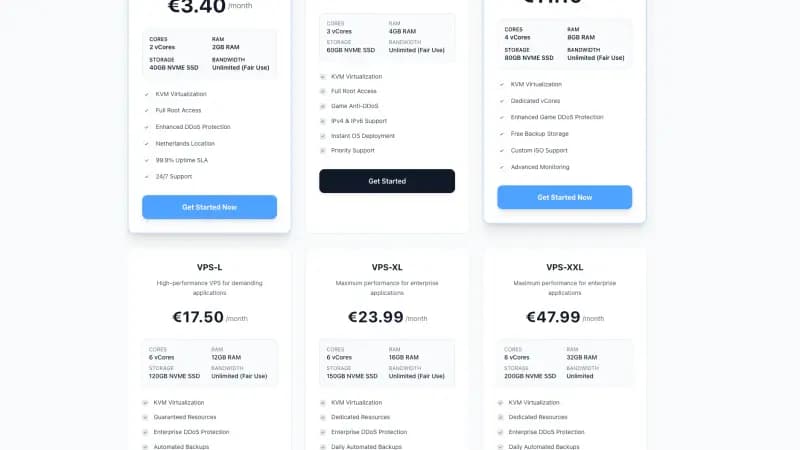
For 24/7 streams, use a Streaming VPS so your home internet does not take your stream offline.