
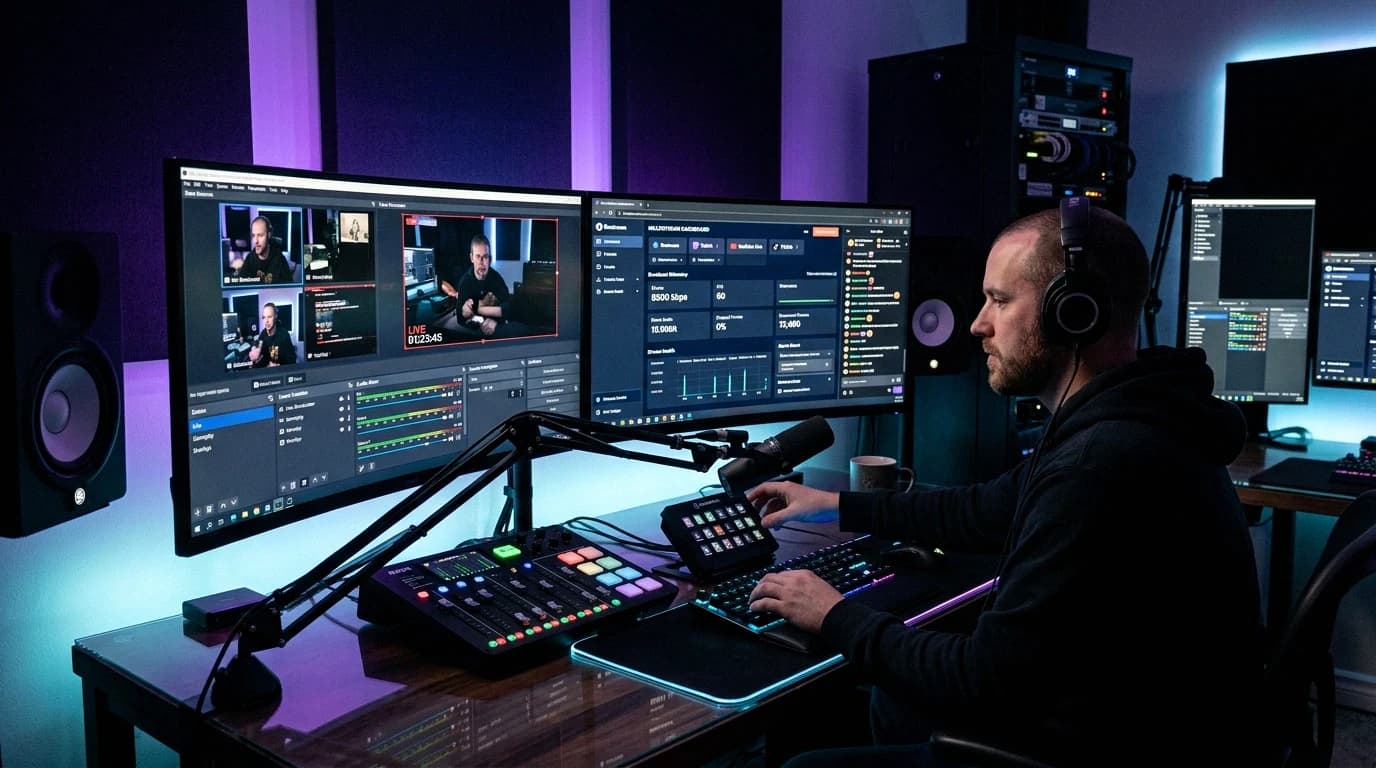
You have OBS set up and want to go live on TikTok with it. TikTok has no stream key waiting in your settings: it gives you one when you set up a LIVE on its website, and third-party guides disagree about who gets one. This guide uses only TikTok's own pages as they read on 8 November 2026, plus OBS's own source for the menu names.
Quick answer: To get a TikTok stream key you need LIVE access first. TikTok requires you to be at least 18 and to have 1,000 followers to go LIVE, and says that number may vary across regions. With access, open TikTok in a desktop browser, click Go LIVE, enter a title of up to 32 characters, select the option that stops the LIVE from ending automatically, and copy the stream key and RTMP URL. In OBS, open Settings, Stream, set Service to Custom..., paste them into Server and Stream Key, and click Start Streaming. Generate the key no more than an hour before you start, because TikTok says keys expire after a period of inactivity. TikTok LIVE Studio, TikTok's own desktop app, signs in with your TikTok account instead, if your account has LIVE Studio access.
Who can get a TikTok stream key
TikTok's Help Center article What is TikTok LIVE? lists the conditions for LIVE:
- "Be at least 18 years old to go LIVE."
- "Be at least 18 years old (or 19 in South Korea) to send or receive Gifts during a LIVE."
- "Have 1,000 followers to go LIVE (may vary across regions)."
The same page notes that "LIVE and Gift features aren't currently available everywhere." TikTok's Creator Networks guide to going LIVE (29 September 2026) words the age rule as 18 "or meet the age of majority in the relevant country or region" and adds: "The availability of desktop LIVE options may vary by account and region."
None of the TikTok pages we opened publishes a separate follower count, form or approval step for stream keys. The key is part of desktop LIVE, and that depends on your account and your region.
For LIVE Studio access TikTok says more. Its help page Apply for LIVE access (updated 11 February 2025) says active LIVE creators get access when the account was created a certain number of days ago, has gone LIVE for a certain amount of time recently, has a certain number of followers, and has no recent suspension or revocation. Then: "The requirements vary by country or region and are subject to change without notice." TikTok's US LIVE Creator Hub was more specific in September 2024: gaming creators could use LIVE Studio from 1,000 followers, non-gaming creators needed 10,000. Treat those numbers as a dated US example, not as the rule where you live.
If you stream elsewhere but not on TikTok yet, LIVE Studio sends you to an application form about your other channel; TikTok says "It might take days to review." If your access is a trial, the LIVE Studio FAQ (updated 19 August 2026) says to go LIVE for at least 25 minutes, twice during your first week, or the access is revoked.
Third-party guides often say agencies or creator networks hand out keys. The TikTok pages we opened do not say that; its Creator Networks site calls networks "independent third-party businesses" that TikTok does not endorse. Be careful with anyone who wants your TikTok login in exchange for a key.
How to get your TikTok stream key and server URL
TikTok's Creator Academy article TikTok Live 101 (updated 22 June 2026) gives the steps for "Desktop Formats via Stream Key":
- Open TikTok in a desktop browser, log in and click Go LIVE.
- Enter a title of up to 32 characters.
- Select the option to prevent the LIVE from ending automatically, and start.
- Copy the stream key and the RTMP URL (the server URL) and set them up in your streaming software.
- When you finish, end the broadcast from your TikTok profile on the desktop as well.
Three tips in the same article change how you prepare:
- Broadcast keys expire after a period of inactivity, so TikTok says to generate them no more than one hour in advance.
- Your LIVE becomes visible to viewers only once your streaming software starts the broadcast, and you should end the LIVE before you close the browser tab.
- Using several devices on the account that is live can cause interference, so TikTok says to limit access to the account from other devices while you are live.
Add the TikTok stream key to OBS
TikTok is not in OBS Studio's built-in service list (we checked OBS's source code), so you use a custom server. In OBS Studio 33.0.1, the current release:
- Open Settings, then Stream.
- Set Service to Custom....
- Paste the RTMP URL into Server and the key into Stream Key.
- Click OK, check your preview, and click Start Streaming.
TikTok's own OBS steps say the same: "Enter the Server URL and Stream Key provided by TikTok in OBS's streaming settings," review the preview, then click Start Streaming. If OBS cannot connect, generate a fresh key on the Go LIVE page before you change anything else, since an expired key is the failure TikTok itself warns about.
OBS settings TikTok documents
We found no single TikTok encoder spec page for stream keys. What TikTok documents is spread over the LIVE Studio help center, a LIVE Studio settings article from May 2023, and an OBS guide in TikTok Shop's Seller University (Vietnamese edition, updated in 2023). Here is everything we found, gaps included:
| Setting | What TikTok says | Where |
|---|---|---|
| Vertical canvas | Setting the base (canvas) resolution to 1080x1920 gives a 9:16 frame | Seller University OBS guide |
| Output resolution | Should match your stream output, such as 720p or 480p | Seller University OBS guide |
| Resolution | 1280x720 is "Recommended for most scenarios, since most TikTok users watch your LIVE on mobile devices"; 1920x1080 is the highest LIVE Studio option | LIVE Studio quality guide |
| Frame rate | 30 FPS for most content, 45 or 60 for gaming and fast action, 20 or 25 as the minimum for lifestyle; viewers watch at 60 FPS or lower; the OBS guide suggests 25 (PAL) | LIVE Studio quality guide, LIVE settings article, Seller University |
| Video bitrate | 2,500 kbps in the OBS guide; LIVE Studio recommends keeping the default bitrate it sets from your other video settings | Seller University OBS guide, LIVE Studio quality guide |
| Audio bitrate | OBS's default of 160 kbps can stay; 256 kbps is also common | Seller University OBS guide |
| Encoder | x264 works on every computer; use a hardware encoder when the computer has one | Seller University OBS guide, LIVE Studio quality guide |
| Network | A wired ethernet connection, at least 20 Mbps | Seller University OBS guide |
| Keyframe interval, CBR or VBR, codec, maximum bitrate | Not stated on any TikTok page we opened |
In OBS, under Settings, Video, set Base (Canvas) Resolution to 1080x1920 and Output (Scaled) Resolution to the size you stream; reading the two TikTok documents together, that is 720x1280, TikTok's recommended 720p turned upright. Set Common FPS Values to 30, or 60 for fast games, and Video Bitrate under Settings, Output. Start at 2,500 kbps and raise it only after a test: TikTok's troubleshooting guide says abnormal frame drops usually mean network issues and says to "Lower the video bitrate in the LIVE settings or switch to a lower resolution." For the settings TikTok leaves open, our best OBS settings guide lists what other platforms publish.
Landscape works too. With screen adaptation (updated in April 2026) you choose how a landscape stream shows on an upright phone: the original image with black bars, or a zoomed crop that cuts the sides. Portrait streams get Fit to Screen or Fill Screen. TikTok recommends crop for landscape, fit for portrait gaming and fill for other portrait content. This works with a stream key too: "If you go LIVE with a stream key, please go to your Go LIVE web page to complete this setup."
TikTok LIVE Studio vs OBS
LIVE Studio is "TikTok's official desktop tool for LIVE content creation." The download page says the Windows version "Only supports 64-bit Windows 10 and newer," and the FAQ says it "is available for both macOS and Windows." You sign in with your TikTok account and start the LIVE from the app.
TikTok's answer to "What's the difference between LIVE Studio and OBS?" is short: "TikTok LIVE Studio and OBS have similar functions. However, LIVE Studio is developed by TikTok. Creators can use it by logging in to TikTok. It also offers better information and content safety for creators." TikTok's help pages show what that means in practice:
- A speed test that "ingests streams to the video servers of TikTok" and suggests a quality tier.
- Dual layout, which sends portrait and landscape at the same time. TikTok syncs the sources between the two layouts so that content breaking the rules cannot hide in one of them.
- TikTok features such as co-host, multi-guest and LIVE goal, plus widgets, LIVE chat and an in-game chat overlay.
The lowest hardware tier on the download page asks for an Intel Core i3 9th Gen or AMD Ryzen 5 3000 Series processor, 8 GB of memory and a graphics chip from TikTok's list. The troubleshooting guide adds that at the minimum "you can only use basic features, like using only the camera and going LIVE at 720p and 30fps."
Does the tool change your reach? The LIVE Studio FAQ says: "we will not alter your traffic due to your use of specific streaming tools such as LIVE Studio or OBS." So choose by workflow: LIVE Studio if TikTok is your only platform and you want its interaction features, OBS if your scenes, plugins and routine already live there.
Keep your TikTok stream key private
The stream key and server URL are all OBS needs to send video into your LIVE, and the same goes for any other software that has them. TikTok holds you responsible for what appears: its Community Guidelines say "LIVE creators are responsible for anything that happens during their sessions," and that this covers third-party tools such as "voice-to-text software, real-time translation, or on-screen comment displays."
- Keep the Go LIVE page and OBS's Stream settings off screen, out of clips and out of forum screenshots, and enter the key only in tools you run yourself.
- Generate it close to your start time; keys expire after a period of inactivity anyway.
- If a key leaks, end that LIVE on the Go LIVE page and set up a new one for your next stream.
TikTok's rules for streaming from a remote OBS
TikTok does not limit you to its own software. Its Community Guidelines (in force since 24 September 2026) say, in the LIVE gaming section, "Eligible TikTok creators can use TikTok's LIVE Studio or third-party tools to share the device screen to showcase gameplay." None of the TikTok pages we opened says which machine that software has to run on. What TikTok restricts is the content remote setups are often used for: recorded video played on repeat.
- Recordings. LIVE Studio's Community Guidelines for LIVE creators say "Do not go LIVE with recordings" and "Streaming previously recorded content in TikTok LIVE is not recommended." Stuck frames, still images and no interaction make a LIVE "more likely to be recognized as recorded content," and they ask you to keep your face visible, pause the LIVE if you step away, and not show a blank screen.
- Loops and automation. The LIVE Monetization Guidelines say TikTok may demonetize "Pre-recorded videos, spliced videos, and looping videos that are presented to viewers as if they are authentic LIVE experiences," content "generated or operated primarily through automated systems, such as AI or other third-party tools, without meaningful creator presence," and content that is "largely passive or unattended."
- Unoriginal content. The Integrity and Authenticity guidelines say "Content is also ineligible for the FYF if it includes unoriginal or reused material without anything new." The LIVE part of the Accounts and Features guidelines adds that "streaming someone else's content without permission may also lead to restrictions," and the LIVE feature guidelines can restrict features for "unoriginal content that does not have any new or creative changes" or for seeking Gifts through "automatic systems/programmed loops."
- Copyright. The LIVE creator guidelines name sports broadcasts, movies, TV shows and other creators' streams, and advise "do not use videos in LIVE, including screen capturing, TV casting or other similar behaviors."
- Other platforms on screen. If you send the same stream elsewhere, the creator guidelines say "Do not show information from a third-party platform" and "Do not display QR codes." Keep other platforms' chat boxes, handles and links out of the TikTok picture.
So a looped 24/7 channel does not belong on TikTok LIVE; our 24/7 live stream guide covers platforms where that format fits. A remote OBS works for TikTok when you are live in real time: your camera, phone or game feed goes to OBS on the remote machine, OBS adds the overlays and sends the result on, and you stay on camera and answer chat.
That is the TikTok use our streaming VPS fits. You open the machine in your web browser, send one stream from home to it, and let it pass the stream on to TikTok and other RTMP destinations, which helps when your home upload cannot carry several platforms at once. The Gold plan is listed for 720p at 30 FPS, the resolution and frame rate TikTok recommends for most LIVE streams. Do a test stream first and watch for frozen frames, since TikTok links stuck frames and still images to recorded-content detection.
FAQ
How do I get a TikTok stream key?
Get LIVE access first (18 or older and 1,000 followers, a number that may vary across regions). Then click Go LIVE on TikTok in a desktop browser, enter a title, select the option that stops the LIVE from ending automatically, start, and copy the stream key and RTMP URL into OBS. TikTok says desktop LIVE options may vary by account and region.
Why can't I find my TikTok stream key?
TikTok's steps create the key on the Go LIVE page when you set up a LIVE, so look there, not in your account settings. If the desktop option is missing, your account or region does not have it yet. For LIVE Studio, TikTok shows the requirements you have not met in gray and lets you reapply once you meet them.
Does the TikTok stream key change every time?
Plan on a new one for each LIVE. TikTok's Creator Academy says broadcast keys expire after a period of inactivity and tells you to generate them no more than one hour in advance.
Is TikTok LIVE Studio better than OBS?
TikTok says the two "have similar functions." LIVE Studio signs in with your TikTok account and adds dual layout, a speed test against TikTok's servers, co-host and multi-guest. TikTok says it will not alter your traffic because you use LIVE Studio or OBS, so pick the one that fits your setup.
Can I stream a pre-recorded video or a 24/7 loop to TikTok LIVE?
TikTok's guidelines for LIVE creators say "Do not go LIVE with recordings," and its LIVE Monetization Guidelines say pre-recorded, spliced and looping videos presented as live may be demonetized. Use TikTok LIVE for streams where you are present in real time.
Sources
All opened on 8 November 2026:
- TikTok Help Center: What is TikTok LIVE?
- TikTok LIVE Studio help: Download LIVE Studio, FAQ, Apply for LIVE access, Install and start LIVE Studio, Community Guidelines for LIVE creators, Adjust LIVE quality, Screen adaptation, Dual layout, Troubleshooting guide
- TikTok LIVE Creator Hub: LIVE Studio access, Configure LIVE settings in LIVE Studio, LIVE Monetization Guidelines, LIVE feature guidelines
- TikTok LIVE Creator Networks: How to Go LIVE on TikTok, How to get LIVE access on TikTok
- TikTok Creator Academy: TikTok Live 101
- TikTok Community Guidelines: Accounts and Features, Integrity and Authenticity
- TikTok Shop Seller University (Vietnam): Using OBS Software for Livestream
- OBS Studio: 33.0.1 release, service list, interface labels