
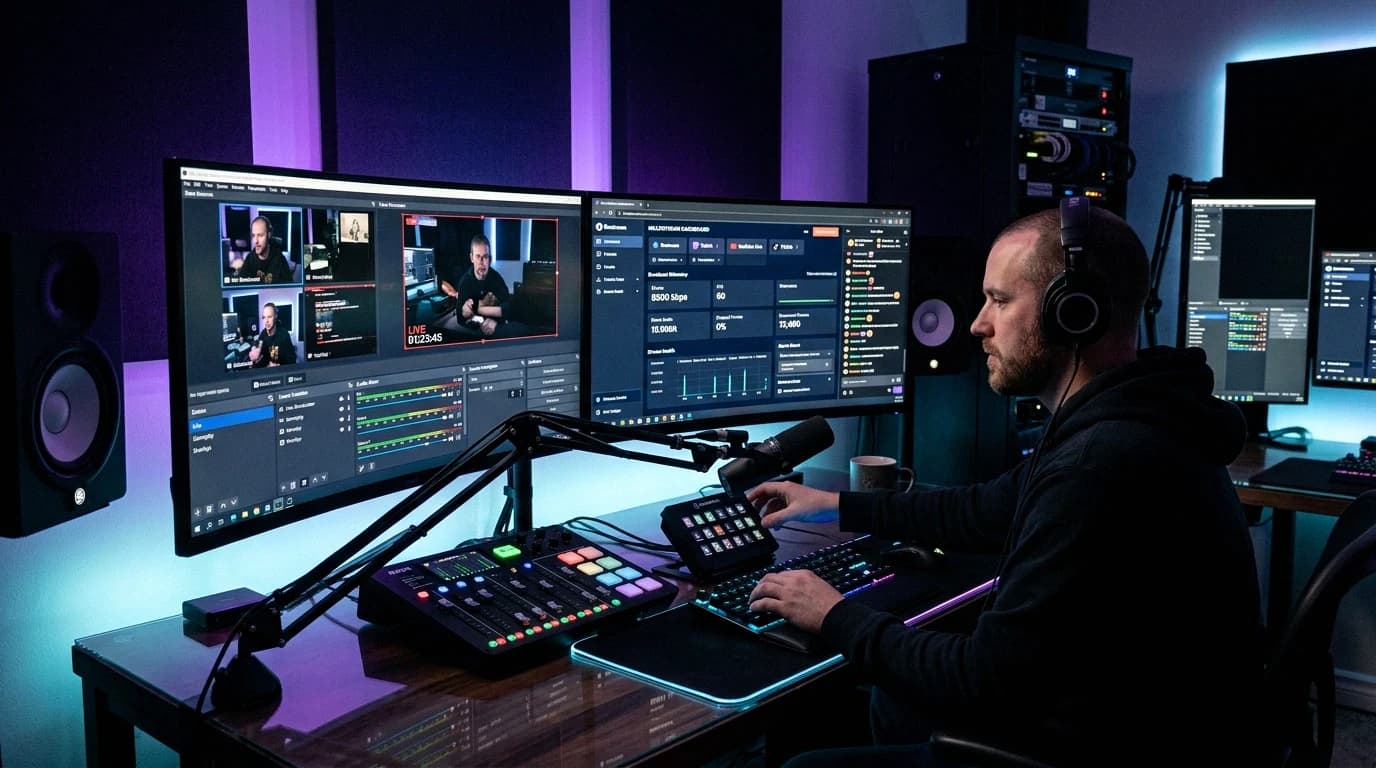
You spent months on your scenes, and now there is a new PC on the desk, or you want the stream to run on a server instead of at home. So the question is: how do I take my current setup with me? OBS Studio has two export buttons for exactly this, but they move less than most people expect. Everything below is checked against OBS Studio 33.0.1 (released 29 October 2026), its source code, its release notes and the OBS knowledge base.
Quick answer: To take your OBS setup with you, use Scene Collection, Export on the old machine (one .json file with your scenes and sources) and Profile, Export (a folder with your stream, video and output settings, stream key included). On the new machine, import the profile first, then the scene collection. Neither export contains your media, images, local browser-source files, fonts, plugins or scripts, so copy those yourself, ideally to the same paths. Then run Scene Collection, Check for Missing Files, install matching plugins and do a private test stream before you go live.
What the two exports hold
OBS splits your setup in two. Its knowledge base says a scene collection saves "all Scenes and Sources that have been added to it", plus the global audio sources from Settings, Audio, and that it does not store output settings. A profile saves Stream (including a connected account), Video (including the Base (Canvas) Resolution) and Output, and the profile article puts it bluntly: "Profiles do NOT store your Scenes."
| Scene collection | Profile | |
|---|---|---|
| Menu | Scene Collection, Export and Import | Profile, Export and Import |
| What you get | One .json file | A folder named after the profile |
| Inside | Scenes, sources with their filters, global audio devices, scene and source hotkeys, scripts added in Tools, Scripts | basic.ini, service.json, streamEncoder.json, recordEncoder.json |
| Covers | Layout and source settings, including file paths | Stream service, server and key, canvas and output resolution, encoder settings, general hotkeys such as Start Streaming |
| Lives in | basic/scenes in the settings folder | basic/profiles in the settings folder |
Both exports only cover the collection and profile that are active right now. If you use several, switch to each one and export it separately.
One warning before you copy anything: service.json stores your stream service, server and stream key as plain JSON, and basic.ini keeps the login tokens of any account you connected in Settings, Stream. Treat the exported profile folder like a password. Do not leave it in a shared cloud folder, and delete the copy once the import works.
Step 1: Export on the old machine
- Open Help, About and write down the OBS version.
- Choose Scene Collection, Export. OBS saves the collection first and suggests its file name. Save the
.jsonfile. - Choose Profile, Export and pick a folder. OBS creates a subfolder with the profile's name and copies the four profile files into it.
- Open the exported
.jsonin a text editor and search for your drive letter or user name. Every image, video, local HTML page and text file your scenes use shows up as a full path. That list is what you need to copy. - Note the fonts used in your text sources, and in OBS 33 open Tools, Plugin Manager to list the plugins you have installed.
Step 2: Copy what the exports leave out
The scene collection stores paths, not files. In OBS 33.0.1 these sources and filters point at files that you have to bring yourself:
- Image, Image Slide Show, Media and VLC Video sources
- Browser sources with Local file ticked (a URL needs nothing)
- Text (GDI+) and Text (FreeType 2) when they read their text from a file
- The Image Mask/Blend and Apply LUT filters
The rest also stays behind:
- Fonts. Text sources save the font's name, style and size, not the font file. Install the same fonts on the new machine before you open the collection.
- Plugins. Neither export contains plugin files. The knowledge base lists three reasons a plugin may not work on your new copy: it exists for one platform only, it is not built for that architecture, or it has not been updated for your OBS version.
- Plugin settings. OBS gives plugins a
plugin_configfolder inside the OBS settings folder (File, Show Settings Folder) for their own settings, and neither export includes it. Sign-ins inside custom browser docks are kept there too, so expect to log in again. - Scripts. The collection remembers where each script was. Copy the script files and check Tools, Scripts afterwards.
- Your stream key, if you decide not to move the profile. Then you paste it again in Settings, Stream.
- Hardware. Video capture devices, microphones and game or window capture point at things on the old machine, so reselect them in each source's properties.
Keep the paths identical
The cheapest way to skip relinking is to keep every stream asset in one folder with the same full path on both machines, for example C:\StreamAssets on two Windows PCs. If the drive letter, the user name or the operating system differs, the paths cannot match, and you fix them once in the Missing Files dialog. That goes quickly as long as you keep the file names the same.
Step 3: Import on the new machine
- Install OBS at the same version as the old machine or newer, then the fonts and plugins, and only then start OBS.
- Choose Profile, Import and select the exported profile folder itself, the one that contains
basic.ini. Without that file the import stops. If a profile with the same folder name already exists, OBS shows "The profile already exists"; rename the profile on the old machine with Profile, Rename and export again. Then select the imported profile in the Profile menu, so the canvas resolution matches the layout you built. - Choose Scene Collection, Import, click Browse..., select your
.jsonfile, keep its row ticked and click Import. If a collection with that name exists, OBS adds yours as "name 2" instead of overwriting it. Switch to it in the Scene Collection menu.
Moving between Windows, macOS and Linux works through Import as well: OBS "automatically adjusts OBS Studio scene collections created on other operating systems". In the 33.0.1 source that means Text (GDI+) and Text (FreeType 2) are swapped with their settings kept, while most audio capture, video capture, window capture and game capture sources become the new system's version with their settings cleared. You reselect those devices and windows by hand. Copying files straight into basic/scenes skips this step.
Step 4: Relink missing files
When a collection points at files that are not there, OBS opens Missing Files with the line "Some files are missing since you last used OBS." Each row shows the State, the Source, the Missing File and a New File field.
- Click Search Directory... and pick your asset folder. OBS looks for files with the same name in that folder and in the folders below it, marks them Found and counts them as "Found X of Y".
- For a single file, click its New File field and use the ... button. A file with another name is marked Replaced. After you set one file, OBS checks that folder for the other missing names and asks whether to add the extra matches.
- A file you no longer need can be cleared with the X button next to ....
- Click Apply to save the new paths. Cancel keeps the old ones.
You can open the same check later with Scene Collection, Check for Missing Files. When everything is linked it says "No files appear to be missing." Keep the check switched on during a move: with the launch parameter --disable-missing-files-check, the dialog no longer opens by itself when a collection loads.
Step 5: Plugins and OBS versions
Move forward, never backward. OBS 31.0 converted scene items to relative coordinates and removed the migrations from OBS 28.1 and earlier; if your old machine runs 28.1 or older, the release notes suggest updating to OBS 30.2 first and then to 31. The notes describe migrations from old to new only, so put the same or a newer version on the new machine.
OBS 33.0 rebuilt how plugins load. Plugins in the old folders still work until at least OBS 34.0, which the knowledge base expects around August 2027, and Tools, Plugin Manager marks them Legacy. Its Errors section lists plugins that "failed to load. Make sure they are up to date and compatible with this version of OBS Studio." Install each plugin in a release built for your OBS version; our OBS Studio 33 guide has the new Linux folders.
If a plugin is missing, OBS keeps its sources in the collection with their settings but cannot show them, and Help, Log Files, View Current Log contains Source ID '...' not found. Install the plugin, restart OBS and the source comes back.
The profile has its own check. Since OBS 33.0, OBS looks at startup for encoders that the profile uses but the machine no longer has, and shows Missing Encoders. That happens when a profile from a PC with a graphics card meets a machine without one. OBS's advice is to switch to a different encoder: in Settings, Output pick one the new machine offers, such as Software (x264).
Moving to a 24/7 streaming VPS
A server is a target like any other PC, with three differences.
There is no camera, capture card, microphone or game on the server, so sources for those have nothing to capture. A 24/7 stream runs on media, images, browser sources and text. Use Scene Collection, Duplicate on the old PC, remove the hardware sources from the copy and export that one.
The paths will not match your PC, so copy your asset folder to the server and run Search Directory once.
The encoder settings from a gaming PC rarely fit a server. Switch to x264 and pick a CPU preset the server can hold for days; our 24/7 OBS settings guide has the values per platform. If you want to keep controlling scenes from home, see our OBS and VPS remote streaming guide.
On a Space-Node streaming VPS, OBS Studio comes pre-installed, runs in our Netherlands data center on a 1 Gbps uplink, and you use it from your web browser, so you only do the import half of this guide. Check its version in Help, About against your PC first. Graphics on most plans are shared and differ per machine, which is another reason to start the profile on x264.
Test checklist before you go live
- Help, About shows the same or a newer version than the old machine.
- Scene Collection, Check for Missing Files says "No files appear to be missing."
- Tools, Plugin Manager shows nothing under Errors or Missing.
- Click through every scene: fonts look right, browser sources load, videos play and loop.
- No Missing Encoders window appeared, and Settings, Output shows the encoder you want.
- Settings, Video has the same Base (Canvas) Resolution and frame rate as before.
- Settings, Stream has the right service and key, and Settings, Audio the right devices.
- Your hotkeys still fire, including Start Streaming.
- A private or unlisted test stream runs for 15 minutes while View, Stats shows no climbing dropped frames.
- The old machine stays untouched until the new one has streamed for a full day.
FAQ
Does exporting a scene collection include my images and videos?
No. The .json file only stores the path to each file. Copy your media, images, local browser-source files and text files yourself, ideally to the same paths, or relink them in the Missing Files dialog.
Does an OBS profile export include my stream key?
Yes. The exported folder contains service.json with your service, server and stream key as plain text, and basic.ini holds tokens for a connected account. Keep it private and delete it after the import.
Can I import a Windows scene collection on Linux or macOS?
Yes, through Scene Collection, Import. OBS converts text sources and swaps most capture sources for the new system's equivalents, but it clears their settings, so you pick devices and windows again and relink file paths.
Why does OBS say files are missing after I moved my setup?
The collection still points at the old paths, such as a different drive letter or user folder. Click Search Directory... in the dialog, pick your asset folder and OBS matches the files by name.
Can I copy the whole OBS settings folder instead?
With OBS closed you can copy basic/scenes and basic/profiles from the settings folder (File, Show Settings Folder), which brings every collection and profile in one go. The cross-system adjustments only run through Import, so use the export buttons when the operating system changes.
Sources
All opened on 7 November 2026:
- OBS knowledge base: Scene Collections, Profiles, Plugins Guide, Legacy Plugin Locations, Encoder Missing Error on Launch, Launch Parameters
- OBS Studio release notes on GitHub: 33.0.1, 33.0.0, 31.0.0; OBS download page (33.0.1, released October 29th)
- OBS Studio 33.0.1 source: OBSBasic_Profiles.cpp, OBSBasic_SceneCollections.cpp, OBSBasic_Service.cpp, importers/studio.cpp, OBSImporter.cpp, MissingFilesModel.cpp, OBSMissingFiles.ui, OBSBasic.ui, en-US.ini, libobs/obs.c, libobs/obs-source.c, OBSApp.cpp
- OBS developer docs: Core API reference, obs_startup