Alright so you wanna run a 24/7 stream on YouTube or Twitch but OBS keeps crashing after a few hours? Yeah, I've been there. Spent like 2 weeks figuring out why my lofi stream kept dying randomly. Turns out it's all about the settings.
This guide is for people who just want their stream to WORK without learning a PhD in streaming software. I'm gonna show you exactly what settings to use, why they matter, and how to actually keep your stream online for days without issues.
Why Your OBS Keeps Crashing (Probably)
Before we fix it, here's why it's breaking:
- Wrong encoder settings eating all your CPU
- Memory leaks from bad scene setups
- Bitrate too high for your internet
- Sources not configured for long streams
- Windows deciding to update mid-stream (lol)
Most OBS tutorials are made for gaming streams that run 3-4 hours max. That's completely different from 24/7 operation. Different settings needed.
The Basic OBS Settings That Actually Work
Step 1: Output Settings (This is Super Important)
Go to Settings > Output and use these EXACT settings:
Output Mode: Advanced
Encoder: x264 (or NVENC if you have Nvidia GPU)
Why x264? It's more stable for long streams even though it uses more CPU. NVENC is fine too if your GPU supports it, actually uses less CPU.
Rate Control: CBR (Constant Bitrate)
DO NOT use VBR or CQP for 24/7 streams. CBR keeps your bitrate stable which prevents random disconnects.
Bitrate:
- For 1080p 30fps: 4500-6000 kbps
- For 720p 30fps: 2500-4000 kbps
- For 480p: 1500-2500 kbps
Pick based on your upload speed. If you have 10mbps upload, don't go above 6000 kbps bitrate. Leave buffer room.
Keyframe Interval: 2 seconds
YouTube requires this. Just set it to 2 and forget it.
CPU Usage Preset:
- If using x264: veryfast or faster
- If using NVENC: Quality or Max Quality
Don't use slow or medium presets for 24/7. Your CPU will die.
Profile: high
Tune: zerolatency
Step 2: Video Settings
Settings > Video:
Base Canvas Resolution: Whatever you want (1920x1080 is fine)
Output Resolution:
- 1920x1080 if you have good upload
- 1280x720 if upload is mid
- 854x480 if upload sucks
FPS: 30
Don't do 60fps for 24/7 streams unless you have unlimited upload. 30fps is plenty for music/ambiance streams and way more stable.
Step 3: Audio Settings
Settings > Audio:
Sample Rate: 44.1khz or 48khz (either works, just pick one)
Channels: Stereo
Desktop Audio: Set to your main output
Mic/Aux: Disabled (unless you're actually talking)
Step 4: Advanced Settings
Settings > Advanced (this stops random crashes):
Process Priority: Normal
Color Format: NV12
Color Space: 709
Color Range: Partial
Automatically Reconnect: ENABLE THIS
- Retry Delay: 10 seconds
- Maximum Retries: Unlimited (for 24/7)
This is HUGE. When your internet hiccups for 2 seconds, OBS auto reconnects instead of just dying.
Stream Delay: 0 (unless you need it for chat sync)
Scene Setup for Stability
Your scene setup matters way more than people think for 24/7 streams.
Good Scene Setup:
Scene 1: Main Stream
- Background image (PNG or JPG, not video)
- OR Background video (read below about this)
- Audio input (your music/content)
- Text overlays (optional)
- Simple visualizer (optional)
Keep it simple. Don't have 47 sources with animations and transitions. Each extra thing is another thing that can crash.
Video Loop Settings (Important!)
If you use video backgrounds:
- Right click video source
- Properties
- ✅ Loop
- ✅ Restart playback when source becomes active
- ✅ Close file when inactive (prevents memory leaks!)
Without that last checkbox, OBS slowly eats more RAM until it crashes. This is like the #1 cause of 24/7 stream deaths.
Audio Source Setup
For music streams, use Media Source for your audio files.
Best practice:
- Create a VLC Video Source playlist instead of individual media sources
- Or use one long audio file (like 6+ hours)
- Loop it properly
Why? Because switching between tons of small audio files creates memory issues over time.
The Stability Checklist
Before you start your 24/7 stream, do this:
✅ Run OBS as Administrator
- Right click OBS > Run as administrator
- Prevents random permission crashes
✅ Disable Windows Updates during stream
- Go to Windows Update settings
- Pause updates for 2-3 weeks
- Otherwise Windows WILL restart your PC at 3am
✅ Disable Sleep/Hibernation
- Control Panel > Power Options
- Set both to Never
✅ Close other programs
- Chrome eats RAM like crazy
- Discord is fine usually
- Close gaming stuff, editing software, etc
✅ Test your settings for 2-3 hours first
- Don't go straight to 24/7
- Run a 3 hour test stream
- Check OBS stats for dropped frames or issues
Monitoring Your Stream Health
While streaming, watch these stats in OBS (bottom right):
CPU Usage: Should be under 70%
- If it's at 90%+, lower your encoder preset
Dropped Frames: Should be 0% or under 0.1%
- If higher, your bitrate is too high for your internet
Render Lag: Should be 0%
- If not, your computer is too slow for your settings
Encoding Lag: Should be 0%
- If not, lower encoder preset
Common Problems and Quick Fixes
"OBS crashes after 6-8 hours"
Usually memory leak from video sources.
- Enable "Close file when inactive" on all video sources
- Use image backgrounds instead of videos
- Restart OBS every 24 hours during low viewer times
"Stream randomly disconnects"
Internet upload is unstable.
- Lower bitrate by 1000 kbps
- Make sure auto-reconnect is enabled
- Consider getting dedicated streaming server (more on this below)
"Quality looks blurry"
Bitrate is too low for your resolution.
- Lower resolution instead of raising bitrate
- 720p at 4000kbps looks better than 1080p at 4000kbps
"CPU at 100% and stream is laggy"
Encoder preset is too slow.
- Change from veryfast to ultrafast
- Or switch to NVENC if you have Nvidia GPU
- Or use a streaming VPS instead
The Home PC Problem Nobody Talks About
Real talk - running OBS 24/7 on your home computer SUCKS.
Here's what actually happens:
- Your PC gets hot AF running 24/7
- Windows decides to update and restart
- Power flickers and your stream dies
- You can't use your PC for anything else
- Electric bill goes up €30/month
- Your GPU/CPU wears out faster
The Actual Solution
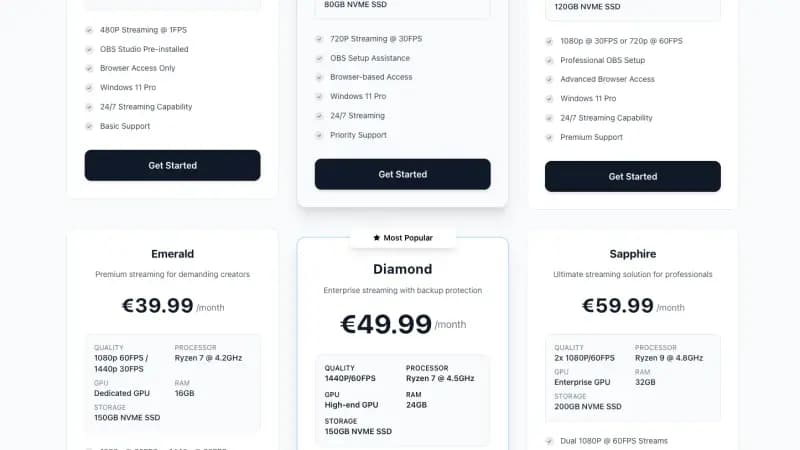
Get a streaming VPS. It's like €10-20/month and solves EVERYTHING.
What you get:
- Windows server in a datacenter
- OBS already installed and configured
- Access from browser (no RDP needed)
- 99.9% uptime (actual good internet)
- Use your PC normally while stream runs
I switched to this after my PC crashed my stream for the 100th time. Best decision ever. Set up OBS once, start stream, close browser. Done. Stream runs forever while I game on my actual PC.
Space-Node has streaming VPS plans starting at €9.99/month with OBS pre-installed. Way easier than dealing with home PC BS.
YouTube Stream Settings
Quick YouTube specific stuff:
Stream Key: Settings > Stream
- Service: YouTube
- Server: Primary YouTube ingest server
- Stream Key: (get from YouTube Studio)
YouTube Requirements:
- Keyframe interval MUST be 2 seconds
- Max bitrate: 51,000 kbps (but don't actually use that much lol)
- Account must be verified
Going Live:
- Open YouTube Studio
- Click "Create" > "Go Live"
- Stream shows up automatically when OBS starts streaming
Content Setup for Music/Ambiance Streams
If you're doing lofi/music/ambiance streams:
Music Sources:
- Use YouTube Audio Library (copyright free)
- Or licensed music from Epidemic Sound/Artlist
- Don't use random Spotify rips (copyright strikes)
Visualizers:
- Keep them simple
- Don't use super animated ones (causes encoding lag)
- Static or minimal animation is best
Background:
- Anime girl studying (classic lofi aesthetic)
- Space/galaxy visuals
- Fireplace
- Rain on window
- Keep it chill and looped properly
Testing Before Going 24/7
Don't just click "Start Streaming" and hope for the best.
Test routine:
Day 1: Stream for 3 hours
- Monitor dropped frames
- Check CPU usage
- Make sure audio doesn't desync
Day 2: Stream for 8 hours
- See if memory usage creeps up
- Check for crashes
- Verify auto-reconnect works
Day 3: Stream for 24 hours
- This is the real test
- If it survives 24hrs without manual intervention, you're good
If it crashes during testing, check OBS crash logs:
- Help > Log Files > Upload Current Log File
- Post in OBS Discord for help or Google the error
Pro Tips for Long Streams
1. Schedule automatic restarts
- Restart OBS once every 24 hours during low viewer count
- Clears memory leaks
- Fresh start = more stability
2. Use a stream manager
- Streamlabs Desktop or regular OBS
- Regular OBS is more stable for 24/7 tbh
3. Monitor from your phone
- Install YouTube Studio app
- Check stream health randomly
- Get alerts if stream goes down
4. Have backup plan
- Second stream key ready
- Know how to restart quickly
- Maybe run two streams if serious about it
5. Don't touch it while streaming
- Don't change scenes
- Don't adjust settings
- Don't update OBS
- If it's running fine, leave it alone
Final Thoughts
24/7 streaming with OBS isn't hard once you have the right settings. The key things:
✅ Use CBR bitrate control ✅ Enable auto-reconnect ✅ Close files when inactive ✅ Keep scenes simple ✅ Test before going full 24/7 ✅ Consider VPS if home PC keeps failing
Most people overcomplicate this. You don't need perfect quality or insane bitrate. You need STABILITY. A stream that runs at 720p for 7 days straight beats a 1080p stream that crashes every 6 hours.
Start with these settings, test them, adjust based on your actual results. And if your home setup keeps failing, seriously consider a streaming VPS. It's €20/month for zero headaches vs fighting your PC constantly.
Good luck with your stream! 🚀