
You're about to reinstall your VPS: a newer Ubuntu or Debian release, a clean start after a break-in, or a system that's quicker to rebuild than to fix. The reinstall writes a fresh image over the disk, and your sites, databases, containers, cron jobs, accounts, keys and certificates go with it. Unlike a move to a new server, there's no old machine left to copy from afterwards. Here's what to save and how to check the copy. Commands are for Ubuntu 24.04 and Debian 12.
Quick answer: First write down what runs: ports, services, timers, crontabs, packages and firewall rules. Stop your apps, dump each database with mariadb-dump or pg_dump instead of copying its files, and archive Docker volumes through a throwaway container. Pack /etc, /home, /root, /srv, /opt, /var/www, /usr/local and /var/spool/cron into one tar file, pull everything to your own computer and check it with sha256sum -c. Keep keys you can't recreate in a password manager too. After the reinstall, copy single files back from the old /etc, never the whole folder.
The Checklist
| What | Where it lives | Step |
|---|---|---|
| Databases | MariaDB, MySQL, PostgreSQL, SQLite files | 2 |
| Docker apps | Compose folders with .env, named volumes | 3 |
| Sites, apps and scripts | /var/www, /srv, /opt, /home, /root, /usr/local | 4 |
| Settings | /etc: web server, SSH, fail2ban, sysctl | 1 and 4 |
| Scheduled jobs | /var/spool/cron/crontabs, /etc/cron.d, systemd timers | 1 and 4 |
| Services | /etc/systemd/system, ~/.config/systemd/user, PM2 | 1 and 4 |
| Users and SSH | /etc/passwd, ~/.ssh, /etc/ssh | 1 and 4 |
| Certificates | /etc/letsencrypt | 4 |
| Firewall | UFW or nftables rules | 1 |
| Packages | apt, repositories in /etc/apt/sources.list.d | 1 and 4 |
| Secrets | .env files, app keys, WireGuard and DKIM keys | 4, plus a password manager |
Step 1: Write Down What Runs
Make a private folder and save the server's state while everything runs. As root, drop sudo, except in sudo -u postgres.
mkdir -m 700 ~/pre-reinstall && cd ~/pre-reinstall
sudo ss -tulpn > ports.txt
systemctl list-unit-files > unit-files.txt
systemctl list-timers --all > timers.txt
apt-mark showmanual > packages.txt
sudo dpkg --verify > dpkg-verify.txt
awk -F: '$3 >= 1000 && $3 <= 60000' /etc/passwd > users.txt
timedatectl > timezone.txt
sudo find / -xdev -name '.env*' -not -path '*/node_modules/*' > env-files.txt 2>/dev/null
ports.txt: every listening TCP and UDP port with its process.unit-files.txt: which units start at boot. Yours live in/etc/systemd/system, systemd's place for "System units created by the administrator".dpkg-verify.txt: a line for each package file that fails dpkg's check. A5means changed contents and aca config file. Files you created, such as an nginx site, aren't listed, so all of/etcgoes into the archive.users.txt: the regular accounts, whichuseraddnumbers from 1000 to 60000 by default.timezone.txt: cron runs all jobs in the system's time zone, and a fresh image may not use yours.env-files.txt: where your.envsecrets are.-xdevkeepsfindoff other file systems such as/proc.
Then firewall rules, crontabs and PM2's process list:
sudo ufw show added > ufw-added.txt
sudo nft list ruleset > nft-ruleset.txt
for u in $(sudo ls /var/spool/cron/crontabs); do sudo crontab -u "$u" -l > "crontab-$u.txt"; done
pm2 save
ufw show added prints your UFW rules as the commands you typed; the nft line is for hand-written nftables rules. Skip whichever you don't use. Run pm2 save as every user that runs PM2: it writes the process list to ~/.pm2/dump.pm2, which pm2 resurrect reads later.
Step 2: Stop Your Apps and Dump the Databases
Stop whatever writes data (sudo systemctl stop yourapp.service, pm2 stop all), but keep the databases running. Don't copy their files instead: PostgreSQL's manual says the server "must be shut down in order to get a usable backup" that way, and another release can bring another major version (PostgreSQL 15 on Debian 12, 16 on Ubuntu 24.04), whose "internal data storage format is subject to change". Dumps cross that gap.
MariaDB or MySQL:
sudo mariadb -e 'SHOW DATABASES'
sudo mariadb-dump --single-transaction --routines --events appdb | gzip > appdb.sql.gz
sudo mariadb-dump --system=users --insert-ignore | gzip > mariadb-users.sql.gz
zcat appdb.sql.gz | tail -n 1
Repeat the second line for each of your databases. --single-transaction dumps InnoDB tables consistently "without blocking any applications", --routines and --events add stored routines and scheduled events, and --system=users saves your accounts and grants. The last line must print -- Dump completed on and a date. On MySQL, use mysqldump; our MariaDB and MySQL guide covers its users and restores.
PostgreSQL, from /tmp:
cd /tmp
sudo -u postgres psql -l
sudo -u postgres pg_dump -Fc appdb > ~/pre-reinstall/appdb.dump
sudo -u postgres pg_dumpall --globals-only > ~/pre-reinstall/pg-globals.sql
pg_restore -l ~/pre-reinstall/appdb.dump | head -5
cd ~/pre-reinstall
-Fc writes a compressed custom-format archive, --globals-only saves the roles that pg_dump leaves out, and a table of contents from pg_restore -l proves the archive is readable. Why /tmp? PostgreSQL 15 tools change back into your current folder, and when the postgres user can't enter your private folder, pg_dumpall stops with program "pg_dump" is needed by pg_dumpall but was not found. Restores are in our PostgreSQL guide.
SQLite has no server to dump from. Copying the file is safe "as long as there are no transactions in progress", so stop the app that uses it; the Step 4 archive takes the database with any -wal or -journal file beside it.
Step 3: Save Docker Projects and Volumes
sudo docker compose ls --all
sudo docker volume ls
The CONFIG FILES column shows each project's compose file. Its folder, .env included, goes into the Step 4 archive when it sits under /opt, /srv or /home. Dump databases that run in containers first, with docker compose exec -T as our Docker volumes guide shows. Then stop the project and archive each named volume through a throwaway container, as Docker's volume docs do:
cd /opt/myapp && sudo docker compose stop
sudo docker run --rm -v myapp_data:/data:ro -v ~/pre-reinstall:/backup ubuntu:24.04 \
  tar czf /backup/myapp_data.tar.gz -C /data .
Run the docker run line once per volume. Images from a registry can be pulled again; save one you built and can't rebuild with sudo docker image save myimage:1.0 | gzip > ~/pre-reinstall/myimage.tar.gz.
Step 4: Pack the Files
Check sizes first; the archive lands on the same disk:
sudo du -xsh /etc /home /root /srv /opt /var/www /usr/local /var/spool/cron
sudo du -xh -d1 /var/lib | sort -h | tail -n 8
df -h /
Then archive it all in one go:
sudo tar czf ~/pre-reinstall/files.tar.gz -C / --exclude=pre-reinstall \
  etc home root srv opt var/www usr/local var/spool/cron
-C /and names without a leading slash store relative paths such asetc/nginx.--exclude=pre-reinstallkeeps the backup folder out of its own archive: exclude patterns match any part of a path by default.- Remove names that don't exist on your server, or tar reports
Cannot stat: No such file or directoryand ends withExiting with failure status due to previous errors. file changed as we read itmeans something still writes: stop it and run the line again.- Add app data the
/var/libline showed, but notvar/lib/mysql,var/lib/postgresqlorvar/lib/docker, which your dumps and volume archives cover. Pterodactyl's folders andAPP_KEYare in our Pterodactyl backup guide.
Step 5: Copy It Off the Server and Check It
On the VPS, write the checksums:
cd ~/pre-reinstall && sha256sum * > SHA256SUMS
On your computer, pull the folder and check it:
rsync -av user@203.0.113.10:pre-reinstall/ ./vps-backup/
cd vps-backup && sha256sum -c SHA256SUMS
tar tzf files.tar.gz | head
Every file should print OK, and SHA256SUMS lets you check the copy again right before you restore it. For proof that the copy restores, not only that it arrived intact, run a restore drill on a spare VPS first. On Windows, scp -r user@203.0.113.10:pre-reinstall . copies the folder with the OpenSSH client, and PowerShell's Get-FileHash prints SHA256 values to compare. The copy holds password hashes, private keys and .env files, so keep it on an encrypted disk.
Before You Reinstall
- Apps that write are stopped, and the dumps and archives were made after that.
sha256sum -cprintedOKfor every file on your computer.- Keys you can't recreate, such as n8n's encryption key or Pterodactyl's
APP_KEY, are in your password manager too. - You know how you'll log in afterwards: the root password or SSH key the reinstall sets up.
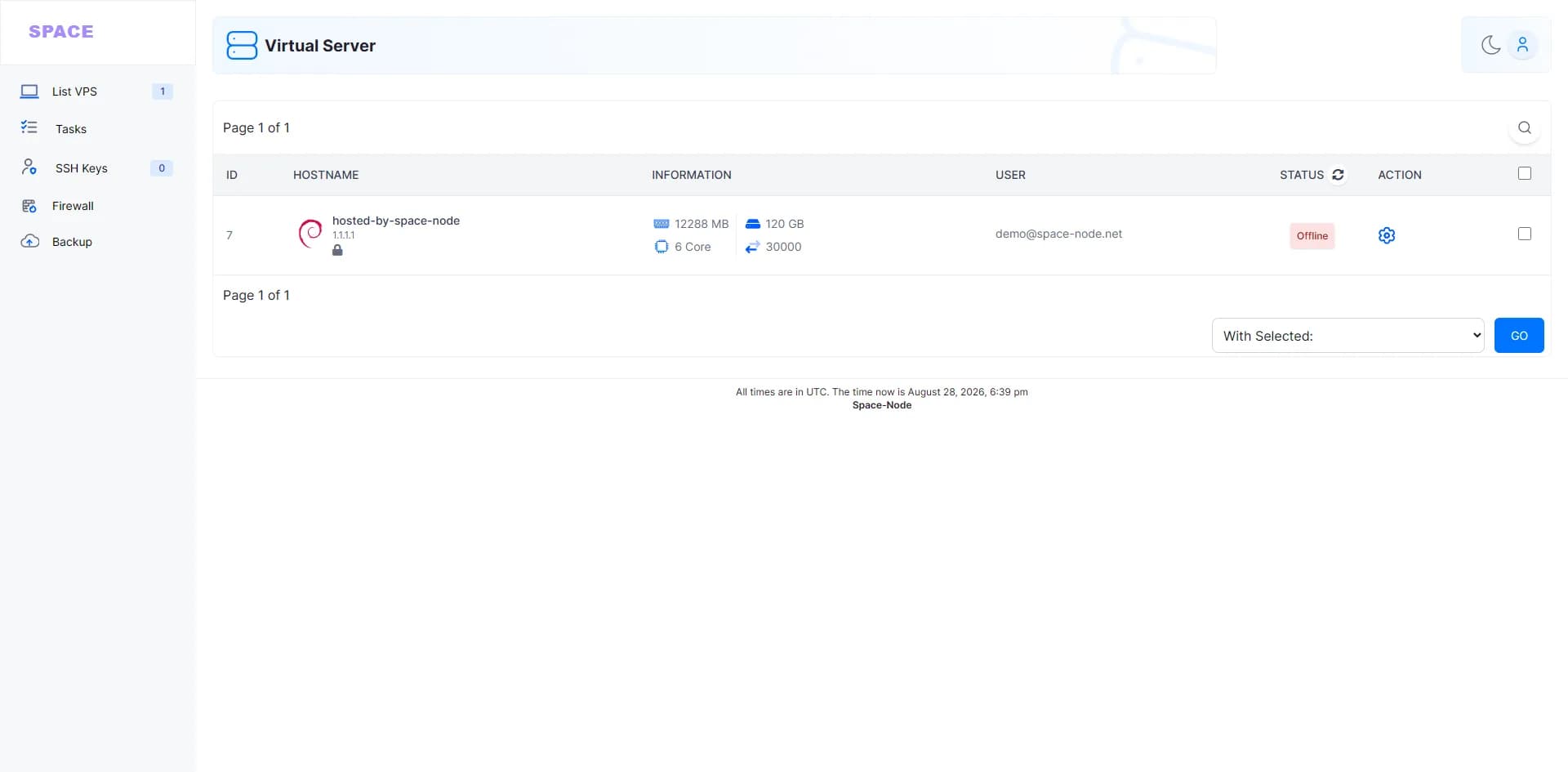
On a Space-Node VPS you reinstall a Linux image from the panel. Backups aren't included in the plan price; you can arrange them through a support ticket.
After the Reinstall: Restore in This Order
1. Log in. Expect new SSH host keys: Debian's openssh-server package creates them when none exist, and cloud-init replaces an image's keys by default. ssh then warns REMOTE HOST IDENTIFICATION HAS CHANGED and refuses to connect, so run ssh-keygen -R 203.0.113.10 first.
2. Users, firewall and upload. Create each user from users.txt under the same name before you extract anything: tar looks up each file's owner by name and only falls back to the stored numeric ID when the name doesn't exist. Our first steps guide covers users, SSH keys and UFW; run the commands from ufw-added.txt before sudo ufw enable. Then upload the backup with rsync -av ./vps-backup/ user@203.0.113.10:vps-backup/ (rsync must be installed on both ends).
3. Packages, then files. Unpack the old /etc into a separate folder, install what you need from packages.txt (repository files are in ~/old/etc/apt/sources.list.d) and set the old time zone with sudo timedatectl set-timezone. Then extract your data in place, naming only folders the archive holds, and compare the two /etc folders:
cd ~/vps-backup
mkdir ~/old && sudo tar xzf files.tar.gz -C ~/old etc
# after installing your packages:
sudo tar xzf files.tar.gz -C / home srv var/www
sudo diff -rq ~/old/etc /etc > ~/etc-diff.txt
In etc-diff.txt, Only in lines that point into ~/old are files only the old system had, and Files ... differ lines are changed ones. Copy what you need one file at a time, such as sudo cp -a ~/old/etc/nginx/sites-available/example.com /etc/nginx/sites-available/, never the whole folder: passwd, group and shadow hold the old accounts and fstab the old file systems.
4. Databases, Docker and schedules. Load the dumps as the MariaDB and PostgreSQL guides show, restore volumes before the first docker compose up, and copy your unit files from ~/old/etc/systemd/system. Then:
sudo crontab -u alice ~/vps-backup/crontab-alice.txt
sudo systemctl daemon-reload
sudo systemctl enable --now yourapp.service
pm2 resurrect
pm2 startup
Run the command pm2 startup prints, so PM2 starts at boot.
5. Certificates. Restore them with sudo tar xzf files.tar.gz -C / etc/letsencrypt, install Certbot and run sudo certbot renew --dry-run. New certificates work too, but Let's Encrypt issues at most 5 per exact set of names every 7 days.
6. Old SSH identity, if needed. For deploy jobs or servers that connect here, restore the host keys with sudo tar xzf files.tar.gz -C / --wildcards 'etc/ssh/ssh_host_*' and sudo systemctl restart ssh.service, then run ssh-keygen -R on your computer once more.
7. Check. Reboot, run systemctl --failed, and compare sudo ss -tulpn and systemctl list-timers --all with your notes. Keep the backup until every job, weekly ones included, has run on the new system.
After a Break-In: Restore Data, Not Programs
After a compromise, the backup can carry the attacker's way back in. MITRE ATT&CK describes cron jobs, systemd services, SSH authorized_keys files and shell startup files such as /etc/profile and ~/.bashrc as ways attackers persist. Restore data and dumps only: extract named folders such as home/alice/app rather than all of home, write crontabs, units and authorized_keys again by hand after reading the old ones, leave out scripts from /usr/local and /root you can't vouch for, and change every password, token and key the old server held.
FAQ
Is a provider snapshot enough? It's a good way back if the reinstall goes wrong, provided it's stored apart from the disk being reinstalled; ask your provider. But it brings back the whole old system, including what you reinstall to get rid of, so keep the file copy too. Our snapshot guide compares the two.
Do I need to back up the programs themselves?
No: packages.txt and the repository files in the archive let apt install them again. Check /usr/local and /opt for programs you built or downloaded yourself; the archive includes both.
Will my SSH key still work after the reinstall?
Your private key stays on your computer, but ~/.ssh/authorized_keys on the server goes with the disk. Log in the way the reinstall sets up and add your public key again.
What if the disk is too full for the archive? Archive and download one folder at a time, deleting each archive once its checksum passed on your computer, or send the data straight to another machine with restic over SSH.
Sources
All opened on 31 October 2026:
- GNU tar: Handling file attributes, Absolute file names, Controlling pattern matching, Exit codes, Archive creation warnings, tar(1)
- Copying and checking: rsync(1), scp(1), sha256sum(1), Microsoft: Get-FileHash, Microsoft: OpenSSH for Windows
- Packages and users (Debian 12): apt-mark(8), sources.list(5), dpkg(1), passwd(5), shadow(5), group(5), login.defs(5), fstab(5)
- Cron and systemd: crontab(1), cron(8), systemctl, systemd.unit, timedatectl
- Tools (Debian 12): ss(8), find(1), du(1), df(1), sort(1), mkdir(1), cp(1), diff(1), gzip(1), mawk(1)
- Firewall: ufw(8), nft(8)
- SSH: sshd(8), ssh(1), ssh_config(5), ssh-keygen(1), OpenSSH sshconnect.c, Debian 12 openssh-server postinst, Debian 12 ssh.service, cloud-init modules, Ubuntu Server: OpenSSH server
- Certificates: Certbot user guide, Let's Encrypt rate limits
- MariaDB: mariadb-dump, mariadb client, MariaDB on Debian and Ubuntu, mysqldump.c (10.11)
- PostgreSQL: pg_dump, pg_dumpall, pg_restore, psql, File system level backup, Upgrading a cluster, exec.c (PostgreSQL 15), pg_dumpall.c (PostgreSQL 15), Ubuntu Server: PostgreSQL, Debian 12 postgresql version, Ubuntu 24.04 postgresql package
- SQLite: How to corrupt an SQLite database file
- Docker: Volumes, docker compose ls, docker compose stop, docker volume ls, docker image save, Compose list.go
- PM2: Startup script, Quick start, paths.js
- MITRE ATT&CK: Cron (T1053.003), Systemd Service (T1543.002), SSH Authorized Keys (T1098.004), Unix Shell Configuration Modification (T1546.004)