Quick answer: You can stream to Kick from a Space-Node streaming VPS by opening OBS on the VPS, adding your scenes, pasting your Kick stream key, and clicking Start Streaming. The VPS keeps the stream online even when your own PC is off.
Why use a VPS for Kick streaming?
Kick streaming is easy to start, but running a stable stream for many hours is harder. A streaming VPS helps when you want:
- A stream that stays live while your PC is off
- Better upload stability than home internet
- OBS running on a separate machine
- Multistreaming to Kick, YouTube, and Twitch
- A simple 24/7 channel for music, stats, gaming, or dashboards
For creators who stream often, a VPS is less annoying than leaving a gaming PC on all day.
Basic Kick OBS setup
| Step | What to do |
|---|---|
| 1 | Order a Space-Node streaming VPS |
| 2 | Open OBS on the VPS through browser access |
| 3 | Add your video, browser source, camera, game capture, or media source |
| 4 | Open Kick creator settings and copy your stream key |
| 5 | Paste the stream key into OBS |
| 6 | Set bitrate and resolution |
| 7 | Start streaming |
If you also want YouTube or Twitch, install an OBS multi-RTMP plugin and add extra destinations.
Recommended settings for Kick
| Quality | Resolution | FPS | Bitrate | Suggested plan |
|---|---|---|---|---|
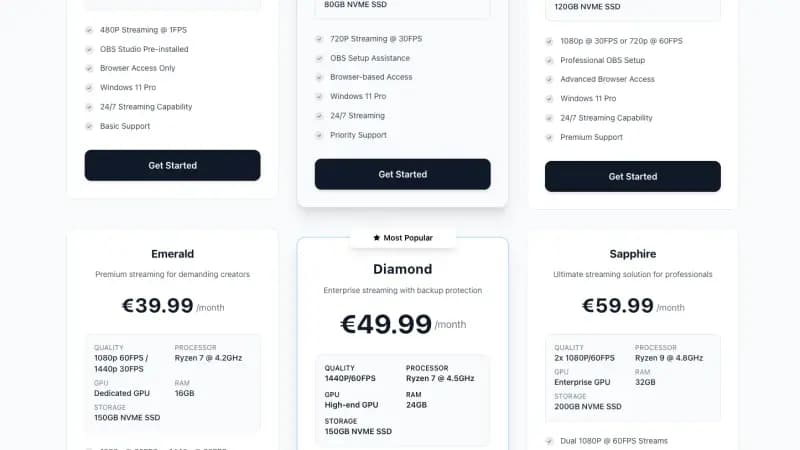
| Basic | 720p | 30 | 2500 to 4000 Kbps | Gold |
| Creator | 1080p | 30 | 4500 to 6000 Kbps | Platinum |
| Smooth | 1080p | 60 | 6000 to 8000 Kbps | Emerald |
| Heavy scenes | 1440p | 30 or 60 | 8000 Kbps or more | Diamond or Sapphire |
Start lower if your stream is mostly static text or a stats dashboard. Use higher tiers for gaming, overlays, and multistreaming.
Good use cases
A Kick streaming VPS is useful for:
- 24/7 music streams
- Live follower count streams
- Gaming streams with OBS scenes
- Creator dashboards
- Radio and podcast loops
- Event countdowns
- Multistreaming from one OBS setup
For Instagram stats dashboards, pair it with InstaStatistics and add the page as a Browser Source in OBS.
VPS vs home PC
| Home PC | Streaming VPS |
|---|---|
| Uses your electricity | Runs in a data center |
| Stream stops if PC restarts | Built for 24/7 uptime |
| Home upload can drop | 1 Gbps uplink |
| Gaming FPS can suffer | Encoding can run away from your gaming PC |
| Hard to access while away | Browser access from anywhere |
The main benefit is simple: your stream does not depend on your desk setup.
Start small
You do not need the largest plan for every Kick stream. If the stream is simple, start with Gold or Platinum. Upgrade to Emerald or higher when you need 1080p 60 FPS, multiple platforms, or heavier OBS scenes.
Ready to test it? View the Space-Node streaming VPS plans.
Kick VPS setup quick answers
| Query | Answer |
|---|---|
| Kick streaming server VPS setup 2026 | Use browser-access OBS on the VPS if you need scenes, overlays, and manual control. Use FFmpeg or Nginx-RTMP if you only need relay/restreaming. |
| Kick RTMP ingest URL 2026 | Copy the current RTMP URL from the Kick dashboard. rtmp://ingest.kick.com/live is commonly used in examples, but dashboard values should win. |
| Kick maximum bitrate 2026 | Start around 6000-8000 kbps for 1080p60 unless your dashboard or account guidance says otherwise. Stability beats chasing a larger number. |
| Kick schedule stream feature | Check the creator dashboard for schedule/event options. If missing, use Discord, social posts, and channel panels to promote the next stream. |
| Kick streaming multistreaming policy 2026 | Review Kick's current creator rules before simulcasting monetized or exclusive content. Technical ability and platform policy are separate questions. |
A VPS is most useful for Kick when your local upload is weak, the stream needs to stay live 24/7, or you want to multistream without sending three separate uploads from home.