
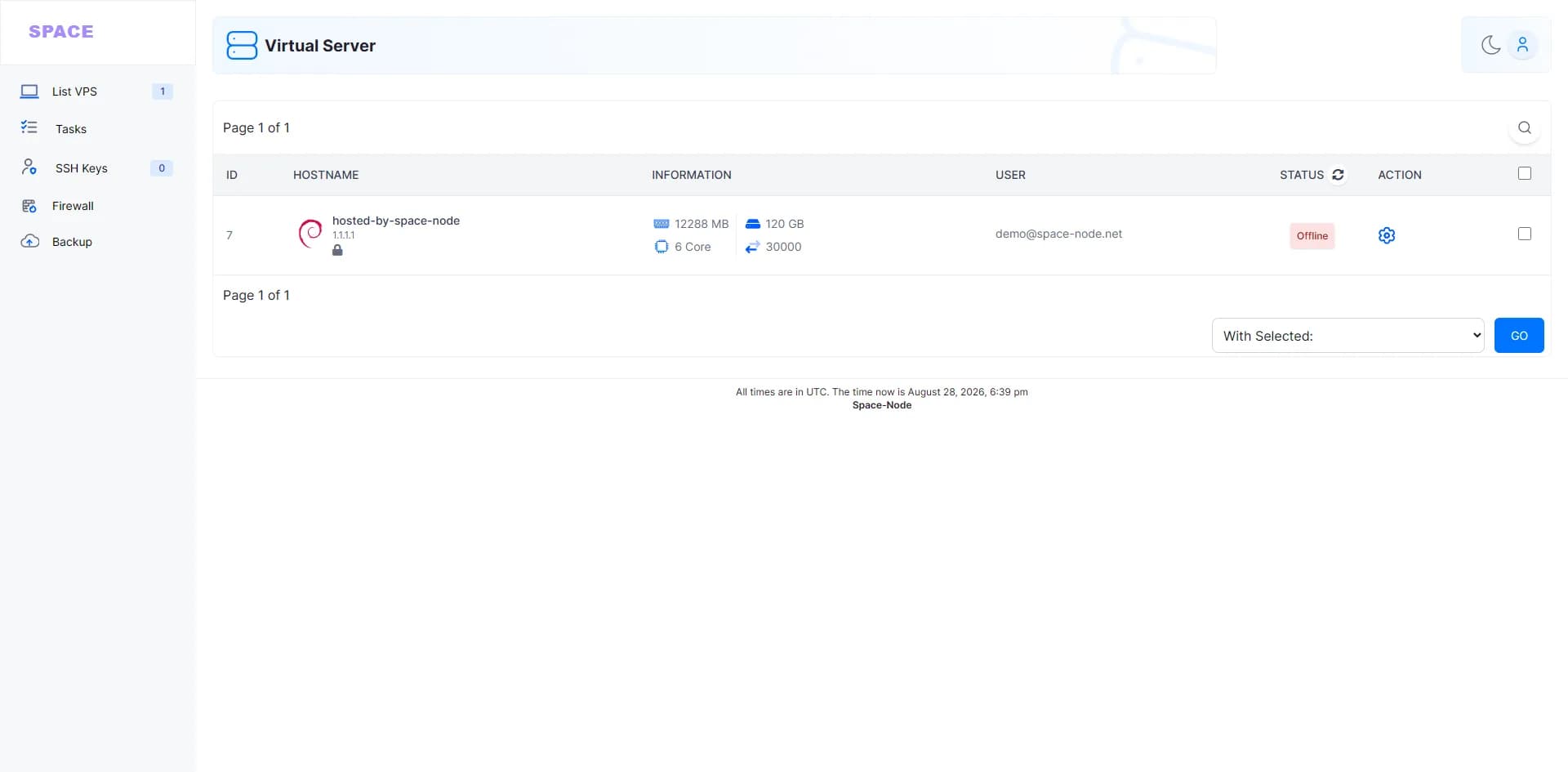
You created a server in Pterodactyl, and an hour later the client area still shows Running Installer: "Your server should be ready soon, please try again in a few minutes." That screen covers three situations: the install script is still running, Wings stopped before it could finish or report back, or the install failed. The checks below tell them apart and fix each one on a node running Ubuntu 24.04 or Debian 12. We checked them against the source of Panel 1.15.2 and Wings 1.13.4, the stable releases on 30 October 2026.
Quick answer: A server leaves Installing only when Wings reports the result to the panel. On the node, sudo docker ps -a --filter "label=ContainerType=server_installer" and sudo docker logs -f <uuid>_installer show whether the install script still runs. If it doesn't, sudo journalctl -u wings --since today | grep -i install and the install log show why. Usual causes: an image that will not pull, DNS inside the containers, a full disk, or a panel Wings cannot reach. Fix it, back up the server's folder, then use Toggle Install Status and Reinstall Server on the admin Manage tab, or the Application API after a failed first install.
What Happens During an Install
When you create a server, the panel saves it with the status installing and sends it to Wings. If Wings cannot be reached, the panel deletes the server again. Wings then works through these steps (router_system.go, install.go):
- Pull the server's Docker image (Startup tab), allowing 15 minutes, and create the server's container.
- Fetch the egg's install script and write it to
/tmp/pterodactyl/<uuid>/install.sh. - Pull the egg's script image, such as
ghcr.io/pterodactyl/installers:alpine. - Run it as a container named
<uuid>_installer, with the server's files at/mnt/server, and wait, with no time limit, until it stops. - Save the output to
/var/log/pterodactyl/install/<uuid>.log, remove the container and report the result to the panel.
If the first step fails, Wings logs the error and never tells the panel, so the server stays on Installing. Wings also ignores the script's exit code: once the container stops, the install counts as successful, even if the script failed halfway. The panel records a failed install only when Wings could not run the script at all, for example because the script image would not pull. The client area shows all three states the same way:
| Status in the database | Client area | Admin server list | Manage tab |
|---|---|---|---|
installing | Running Installer | Installing | Reinstall disabled; Toggle Install Status marks it installed |
install_failed | Running Installer | Installing | Reinstall disabled; Toggle refuses |
reinstall_failed | Running Installer | Active | Reinstall Server works |
The disabled button reads "Server Must Install Properly to Reinstall".
Step 1: Find the Install Container
Copy the server's UUID from the admin About tab ("UUID / Docker Container ID"), then run on the node:
UUID=1a7ce997-2bde-4a8b-9c1e-0d3f5e6a7b8c   # replace with your server's UUID
sudo docker ps -a --filter "label=ContainerType=server_installer" --format '{{.Names}}  {{.Status}}'
sudo docker logs -f --tail 50 "${UUID}_installer"
Wings labels install containers ContainerType=server_installer, so the first command lists running ones and leftovers. Root admins also see the output in the server's console, starting with Starting installation process, this could take a few minutes...; Wings sends install output to no one else.
- Output still moving: it works; give large downloads time.
- Output stopped at a question or a download: go to step 5.
- No container: Wings never started one or has already removed it. Go to step 2.
After a run, the full output stays in the install log:
sudo tail -n 100 "/var/log/pterodactyl/install/${UUID}.log"
The top of the file lists every environment variable, egg variables included, so remove passwords and keys before sharing it.
Step 2: Read the Wings Log
sudo journalctl -u wings --since today --no-pager | grep -i install
Wings writes the same lines to /var/log/pterodactyl/wings.log. From the Wings 1.13.4 source:
| Log line | Meaning | Panel status |
|---|---|---|
beginning installation process for server, then running installation script for server in container | The script is running | installing |
completed installation process for server | The container stopped; the report follows | Installed, once the report arrives |
failed to create server environment during install process | Preparing the server failed, for example its image pull; no report | installing |
failed to run install process for server with failed to pull updated installation container image | The script image would not pull | install_failed |
failed to complete server re-install process | A reinstall failed | reinstall_failed |
failed to notify panel of server install state | Wings could not reach the panel | installing |
Step 3: Fix an Image That Will Not Pull
Wings pulls two images: the server's own image (Startup tab, Docker Image Configuration) and the egg's Script Container (Nests, your egg, Install Script tab). Pull the one named in the log by hand to see Docker's reason:
sudo docker pull ghcr.io/pterodactyl/installers:alpine # use the image from the log
manifest unknown: that tag does not exist (registry error codes). Choose another image or fix the egg.unauthorizedordenied: the registry wants a login for that name. Check the name, then add a login underdocker.registriesin/etc/pterodactyl/config.yml, as the Wings configuration page shows, and restart Wings.- "You have reached your pull rate limit": Docker Hub allows 100 pulls per 6 hours per IPv4 address without a login (pull limits, checked 30 October 2026). Log in as above, with
docker.ioas the registry name. no space left on device: see step 6.
A failed pull of the server's own image is never reported; after the fix, clear the status as described under "Reinstall Safely".
Step 4: Check DNS Inside the Containers
Every container Wings creates, the install container included, uses the dns list in config.yml instead of the host's resolvers. The defaults are 1.1.1.1 and 1.0.0.1. If your network blocks those, the node resolves names fine while install scripts fail with errors such as curl: (6) Could not resolve host: github.com. Test it the way Wings runs an installer:
sudo docker run --rm --network pterodactyl_nw --dns 1.1.1.1 ghcr.io/pterodactyl/installers:alpine curl -sSI https://github.com
Response headers mean DNS works. Otherwise, resolvectl status lists the resolvers your host uses. Don't copy 127.0.0.53 from /etc/resolv.conf on Ubuntu 24.04: that is the local systemd-resolved stub, and Docker sends DNS requests from the container's own network namespace, where that address is the container itself. Without systemd-resolved, take the servers from /etc/resolv.conf and skip any 127. address.
Replace the defaults instead of adding to them, as Pterodactyl's troubleshooting page says. Edit the existing entries in /etc/pterodactyl/config.yml rather than adding a second docker: block:
docker:
  network:
    # the other network keys stay as they are
    dns:
      - 192.0.2.53
      - 192.0.2.54
Use your own resolvers, then run sudo systemctl restart wings. The restart also marks the node's installing servers as installed in the panel, so reinstall the stuck one afterwards. A Space-Node VPS is KVM with full root access, so this file is yours to change.
Wings creates its pterodactyl_nw network (172.18.0.0/16 by default) only at startup, so if sudo docker network ls no longer lists it, restart Wings. If that range clashes with another network on the host, see our Docker address pool post.
Step 5: Fix a Hanging or Failing Install Script
Open Admin, Nests, your egg, Install Script; our custom egg guide explains the egg format. The script runs in the Script Container image with the Script Entrypoint Command, and /mnt/server is the server's folder. If Copy Script From names another egg, that egg's script runs instead. The entrypoint must exist in the image: the official Paper egg runs ash in ghcr.io/pterodactyl/installers:alpine. Three properties of the install container trip scripts up (Wings configuration):
- No way to answer a prompt. The container keeps stdin open with a terminal, so a command that asks a question waits for an answer that never comes, and Wings drops console commands while the server is offline. Use options such as
apt-get -y, which answers yes to all prompts; the official Debian installer image already setsDEBIAN_FRONTEND=noninteractive. - A 100 MB /tmp.
/tmpis a tmpfs oftmpfs_sizemegabytes, 100 by default, so a large download there runs out of space. Download into/mnt/server, or raisetmpfs_sizeunderdocker:inconfig.yml; that space comes out of the host's memory. - A memory limit. The installer gets the server's limits or
installer_limits(1024 MB and 100% CPU, one thread, by default), whichever is higher. If the kernel kills it,sudo journalctl -k | grep -i "killed process"showsMemory cgroup out of memory: Killed process .... Raisememoryunderinstaller_limitsin thedocker:section and restart Wings.
To end an install that hangs, fix the script first, then stop the container:
sudo docker stop "${UUID}_installer"
Wings treats that as a finished install: it saves the log, removes the container and reports success, so the panel marks the server installed with whatever files exist. Then click Reinstall Server. Don't reinstall while the old container still runs: Wings fails with install: cannot obtain installation lock and the server ends up as reinstall_failed.
Step 6: Check Disk Space
df -h /var/lib/docker /var/lib/pterodactyl /tmp
sudo docker system df
sudo docker image prune
Docker keeps images in /var/lib/docker, and Wings keeps server files in /var/lib/pterodactyl/volumes and scripts in /tmp/pterodactyl. A full disk shows up as no space left on device in Docker's pull error and as failed writes in the install log. docker system df shows what Docker uses, and docker image prune removes dangling images; with -a it also removes every image no container uses, which Wings downloads again when needed.
Step 7: Make Sure Wings Can Report Back
Wings reports the result to /api/remote/servers/<uuid>/install on the panel. If that request fails, its log shows failed to notify panel of server install state and the panel stays on Installing, although the files are complete. Wings reaches the panel through the remote URL in config.yml, so check that URL, DNS and the panel's certificate as in our Wings node offline guide. On the panel server, tail -n 100 /var/www/pterodactyl/storage/logs/laravel-$(date +%F).log shows the panel's errors. Once that works and the install log looks complete, Toggle Install Status marks the server installed.
Reinstall Safely
A reinstall stops the server and runs the script again over the existing files. Wings' source says it "does not touch any existing files for the server, other than what the script modifies", but scripts often replace files such as the server jar, and the Manage tab warns: "This could overwrite server data." The Backups tab sits behind the Running Installer screen, so back up on the node, if the disk has room:
sudo tar -czf "/root/${UUID}-before-reinstall.tar.gz" -C /var/lib/pterodactyl/volumes "${UUID}"
Then follow the line for its status:
installing: make sure no install container runs (step 1), then click Toggle Install Status and Reinstall Server on the Manage tab. Toggle only changes the panel's record: while an installer still runs, Wings refuses to start the server withserver is currently installing.reinstall_failed: fix the cause and click Reinstall Server.install_failed: Toggle refuses with "This server was marked as having failed a previous installation. Current status cannot be toggled in this state." The Application API's reinstall endpoint has no such check. Create a key under Admin, Application API, Create New, with Servers set to Read & Write, note the Internal Identifier on the server's About tab, and run:
KEY=ptla_your_key_here
PANEL=https://panel.example.com
ID=12
curl -s -H "Authorization: Bearer $KEY" -H "Accept: application/json" "$PANEL/api/application/servers/$ID" | grep -o '"status":[^,]*'
curl -s -o /dev/null -w '%{http_code}\n' -X POST -H "Authorization: Bearer $KEY" -H "Accept: application/json" "$PANEL/api/application/servers/$ID/reinstall"
The first command prints the status, the second 204 once Wings has accepted the reinstall. Delete the key afterwards.
If It Still Fails
- Restarting Wings clears the
installingstatus without installing anything: at startup it asks the panel to mark the node's installing and restoring servers as normal. Running game servers are not affected. Check for a leftover install container (step 1), then reinstall. sudo wings diagnosticscollects the Wings and Docker versions, the relevant configuration, running containers and the last 200 log lines, and asks before it uploads the report to ptero.co. Check it for secrets before posting it on the Pterodactyl Discord.- Rather not run the panel and node yourself? Our Minecraft hosting uses the Pterodactyl panel.
FAQ
How long should a Pterodactyl install take? Usually minutes. The panel asks you to "allow the daemon a few minutes", and Wings gives the pull of the server's image up to 15 minutes. The script has no time limit, so a stuck one never times out. If the install container's output stops for minutes, check what its last line waits for.
Why does the panel say Installing when the install failed? The client area shows the same Running Installer screen for all three states, and the admin server list and About tab call a failed first install Installing too. The step 2 log or the API call above tells you which one you have.
Will a reinstall delete my world? Not by itself: Wings runs the script over the existing files and removes nothing else. The script may replace or delete files, so read it and back up first.
Can a wrong allocation keep a server on Installing?
Normally not. The install container has no published ports, and the allocation only reaches the script as SERVER_IP and SERVER_PORT. The exception is an egg with Force Outgoing IP enabled: Wings then creates an extra Docker network for the allocation's IP while it prepares the server, and if Docker cannot create it, preparing the server fails and the panel is never told.
Sources
All opened on 30 October 2026:
- Pterodactyl docs: Installing Wings, Wings additional configuration, Upgrading Wings, Troubleshooting
- Wings 1.13.4 source: install.go, router_system.go, router_server.go, config_docker.go, config.go, root.go, diagnostics.go, servers.go, http.go, server.go, power.go, environment/docker.go, container.go, websocket.go, releases
- Panel 1.15.2 source: Server.php, ServerInstallController.php, ServerDetailsController.php, ServerCreationService.php, ReinstallServerService.php, ServersController.php, Manage tab, admin messages, ConflictStateRenderer.tsx, ServerRouter.tsx, admin server list, About tab, Startup tab, new server form, AuthenticateServerAccess.php, GetUserPermissionsService.php, Application API routes, ServerManagementController.php, ApplicationApiController.php, ServerTransformer.php, ApiKey.php, egg settings, ServerConfigurationStructureService.php, egg Install Script page, Paper egg, releases
- Pterodactyl installer images: Debian, Alpine
- Docker: docker ps, docker logs, docker stop, docker pull, docker run, docker system df, docker image prune, docker network ls, docker network prune, networking and DNS, daemon data directory, Docker Hub pull limits
- OCI: distribution spec error codes
- systemd: systemd-resolved, resolvectl, journalctl
- Linux and Go: oom_kill.c, Go syscall error strings
- Tools: apt-get(8), df(1), tar(1), curl