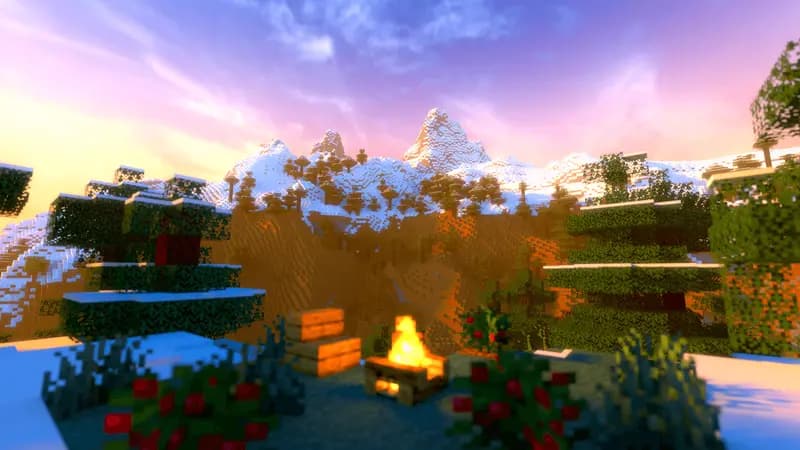
Litematica is a client-side schematic mod for Minecraft. It lets you save builds as schematics, load schematics from other players, and see a holographic overlay that guides you block-by-block. Essential for builders and redstone engineers.
What Litematica Does
- Save any structure as a schematic file
- Load
.litematicor.schematicfiles from other players - Display a transparent overlay showing where each block goes
- Material list that tells you exactly how many of each block you need
- Paste schematics in creative mode (or use the overlay as a guide in survival)
Requirements
- Minecraft Java Edition
- Fabric Loader
- Fabric API
- MaLiLib (library dependency)
- Litematica
How to Install Litematica
Step 1: Install Fabric
Download the Fabric installer from fabricmc.net. Run it. Select your Minecraft version.
Step 2: Download MaLiLib
MaLiLib is a required library. Download it from Modrinth or CurseForge. Make sure the version matches your Minecraft version. Place the jar in .minecraft/mods/.
Step 3: Download Litematica
Download Litematica from Modrinth. Match your Minecraft version. Place the jar in .minecraft/mods/.
Step 4: Launch
Start Minecraft with the Fabric profile. Litematica loads automatically.
How to Use Litematica
Opening the Menu
Press M to open the Litematica main menu. From here you access all features.
Saving a Build as a Schematic
- Use the Area Selection tool (orange stick in the tool menu)
- Right-click two corners to define the area
- Open the Litematica menu > Schematic Manager > Save
- Name your schematic and save
The file saves to .minecraft/schematics/.
Loading a Schematic
- Open Litematica menu > Schematic Browser
- Select a
.litematicfile - Click Load
- Position the schematic with the placement tool
- The overlay appears in-game showing transparent blocks
Material List
After loading a schematic, open the Material List from the menu. It shows:
- Every block type needed
- The exact quantity
- How many you have in your inventory
- How many are still missing
This feature alone saves hours on large builds.
Where to Find Schematics
- Litematica Discord has a schematics sharing channel
- Planet Minecraft hosts downloadable schematics
- Reddit r/Minecraft and r/Litematica share community builds
- Ask other players on your server for their schematics
Common Issues
Mod not loading: Make sure MaLiLib and Litematica versions match your Minecraft version exactly. They must be the same release (e.g., both for 1.21.1).
Overlay not showing: Press M > Configuration > Rendering and make sure the overlay is enabled.
Schematic misaligned: Use the placement tool to reposition. Hold Alt and scroll to rotate.
Does Litematica Work on Servers?
Litematica is client-side only. It runs on your computer and does not modify the server. Most servers allow it because it does not give any unfair advantage beyond building guidance.
Some competitive servers or anarchy servers consider it a gray area. Check your server rules.
Alternatives to Litematica
- WorldEdit (server-side): Paste schematics directly, but requires OP permissions. Different use case.
- Schematica (older mod): The predecessor to Litematica. No longer maintained for modern versions.
Build on a Dedicated Server
Planning a massive build with Litematica? You need a server with enough render distance and chunk loading to see the full overlay. Space-Node servers run on NVMe storage and high-frequency Ryzen CPUs for responsive chunk loading.
Start building on a fast server. View Minecraft Hosting Plans