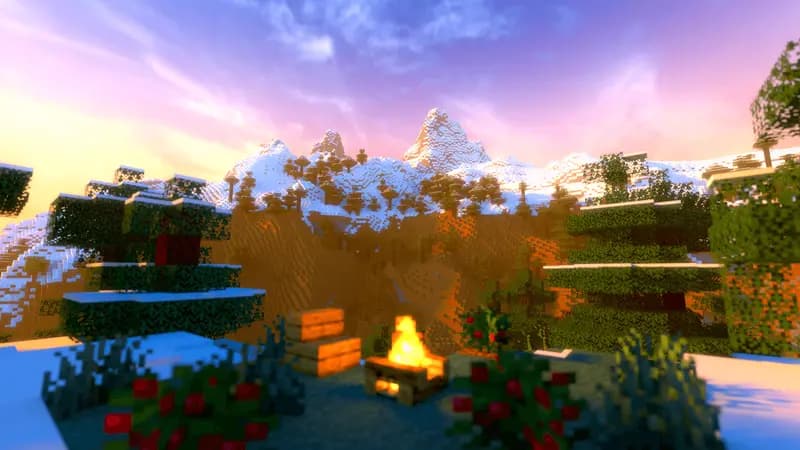
Replay Mod records everything that happens in your Minecraft session. After recording, you can rewind, change camera angles, add cinematic paths, and render high-quality videos. It is the go-to tool for Minecraft content creators and server showcases.
What Replay Mod Does
- Records all player actions, movements, and world changes
- Lets you rewatch sessions from any angle
- Cinematic camera paths with smooth movement
- Time control (slow motion, fast forward)
- Renders to video files at any resolution
- Works in singleplayer and multiplayer
Installation
Replay Mod requires Fabric (or Forge for older versions).
- Install Fabric Loader
- Download Replay Mod from replaymod.com
- Download Fabric API
- Place both jars in
.minecraft/mods/ - Launch Minecraft with Fabric
Recording
Recording starts automatically when you join a world or server (configurable). A small indicator appears in the corner.
Controls:
- Recording starts on world join
- Press the Replay Mod keybind to open the menu
- Save recordings from the pause menu
- Recordings are stored in
.minecraft/replay_recordings/
Viewing Replays
- Open the Replay Viewer from the main menu
- Select a recording
- Use the timeline to scrub through the session
- Move the camera freely in spectator mode
- Track specific players by clicking on them
Cinematic Camera Paths
This is where Replay Mod shines:
- Open a replay
- Navigate to your desired start position
- Add a keyframe (position + timestamp)
- Move to the next position and add another keyframe
- The camera smoothly interpolates between keyframes
- Adjust speed curves and path smoothing
Camera Path Tips
- Use at least 3 keyframes per shot
- Keep movements slow and smooth
- Change elevation for dramatic effect
- Follow players for action shots
- Use time speed changes during slow moments
Rendering
- Set up your camera path
- Open render settings
- Choose resolution (up to 4K)
- Choose codec (FFmpeg for quality, or individual frames)
- Set framerate (30 or 60 FPS)
- Hit render
- Video exports to
.minecraft/replay_videos/
Render Settings
- Resolution: 1920x1080 for YouTube, 3840x2160 for 4K
- FPS: 60 for smooth gameplay, 30 for cinematic
- Anti-aliasing: Enable for cleaner edges
- Shaders: Compatible with Iris/OptiFine shaders during render
Server Side Recording
Server admins can use Replay Mod Server Side to record server events:
- Records all activity on the server
- Useful for anti-cheat review
- Create promotional server videos
- No player-side mod required for recording
File Sizes
Replay files are compact. A 1-hour session is typically 50 to 200 MB depending on activity. Rendered videos are much larger (1 to 10 GB for HD).
Create content on your server. View Minecraft Hosting Plans