
You searched for "aternos ftp" because you want FileZilla or WinSCP to connect to your Aternos server, so you can drop in a world, a plugin jar or a folder of configs. You will not find FTP details anywhere in the Aternos panel, and that is not a setting you missed. Below: what Aternos lets you upload instead, where each file goes, the limits and error messages, how to get your world back out, and which hosts do give you FTP or SFTP. Everything comes from the hosts' own help pages, checked on 4 November 2026.
Quick answer: Aternos has no FTP and no SFTP. Its help centre says "Aternos doesn't provide FTP (File Transfer Protocol) access to your server files", and you cannot upload plugin or mod jars you downloaded yourself. You can still upload a lot in the web panel: worlds up to 1 GB on the Worlds page, plus datapacks, resource packs, Bedrock add-ons, WorldEdit schematics and config files. Plugins and mods come only from the Aternos library. If you need your own jars or a FileZilla connection, you need another host: exaroton (run by the Aternos team) has no FTP either, Minehut has SFTP on paid plans, and FreeMcServer and Minefort document FTP access.
Why Aternos Has No FTP
Aternos gives three reasons in its article Uploading files and FTP access, last updated on 6 October 2026:
- The automatic shutdown. An Aternos server only runs while someone is using it. Aternos says custom plugin and mod uploads could let users bypass the automatic shutdown and keep servers running all the time, which would go against keeping servers free for everyone.
- Malware. Custom mods and plugins "could contain malicious code like crypto miners or other harmful software", so Aternos prevents custom file uploads.
- FTP itself. Aternos calls FTP "an outdated protocol with security vulnerabilities" and decided not to implement it.
Aternos also says the missing FTP access "works together with our upload restrictions". So a safer protocol such as SFTP would not change the answer: the first two reasons are about which files reach the server, not how they travel. For the rest of what Aternos does and does not do, read our Aternos review.
What You Can Upload to Aternos, and Where
This table combines the Aternos help articles for each file type with WorldEdit's own documentation for the schematics folder.
| File | Allowed on Aternos? | Where you upload it | Limit or condition |
|---|---|---|---|
| World (Java or Bedrock) | Yes | Worlds page, Upload, as a .zip or a folder | 1 GB per upload; the world must match your server's edition |
| Datapack (Java) | Yes | The datapacks folder of your world, with Upload or drag and drop | Check it loaded with /datapack list after a start |
| Server resource pack (Java) | Yes | Options page, Upload next to the resource pack option | Size limit set by Minecraft and depends on the version |
| Bedrock add-on (behaviour or resource pack) | Yes | Files page, packs folder | Must be fully compatible with your Minecraft version |
| WorldEdit schematic | Yes | Files page: plugins/WorldEdit/schematics on Paper, Purpur or Spigot, config/worldedit/schematics on other platforms | The folder only exists after your first //schem save, or create it yourself |
| Mod and plugin config files | Yes, for "several mods and plugins" | Files page, in the folder the plugin or mod creates on first start | Most config changes need a restart |
| Your own plugin, mod or modpack files | No | Install from the Aternos library instead (CurseForge and Modrinth content) | Library only |
Aternos' advice for anything not in the table: just try the upload. Its system tells you whether the file is allowed, and "there's no penalty for trying". Everything on the server together counts toward the 4 GB storage limit.
A plugin config from an old server can still come along. Install the same plugin from the library and start the server once: most plugins create their config folder on the first start. Then upload or paste your old config file into that folder and restart.
Upload a World to Aternos
From Aternos' Upload a world article, updated on 23 August 2026:
- Check that the world folder contains
level.datand the region folders. If you upload a zip, compress the entire folder with all its subfolders. - Open the Worlds page of your server and click Upload.
- Pick the folder or the .zip and confirm. Depending on your connection and the world size, this can take a few minutes.
- Start the server, join and check that everything looks right.
The upload limit is 1 GB "for technical reasons". For a bigger world, Aternos suggests deleting unused chunks with MCASelector. The messages you can run into:
| What you see | What Aternos says causes it | What to do |
|---|---|---|
| "The selected file/folder is not a valid world" | Important files are missing, such as level.dat or the region folders | Upload the whole world folder, or a zip of the whole folder |
| "The selected file/folder is not a valid world" | A Bedrock world on a Java server, or a Java world on a Bedrock server | Use a server of the right edition; to convert, Aternos points to Chunker, and only from Bedrock to Java |
| A folder upload fails | Some devices and older browsers cannot upload a bare folder | Upload the world as a zip |
| An error when you start the server | The server reached its 4 GB storage limit | Turn on the Optimize option for your worlds, delete unused worlds, mods or plugins (and unused dimensions on Vanilla, Forge or Fabric), or remove unused region files |
Download Your World From Aternos
Open the Worlds page, select a world and click Download: you get a zip of that world, according to Download your world. Aternos asks you to use your normal browser, not a download manager or other third-party tool. Its article Keep your world safe adds that the download also works while the server is running.
On Paper, Purpur or Spigot, the Nether and the End sit in their own folders, world_nether and world_the_end, and each is a separate download. To play the world in singleplayer, Aternos' merge guide says to unzip all three, delete any DIM1 and DIM-1 folders already in the main world folder, and move world_the_end/DIM1 and world_nether/DIM-1 into it. If you are moving to another Paper or Spigot server, download all three and keep them as they are.
Backups are the other way out. Aternos stores them in your own Google Drive, and a backup includes world data, player data, settings, plugins, mods, add-ons and datapacks (Creating and restoring backups).
Give a Friend File Access Without Sharing a Login
On a host with a single FTP login, giving a friend file access means sharing that login. Aternos does it per person instead: under Access in the server navigation you add a friend's Aternos username and tick permissions (Share access). The ones that matter for files:
| Permission | What your friend can do |
|---|---|
| Files | Browse files, add, edit and delete files, delete plugins and mods |
| Worlds | Download and upload worlds, delete and regenerate worlds |
| Plugins/Mods | Use the add-on browser and install new plugins or mods |
| Backups | View backups, change automatic backup settings, create and restore backups |
Two traps from the same page. The Software permission lets a friend switch to any software, and because some software needs a reinstall, they can reinstall your server that way even without the Reinstall permission. The Share access permission lets a friend change their own permissions, so turning it on gives them everything. Aternos warns that changes made by friends are irreversible.
Hosts That Do Have FTP or SFTP
Checked on 4 November 2026, each on the host's own page:
| Host | FTP or SFTP | What the host's page says |
|---|---|---|
| Aternos | Neither | Web file manager; plugins and mods from its library only |
| exaroton | No FTP | Uploads in the file manager up to 3 GB, custom mods and plugins included; not available during the free trial (help article, edited 23 January 2026) |
| Minehut | SFTP on a paid server plan | Host sftp://ftp.minehut.com, port 2223, username and password in the dashboard's Settings tab (help article, updated 13 June 2024) |
| FreeMcServer | FTP | Free plan column lists "Full FTP access" with "Root file access for FileZilla & WinSCP"; custom .jar after account verification; a free server has to be renewed every 4 hours, 6 with an ad (home page) |
| Minefort | FTP | Host ftp.minefort.com; its web file manager cannot download files, so FTP is how you keep local backups (FTP guide and file access, both updated 11 February 2025) |
One thing to read carefully: the exaroton boxes in Aternos' help articles promise "full file access". exaroton's own help centre opens with "exaroton does not support FTP", so that means uploads in the browser, not a FileZilla connection. For the wider comparison of free hosts, see best free Minecraft server hosting, and for Aternos against exaroton's paid plans, Aternos paid plans vs free.
Moving From Aternos to a Host With SFTP
- Download every world from the Worlds page, including
world_netherandworld_the_endon Paper or Spigot. - Write down your software, Minecraft version and the plugins or mods with their versions, then install the same set on the new server.
- Open the config files you changed in the Aternos file manager and copy them over.
- In FileZilla or WinSCP, choose SFTP as the protocol, not FTP, and use the address, port and username your new host shows. Stop the server, delete the world folder it generated and upload yours in its place.
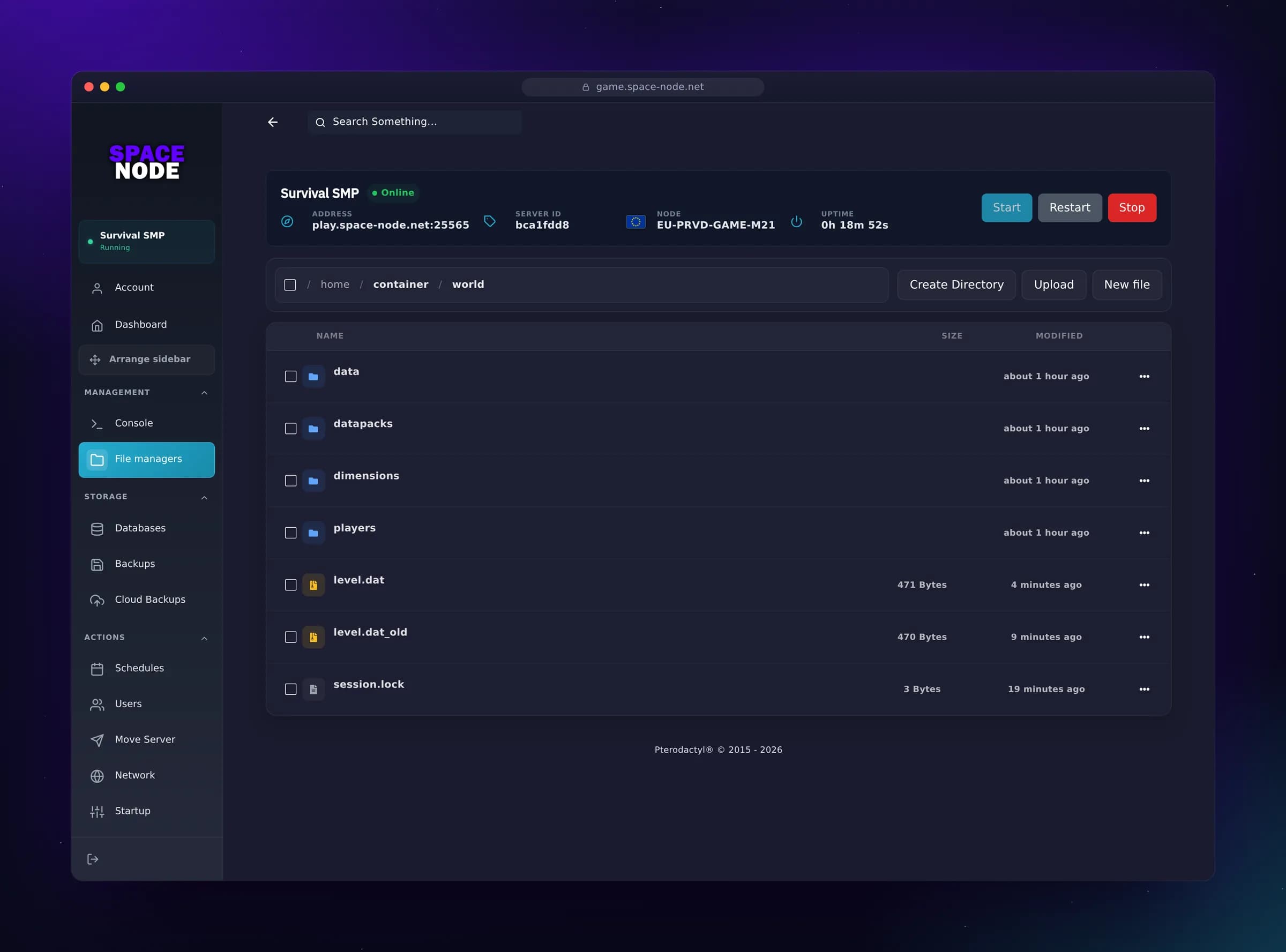
On a Space-Node Minecraft server you upload the world with the file manager in the panel, or over SFTP for worlds over about 1 GB: the address and username are under Settings in the panel, and the password is your panel password. Your own plugins, mods and modpacks go up the same way. If your client says the connection is refused, the Pterodactyl SFTP fix goes through the port, username and protocol, and the server move guide lists every folder to copy.
FAQ
Does Aternos have FTP or SFTP?
No. Aternos' help centre says it does not provide FTP access to your server files, and it offers no SFTP either. The only file access is the web panel: the file manager, the Worlds page and the resource pack upload on the Options page.
Can I connect to Aternos with FileZilla or WinSCP?
No. There is no FTP or SFTP server behind an Aternos server, so there is no host, port or password to enter in a client. Use the file manager in the panel, or the Worlds page for worlds.
How do I upload my own mods or plugins to Aternos?
You cannot upload jar files you downloaded yourself. Install plugins and mods from the Aternos library, which has content from CurseForge and Modrinth, then upload your config files into the folders they create. For your own jars you need a host with full uploads, such as exaroton's paid plans or a host with SFTP.
How big a world can I upload to Aternos?
1 GB per upload, as a zip or a folder, and the whole server has 4 GB of storage. To shrink a world, delete unused chunks with MCASelector before the upload, or turn on the Optimize option for worlds already on the server.
Does exaroton have FTP?
No. exaroton's help article says it does not support FTP. You upload files, custom mods and plugins included, through its file manager, up to 3 GB per upload, and that feature is not available during the free trial.
Why does Aternos say my world is not a valid world?
Either important files are missing, such as level.dat or the region folders, or the edition is wrong: a Bedrock world on a Java server or the other way around. Zip the whole world folder, and convert Bedrock worlds to Java with Chunker if needed.
Sources
All opened on 4 November 2026:
- Aternos help centre: Uploading files and FTP access (updated 6 October 2026), Upload a world (23 August 2026), Maximum allowed server size (21 August 2026), Install plugins and Install mods (24 June 2026), Download your world, Merge the Nether and The End, Share access, Installing Datapacks, Adding server resource packs, Installing addons (Bedrock), Creating and restoring backups, Keep your world safe
- WorldEdit documentation: Clipboard and schematics
- exaroton help centre: Uploading files and FTP access
- Minehut help centre: How do I use SFTP on my server?
- FreeMcServer: home page and free plan comparison
- Minefort help centre: Managing your server files with FTP, Accessing and uploading files to your server
- MCASelector: releases; Chunker: chunker.app