
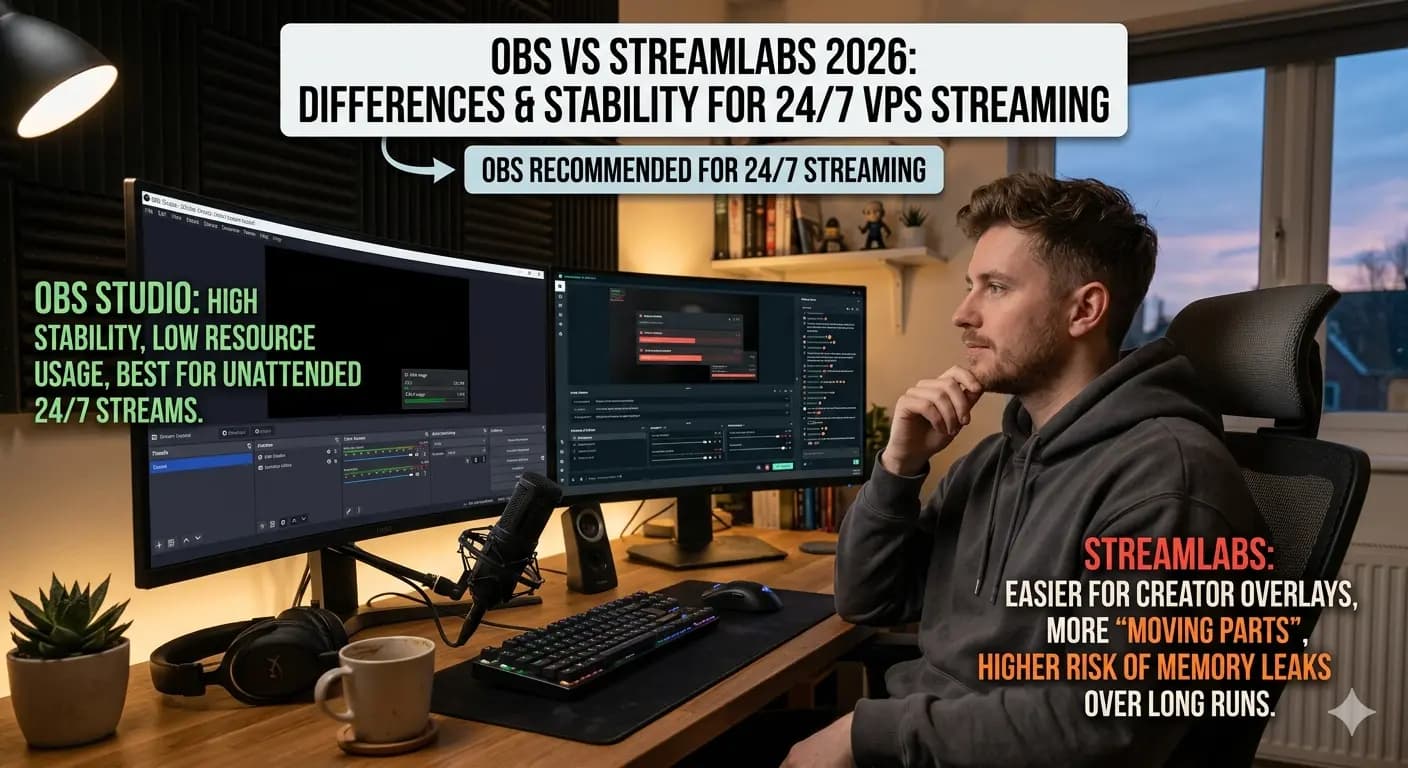
OBS Studio is the go-to streaming software for Twitch, YouTube, and Kick. It is free, endlessly configurable, and once set up properly it just works. This guide covers the settings that actually matter.
Installing OBS Studio
Download OBS from obsproject.com and install it. On first launch, it offers an auto-configuration wizard that tests your system. Running the wizard gives you a reasonable baseline, but you will want to fine tune things manually.
Output Settings That Matter
Open Settings and go to the Output tab. Switch to Advanced mode for full control.
Encoder: If you have an NVIDIA GPU, choose NVENC. For AMD, use AMF. If you are CPU only, use x264. Hardware encoders like NVENC free up your CPU for the game.
Bitrate: This is how much data you send per second. Higher means better quality but needs more upload bandwidth.
| Resolution | Recommended Bitrate |
|---|---|
| 720p 30fps | 2500 to 4000 kbps |
| 1080p 30fps | 4500 to 6000 kbps |
| 1080p 60fps | 6000 to 8000 kbps |
Match your bitrate to your upload speed. Leave headroom, since you want your stream stable even during upload spikes.
Keyframe interval: Set to 2 seconds. Twitch and YouTube require this.
Video Settings
Set your base canvas to your monitor resolution and the output resolution to what you want to stream at. If your hardware struggles at 1080p, streaming at 720p with a higher framerate often looks smoother than a choppy 1080p stream.
Scenes and Sources
Scenes are layouts you switch between. A basic streaming setup needs:
- Game scene: game capture, webcam overlay, alerts
- Starting soon scene: a waiting screen with music
- BRB scene: for breaks
- Ending scene: after the stream
Inside each scene, add sources. The most common ones are game capture, window capture, video capture device for your camera, and audio sources.
Audio Configuration
Under Settings and then Audio, set your desktop audio to your speakers or headphones and your mic to your microphone. Then in the audio mixer at the bottom of OBS, adjust levels so your voice sits above game audio but does not clip.
Add a noise suppression filter to your mic source to remove background noise. The built-in RNNoise filter works well for most setups.
Performance Tips
If you get frame drops or encoding lag:
- Lower your output resolution from 1080p to 720p
- Switch from x264 to a hardware encoder
- Reduce your bitrate
- Close background programs that use CPU
- Run OBS as administrator on Windows
A server or cloud encoding setup using a VPS for restreaming can offload the work if your local machine is weak, letting you push to multiple platforms without extra strain.
FAQ
What is the best OBS bitrate for Twitch? 4500 to 6000 kbps for 1080p30. Use less if your upload is limited.
Should I use NVENC or x264? NVENC if you have an NVIDIA GPU. It offloads encoding from your CPU, giving you better game performance while streaming.
Why does my stream lag or drop frames? Usually too high a bitrate for your upload speed, or your CPU/GPU is overloaded. Lower resolution, switch encoder, or reduce bitrate.
Related: How to go live on Twitch, How to stream on Twitch and YouTube via RTMP, Best streaming services and platforms