Many 24/7 music streams get taken down for copyright. The fix is simple: use properly licensed audio.

Table of Contents
- What "royalty-free" actually means
- License types to look for
- Safe sources
- How to organize tracks
- Hosting for stability
1. What "royalty-free" actually means
You have permission to use the music, often with terms.
2. License types to look for
Commercial-use allowed, broadcast allowed, no mandatory attribution.
3. Safe sources
Use trusted libraries that provide clear licenses.
4. How to organize tracks
Keep track metadata and license files with the audio.
5. Hosting for stability
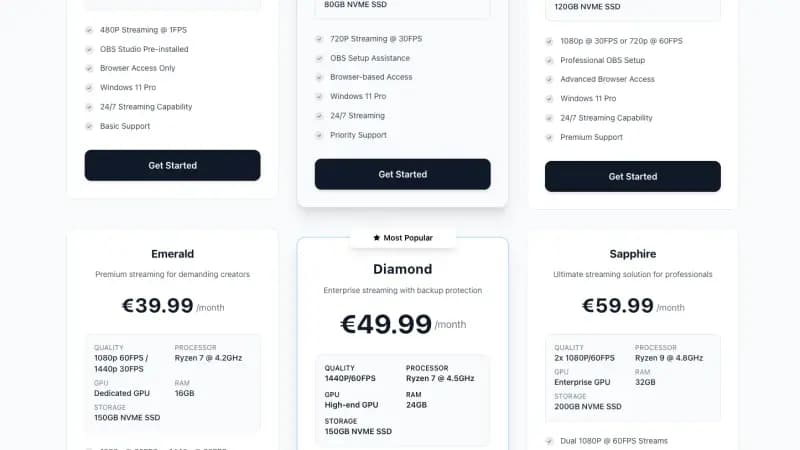
To keep your stream online, run it on a Streaming VPS. Once your tracks are licensed and organized, our 24/7 lofi stream setup guide walks through the rest in OBS: the looping visual, the music source and a chat overlay.
Quick 2026 Answer
Royalty-Free Music for 24/7 LoFi Streams: Licensing Basics and Safe Sources works best when you keep the stream simple and stable first. Pick one output resolution, one bitrate and one ingest server, then leave it running long enough to catch drops. For a 24/7 stream, boring settings are usually better than pushing the highest possible quality.
Stable Stream Checklist
- Use CBR bitrate so the platform sees a steady stream.
- Set keyframe interval to 2 seconds unless the platform asks for something else.
- Keep CPU usage below 80 percent during normal scenes.
- Test the stream for at least one hour before calling it ready.
- Keep a fallback video or playlist ready if the source fails.
- Watch YouTube, Twitch or Kick health warnings during the first day.
What Usually Breaks
Most stream problems come from network jitter, overloaded encoders, bad audio levels or file loops that stop after one pass. A VPS helps when the home connection is unstable, but it does not fix a bad OBS scene or a playlist with a broken file.
For 24/7 channels, also check disk space and logs. Small errors can repeat for days and fill storage. A simple restart schedule and a health check can prevent a quiet failure.
Where to Go Next
For plan choice and settings, use streaming VPS plans, YouTube Live encoder settings, streaming VPS network stability.
Real Test Routine
The safest way to test Royalty-Free Music for 24/7 LoFi Streams: Licensing Basics and Safe Sources is to run the stream as if nobody is watching, then read the health data. Do not judge the setup after five minutes. Leave it running long enough for network changes, playlist loops, audio drift and platform warnings to appear.
Start with one scene, one audio source and one destination. Use a modest bitrate that your VPS or home connection can keep all day. After the test starts, check dropped frames in OBS, stream health inside YouTube or Twitch, CPU use on the server and disk space if files are looping from the VPS.
If the stream fails, fix the first clear warning instead of changing every setting. A bitrate warning points to upload or encoder limits. A keyframe warning points to OBS output settings. Audio clipping points to gain staging. Random disconnects usually need network checks, reconnect settings and a fallback process.
When to Use a Streaming VPS
Use a streaming VPS when your home connection, PC sleep settings or local power are the weak part. It is especially useful for 24/7 music, ambient channels, event restreaming and SRT or RTMP relays. Keep the source files organized, watch logs and keep a backup playlist ready.
Simple Daily Stream Check
A 24/7 stream should get a quick daily check even when the platform says it is live. Open the stream as a viewer, listen for audio, check that the playlist or source is moving, then read the platform health panel. A stream can technically be online while showing silence, a frozen frame or the wrong scene.
Keep a small recovery note next to the setup. It should say how to restart OBS or FFmpeg, where the media files live, which stream key is active and which platform dashboard to check first. This prevents a small issue from becoming hours of downtime.
If viewers report buffering but the health panel is clean, test from another network before changing settings. Sometimes the problem is a viewer connection, not the stream server.