Quick answer: A VPS can improve your Twitch streams by: 1) Acting as a relay server for reliability, 2) Running cloud OBS to offload encoding, 3) Adding professional features like backup streaming, 4) Enabling multistreaming to Kick/YouTube. A relay VPS is the cheap part; running OBS or transcoding on the server needs more cores, as the requirements tables below show.
Why Use a VPS for Twitch Streaming?
Common Problems VPS Solves
| Problem | How VPS Helps |
|---|---|
| CPU maxed while gaming | VPS does the encoding |
| Dropped frames from unstable internet | VPS buffers and retransmits |
| Want to multistream | VPS pushes to multiple platforms |
| OBS crashes mid-stream | VPS provides backup |
| Need 24/7 reruns | VPS runs without your PC |
Who Benefits Most
- Gamers with older CPUs: Offload x264 encoding
- Streamers on unstable connections: VPS smooths interruptions
- Multi-platform streamers: One upload, many destinations
- Professional streamers: Redundancy and features
Method 1: Relay Server (Most Popular)
Use VPS as an intermediary between your OBS and Twitch.
How It Works
Your PC (OBS)
    │
    │ RTMP upload (6 Mbps)
    ▼
VPS (NGINX-RTMP)
    │
    │ Re-streams to Twitch
    ▼
Twitch Ingest Server
Benefits
- Stability: VPS has datacenter internet (no home router issues)
- Multistream: Push to Kick/YouTube from same stream
- Buffering: VPS handles brief upload drops
- Recording: Save archive on VPS
VPS Requirements
| Stream Quality | CPU | RAM | Bandwidth | Price |
|---|---|---|---|---|
| 1080p30 | 2 cores | 2GB | 5TB | €5-10 |
| 1080p60 | 2 cores | 2GB | 10TB | €10-15 |
| + Transcoding | 4 cores | 4GB | 10TB | €15-25 |
Setup Guide
Step 1: Install NGINX-RTMP
sudo apt update
sudo apt install nginx libnginx-mod-rtmp -y
Step 2: Configure NGINX
sudo nano /etc/nginx/nginx.conf
Add at the bottom (outside http block):
rtmp {
    server {
        listen 1935;
        chunk_size 4096;
        buflen 2s;

        application live {
            live on;
            record off;

            # Only allow your IP
            allow publish YOUR_HOME_IP;
            deny publish all;

            # Push to Twitch
            push rtmp://live.twitch.tv/app/YOUR_TWITCH_STREAM_KEY;
        }
    }
}
Step 3: Restart NGINX
sudo nginx -t
sudo systemctl restart nginx
Step 4: Configure OBS
Settings → Stream:
- Service: Custom
- Server:
rtmp://YOUR_VPS_IP/live - Stream Key:
mystream(or anything)
Now your stream goes to VPS, which forwards to Twitch.
Method 2: Cloud Encoding (Offload CPU)
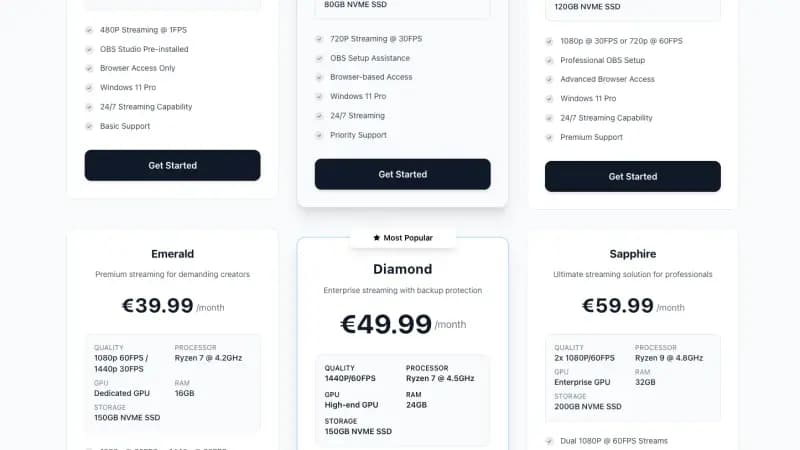
Run OBS on the VPS and send your gameplay to it. Our cloud OBS streaming VPS comes with OBS pre-installed, which skips the install part.
How It Works
Your PC (Game + NDI/RTMP output)
    │
    │ Video capture (high quality)
    ▼
VPS (OBS running in cloud)
    │
    │ Encodes + streams
    ▼
Twitch
Benefits
- Zero local encoding: All CPU goes to gaming
- Better quality: Can use slow x264 preset
- Add overlays remotely: Access OBS from anywhere
- 24/7 capability: Cloud OBS runs forever
VPS Requirements
| Quality | CPU | RAM | GPU | Price |
|---|---|---|---|---|
| 720p60 | 4 cores | 4GB | None | €15-20 |
| 1080p30 | 4 cores | 4GB | None | €15-20 |
| 1080p60 | 4-6 cores | 8GB | None/GPU | €25-50 |
Setup Guide
See our Cloud OBS VPS Setup Guide for full instructions.
Quick overview:
- Install desktop environment (XFCE)
- Install VNC server
- Install OBS Studio
- Send local video via NDI or RTMP
- OBS on VPS adds overlays and streams
Method 3: Backup/Failover Streaming
Never lose a stream due to crashes or disconnects.
How It Works
Primary: Your PC → OBS → Twitch
Backup:  VPS runs fallback content

If primary fails → VPS automatically takes over
Setup with FFmpeg Failover
On VPS, create failover script:
nano /home/user/failover.sh
#!/bin/bash

PRIMARY="rtmp://localhost/live/mystream"
BACKUP_VIDEO="/home/user/brb-loop.mp4"
TWITCH_KEY="YOUR_TWITCH_KEY"

while true; do
    # Try to relay primary stream
    timeout 10 ffprobe -v quiet "$PRIMARY"

    if [ $? -eq 0 ]; then
        # Primary is live, relay it
        ffmpeg -i "$PRIMARY" -c copy -f flv "rtmp://live.twitch.tv/app/$TWITCH_KEY"
    else
        # Primary is down, play backup
        echo "Primary down, playing backup..."
        ffmpeg -re -stream_loop -1 -i "$BACKUP_VIDEO" \
            -c:v libx264 -preset veryfast -b:v 4000k \
            -c:a aac -b:a 160k \
            -f flv "rtmp://live.twitch.tv/app/$TWITCH_KEY"
    fi

    sleep 5
done
Modify NGINX to receive primary:
application live {
    live on;
    record off;
}
Your OBS streams to VPS. If it stops, VPS plays your "Be Right Back" video.
Method 4: Dual-Stream Redundancy
Stream from two locations simultaneously for maximum reliability.
Setup
Location 1 (Your PC):
- OBS → VPS → Twitch
Location 2 (VPS):
- Receives your stream
- Has fallback content
NGINX config for dual-input:
application live {
    live on;

    # Record to disk
    record all;
    record_path /var/recordings;
    record_suffix _%Y-%m-%d.flv;

    # Push to Twitch
    push rtmp://live.twitch.tv/app/TWITCH_KEY;
}
If your main stream dies, VPS has recording to reference or loop.
Adding Professional Features
1. Stream Recording
Record every stream on VPS:
application live {
    live on;

    record all;
    record_path /var/recordings;
    record_suffix _%Y-%m-%d_%H-%M.flv;
    record_unique on;

    # Convert to MP4 when done
    exec_record_done ffmpeg -i $path -c copy $dirname/$basename.mp4;

    push rtmp://live.twitch.tv/app/KEY;
}
Benefits:
- Backup of all content
- Source for YouTube highlights
- Higher quality than Twitch VOD
2. Multi-Bitrate Transcoding
Send one stream, output multiple qualities:
application live {
    live on;

    # Transcode to 720p
    exec_push ffmpeg -i rtmp://localhost/live/$name
        -c:v libx264 -preset fast -b:v 3000k -s 1280x720
        -c:a aac -b:a 128k
        -f flv rtmp://localhost/720p/$name;

    # Transcode to 480p
    exec_push ffmpeg -i rtmp://localhost/live/$name
        -c:v libx264 -preset fast -b:v 1500k -s 854x480
        -c:a aac -b:a 96k
        -f flv rtmp://localhost/480p/$name;
}
Useful for custom players or serving mobile viewers.
3. Stream Delay
Add delay for esports/competitive to prevent stream sniping:
application live {
    live on;

    # 30-second delay buffer
    exec_push ffmpeg -i rtmp://localhost/live/$name
        -c copy
        -f fifo -fifo_format flv
        -attempt_recovery 1
        -recovery_wait_time 1
        -map 0
        "rtmp://localhost/delayed/$name";
}

application delayed {
    live on;
    push rtmp://live.twitch.tv/app/KEY;
}
4. Overlay Injection
Add overlays server-side:
ffmpeg -i rtmp://localhost/live/stream \
    -i /path/to/overlay.png \
    -filter_complex "overlay=W-w-10:10" \
    -c:v libx264 -preset veryfast \
    -c:a copy \
    -f flv rtmp://live.twitch.tv/app/KEY
Useful for adding sponsor logos or alerts without touching local OBS.
Optimizing for Twitch
Twitch Stream Requirements
| Quality | Resolution | FPS | Bitrate |
|---|---|---|---|
| Affiliate | 1080p max | 60 | 6000 kbps |
| Partner | 1080p60 | 60 | 8000 kbps |
| Recommended | 720p60 or 1080p30 | 60/30 | 4500-6000 kbps |
Twitch Ingest Servers
Use closest server for lowest latency:
| Region | Server |
|---|---|
| Auto | rtmp://live.twitch.tv/app |
| Amsterdam | rtmp://live-ams.twitch.tv/app |
| Frankfurt | rtmp://live-fra.twitch.tv/app |
| London | rtmp://live-lhr.twitch.tv/app |
| US East | rtmp://live-iad.twitch.tv/app |
| US West | rtmp://live-sjc.twitch.tv/app |
For VPS in Netherlands, use Amsterdam ingest:
push rtmp://live-ams.twitch.tv/app/YOUR_KEY;
Optimal NGINX Buffer Settings
rtmp {
    server {
        listen 1935;
        chunk_size 4096;

        # Smooth variable upload speeds
        buflen 2s;

        # Increase if network is unstable
        # buflen 5s;

        application live {
            live on;

            # Prevent timeout on slow connections
            wait_video on;
            wait_key on;

            push rtmp://live-ams.twitch.tv/app/KEY;
        }
    }
}
Troubleshooting
Stream Dropping Frequently
# Check VPS → Twitch connection
curl -I rtmp://live.twitch.tv

# Check NGINX error log
tail -f /var/log/nginx/error.log

# Check VPS bandwidth
iftop
Common causes:
- VPS bandwidth insufficient (upgrade plan)
- Twitch ingest overloaded (try different server)
- RTMP timeout (increase buflen)
High Latency
If stream delay is too high:
# Reduce buffer
buflen 1s;

# Or use low-latency mode in Twitch dashboard
Also enable Low Latency in Twitch Dashboard → Settings → Stream.
Frame Drops on Upload
# Check your upload speed
speedtest-cli

# You need 1.5x your bitrate (9+ Mbps for 6000 kbps stream)
If upload is borderline:
- Lower bitrate to 4500 kbps
- Or use SRT instead of RTMP (handles packet loss better)
VPS Overloaded
# Check CPU usage
htop

# If CPU is maxed, you're transcoding too much
# Solutions:
# - Don't transcode (passthrough only)
# - Upgrade VPS
# - Use faster preset
SRT Instead of RTMP
SRT (Secure Reliable Transport) handles unstable connections better.
VPS SRT Relay Setup
# Install SRT tools
sudo apt install srt-tools -y
Create SRT to RTMP relay:
nano /home/user/srt-relay.sh
#!/bin/bash
srt-live-transmit \
    "srt://:9999?mode=listener&latency=1000" \
    file://con | \
    ffmpeg -i - -c copy -f flv rtmp://live.twitch.tv/app/YOUR_KEY
OBS Settings:
- Service: Custom
- Server:
srt://YOUR_VPS_IP:9999 - Stream Key: (leave empty)
SRT resends lost packets within the latency window you set (1000 ms in this example), so short bursts of loss often never reach Twitch. How much loss it can hide depends on that window and on your bitrate.
Cost Analysis
VPS Streaming Costs
| Setup | Monthly Cost | What You Get |
|---|---|---|
| Basic relay | €5-10 | Passthrough to Twitch |
| Relay + recording | €10-15 | + VOD storage |
| Cloud encoding | €20-40 | + OBS on VPS |
| GPU encoding | €50-100 | + Hardware encoding |
vs Alternatives
| Solution | Monthly | Features |
|---|---|---|
| DIY VPS (Space-Node) | From €5.50 (VPS-S, out of stock until about the end of October) | Full control |
| Restream | Free plan, paid from $19 | Easy multistream |
| Castr.io | Check castr.com | Recording, CDN |
| StreamYard | Check streamyard.com | Browser streaming |
Restream's prices are from restream.io/pricing, checked on 28 September 2026.
DIY VPS gives most control at lowest cost.
When VPS Doesn't Help
GPU Encoding (NVENC)
If you have RTX GPU, NVENC encoding has near-zero CPU impact. VPS won't improve performance.
When NVENC is enough:
- RTX 2060 or better
- Single-platform streaming
- Stable home internet
When VPS still helps with NVENC:
- Multistreaming
- 24/7 reruns
- Backup/failover
- Recording remotely
Excellent Home Internet
If you have fiber with 99.9% uptime, relay benefits are minimal. VPS helps more for:
- DSL/cable with variable speeds
- Shared household bandwidth
- Mobile/cellular connections
Real-World Examples
Example 1: Gaming Streamer
Problem: CPU at 100% while gaming, stream stutters
Solution: VPS relay with slight buffer
Config:
application live {
    live on;
    buflen 2s;
    push rtmp://live.twitch.tv/app/KEY;
}
Result: Local OBS uses "faster" preset, VPS handles buffering. Smooth gameplay and stream.
Example 2: IRL Streamer
Problem: Drops during mobile streams
Solution: SRT relay through VPS
Config: SRT listener → FFmpeg → Twitch RTMP
Result: Short dropouts on the mobile connection are covered by SRT's retransmissions instead of breaking the stream. Longer outages still need a fallback like Method 3.
Example 3: Multi-Platform Creator
Problem: Wants to stream to Twitch + Kick + YouTube
Solution: VPS multistream relay
Config:
application live {
    live on;
    push rtmp://live.twitch.tv/app/TWITCH_KEY;
    push rtmp://ingest.kick.com/live/KICK_KEY;
    push rtmp://a.rtmp.youtube.com/live2/YT_KEY;
}
Result: One upload, three platforms.
Frequently Asked Questions
Will this improve my stream quality?
If your bottleneck is CPU or network stability, yes. If you have good hardware and internet, improvement is marginal.
Is this allowed by Twitch?
Yes. Relaying through your own server is completely allowed. Many partners do this.
Does this add latency?
A little, from the extra hop and the relay's buffer (buflen). How much depends on your settings. To check, film a clock and compare it with what the stream shows.
Can I use this for Twitch drops/watch parties?
Yes. VPS relay works for any Twitch stream type.
What if my VPS goes down?
Have OBS configured to fall back to direct Twitch streaming. Or use a second VPS as backup.
Conclusion
A VPS can significantly improve your Twitch streaming:
| Benefit | How |
|---|---|
| Better stability | Datacenter internet buffers drops |
| Lower CPU usage | Cloud encoding option |
| Multi-platform | One upload, many destinations |
| Professional features | Recording, delay, overlays |
| 24/7 reruns | VPS runs without your PC |
For the price of a small VPS, you get a relay, recording and multistreaming under your own control.
Ready to upgrade your Twitch setup? Space-Node VPS hosting runs in the Netherlands, from €5.50/month for VPS-S with a 1 Gbps port and full root access. The VPS plans are out of stock until about the end of October.
Related guides:
Looking to record instead of broadcast?
Everything above is about producing or relaying your own live feed. If what you actually want is to automatically capture a Twitch channel's stream to disk while you are offline, that is a different workflow (Streamlink and FFmpeg instead of OBS and NGINX-RTMP). See our dedicated walkthrough with the full script: How to automatically record a Twitch stream on a VPS.