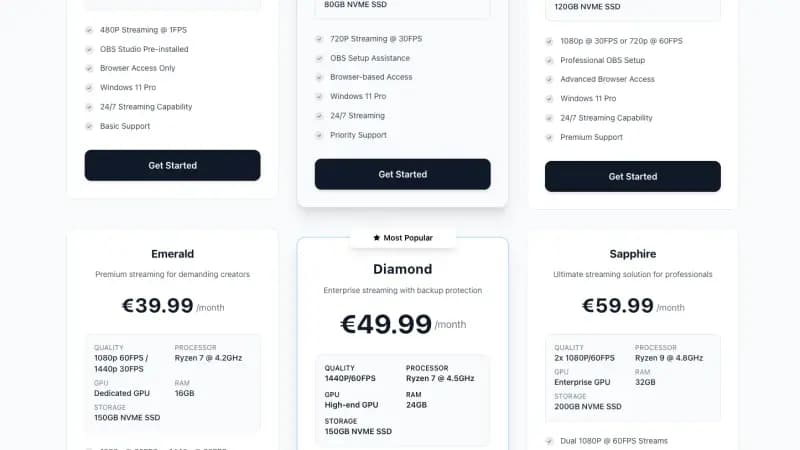
Quick answer: You can run OBS Studio on a Linux VPS using a virtual desktop (VNC/RDP). A 4GB VPS handles 720p60, 8GB for 1080p60. Install XFCE + OBS, connect via VNC client, configure your stream settings, and run 24/7. Cost: €15-40/month instead of wearing out your home PC.
Why Run OBS on a VPS?
Running OBS locally has limitations:
- Eats your CPU/GPU while gaming
- Requires your PC running for 24/7 streams
- Home internet can be unreliable
- Electricity costs add up (€30-50/month for always-on PC)
Cloud OBS solves these:
- Dedicated encoding power
- Datacenter internet (1Gbps+, stable)
- Access from anywhere (phone, laptop, tablet)
- Professional redundancy (99.9% uptime)
- Lower total cost (€15-40/month all-in)
Use Cases for Cloud OBS
| Use Case | Description | Why Cloud OBS |
|---|---|---|
| 24/7 Radio/TV | Lo-fi streams, ambient channels | Runs forever without home PC |
| Remote production | Stream from anywhere | Access OBS via phone/laptop |
| Gaming without lag | Offload encoding | Local PC focuses on game |
| Multi-cam events | Church, conferences | Central production hub |
| Backup streaming | Failover if home fails | Redundancy for important streams |
| Team streaming | Multiple operators | Everyone can access same OBS |
VPS Requirements
| Quality Target | CPU | RAM | Storage | Bandwidth | Price |
|---|---|---|---|---|---|
| 720p30 | 2 cores | 2GB | 40GB | 5TB | €5-10 |
| 720p60 | 2 cores | 4GB | 60GB | 10TB | €10-15 |
| 1080p30 | 4 cores | 4GB | 80GB | 10TB | €15-25 |
| 1080p60 | 4 cores | 8GB | 100GB | 15TB | €25-40 |
| 1080p60 (GPU) | 4 cores + GPU | 8GB+ | 100GB | 15TB | €50-100 |
For most streamers, a €15-25/month VPS (4GB RAM, 4 cores) handles 1080p30 perfectly.
Step 1: Choose Your VPS
Order a VPS with:
- Ubuntu 22.04 or Debian 12
- At least 4GB RAM for serious streaming
- Location close to your audience (or streaming platform servers)
Space-Node has servers in the Netherlands - central location for EU streaming and excellent connectivity worldwide.
Step 2: Initial Server Setup
SSH into your VPS:
ssh root@YOUR_VPS_IP
Update the system:
apt update && apt upgrade -y
Create a non-root user (recommended):
adduser streamer
usermod -aG sudo streamer
Step 3: Install Desktop Environment
XFCE is lightweight and works great for remote OBS:
apt install xfce4 xfce4-goodies dbus-x11 -y
For a slightly more modern look, you can use XFCE with arc-theme:
apt install arc-theme papirus-icon-theme -y
Step 4: Install VNC Server
Option A: TigerVNC (Recommended)
apt install tigervnc-standalone-server tigervnc-common -y
Switch to your user and set VNC password:
su - streamer
vncpasswd
# Enter password (max 8 characters used)
Create VNC startup file:
mkdir -p ~/.vnc
nano ~/.vnc/xstartup
Add this content:
#!/bin/bash
unset SESSION_MANAGER
unset DBUS_SESSION_BUS_ADDRESS
exec startxfce4
Make it executable:
chmod +x ~/.vnc/xstartup
Start VNC server:
vncserver :1 -geometry 1920x1080 -depth 24
Option B: x11vnc (Simpler, Full Desktop)
apt install x11vnc xvfb -y
Start virtual display + VNC:
Xvfb :0 -screen 0 1920x1080x24 &
x11vnc -display :0 -forever -passwd YOUR_PASSWORD -bg
Step 5: Secure VNC with SSH Tunnel
VNC traffic is unencrypted by default. Use SSH tunneling:
On your local machine:
ssh -L 5901:localhost:5901 streamer@YOUR_VPS_IP
Then connect your VNC client to: localhost:5901
This encrypts all VNC traffic through SSH.
Step 6: Install OBS Studio
Switch to root or use sudo:
# Add OBS repository
sudo add-apt-repository ppa:obsproject/obs-studio -y
sudo apt update

# Install OBS
sudo apt install obs-studio -y
Also install useful plugins:
# VLC for video sources
sudo apt install vlc -y

# FFmpeg for recording/streaming
sudo apt install ffmpeg -y

# PulseAudio for audio management
sudo apt install pulseaudio pavucontrol -y
Step 7: Connect and Configure OBS
Connect via VNC Client
Use a VNC client on your local machine:
- Windows: RealVNC Viewer, TightVNC
- Mac: Screen Sharing, RealVNC
- Linux: Remmina, TigerVNC Viewer
- Mobile: VNC Viewer (iOS/Android)
Connect to: YOUR_VPS_IP:5901 (or localhost:5901 if using SSH tunnel)
First OBS Launch
Open terminal in VNC session and start OBS:
obs
Run through the auto-configuration wizard:
- Select "Optimize for streaming"
- Choose your resolution (720p or 1080p)
- Let OBS test your system
Configure Stream Settings
Go to Settings → Stream:
For YouTube:
- Service: YouTube - RTMPS
- Server: Primary YouTube ingest server
- Stream Key: (from YouTube Studio → Go Live → Stream)
For Twitch:
- Service: Twitch
- Server: Auto (or closest EU server)
- Stream Key: (from Twitch Dashboard → Settings → Stream)
For Kick:
- Service: Custom
- Server: rtmp://ingest.kick.com/live
- Stream Key: (from Kick Dashboard)
Configure Output Settings
Settings → Output → Streaming:
Encoder: x264 (or NVENC if GPU available)
Rate Control: CBR
Bitrate: 4500 (for 1080p30) or 6000 (for 1080p60)
Keyframe Interval: 2
Preset: veryfast (good balance)
Profile: main (for compatibility)
Settings → Video:
Base Resolution: 1920x1080
Output Resolution: 1920x1080 (or 1280x720)
FPS: 30 or 60
Step 8: Add Your Content Sources
For 24/7 Video Loops
Add a VLC Video Source:
- Sources → Add → VLC Video Source
- Add your video files or folder
- Check "Loop playlist"
For Live Camera/Capture
You'll need to send your local video to the VPS. Options:
Option 1: NDI (Best quality)
On local PC:
- Install OBS + NDI plugin
- Enable NDI output in OBS
On VPS OBS:
- Install obs-ndi plugin
- Add NDI Source pointing to your IP
Option 2: SRT/RTMP Relay
On VPS, run nginx-rtmp and accept your local stream, then use Media Source in OBS to capture it.
For Browser Sources
Works the same as local OBS:
- Sources → Add → Browser
- Enter URL (StreamElements, Streamlabs overlays, etc.)
Step 9: Auto-Start OBS on Boot
Create systemd service for VNC:
sudo nano /etc/systemd/system/vncserver@.service
[Unit]
Description=VNC Server for display %i
After=network.target

[Service]
Type=forking
User=streamer
Group=streamer
WorkingDirectory=/home/streamer

ExecStartPre=/bin/sh -c '/usr/bin/vncserver -kill :%i > /dev/null 2>&1 || :'
ExecStart=/usr/bin/vncserver :%i -geometry 1920x1080 -depth 24
ExecStop=/usr/bin/vncserver -kill :%i

[Install]
WantedBy=multi-user.target
Enable it:
sudo systemctl daemon-reload
sudo systemctl enable vncserver@1
sudo systemctl start vncserver@1
Create OBS auto-start script:
nano /home/streamer/start-obs.sh
#!/bin/bash
export DISPLAY=:1

# Wait for desktop to be ready
sleep 10

# Start OBS and begin streaming
obs --startstreaming --minimize-to-tray &
chmod +x /home/streamer/start-obs.sh
Add to XFCE autostart:
mkdir -p /home/streamer/.config/autostart
nano /home/streamer/.config/autostart/obs.desktop
[Desktop Entry]
Type=Application
Name=OBS Studio
Exec=/home/streamer/start-obs.sh
Hidden=false
NoDisplay=false
X-GNOME-Autostart-enabled=true
Step 10: Sending Local Video to Cloud OBS
If you want to stream your gameplay from your home PC but encode on the VPS:
Method 1: RTMP Relay
On VPS, install nginx-rtmp:
sudo apt install nginx libnginx-mod-rtmp -y
Add to /etc/nginx/nginx.conf:
rtmp {
    server {
        listen 1935;
        chunk_size 4096;

        application live {
            live on;
            record off;
        }
    }
}
Restart nginx:
sudo systemctl restart nginx
On your local PC (OBS):
- Settings → Stream → Custom
- Server: rtmp://YOUR_VPS_IP/live
- Stream Key: mystream
On VPS OBS:
- Add Media Source
- Uncheck "Local File"
- Input: rtmp://localhost/live/mystream
Method 2: SRT (Better for unstable internet)
On VPS:
# Install SRT
sudo apt install srt-tools -y

# Start SRT listener
srt-live-transmit srt://:9999?mode=listener -v file://con | ffmpeg -i - -c copy -f flv rtmp://localhost/live/srt-input &
On local OBS:
- Settings → Stream → Custom
- Server: srt://YOUR_VPS_IP:9999
- Stream Key: (leave empty)
Method 2: RDP (Windows-like Experience)
Prefer RDP over VNC? Install xrdp:
sudo apt install xrdp -y
sudo systemctl enable xrdp
Configure XFCE for xrdp:
echo "startxfce4" > ~/.xsession
Connect with any RDP client:
- Windows: Remote Desktop Connection
- Mac: Microsoft Remote Desktop
- Linux: Remmina
Connect to: YOUR_VPS_IP:3389
Performance Optimization
Reduce CPU Usage
In OBS Settings → Output:
Preset: ultrafast (lowest quality, lowest CPU)
OR
Preset: veryfast (good balance)
Use Hardware Encoding (If GPU Available)
Some VPS providers offer GPU instances:
Encoder: NVENC H.264 (for NVIDIA)
OR
Encoder: VA-API H.264 (for Intel/AMD)
Optimize X11 Performance
Disable compositor for lower latency:
# In XFCE Settings → Window Manager Tweaks → Compositor
# Uncheck "Enable display compositing"
Or via terminal:
xfconf-query -c xfwm4 -p /general/use_compositing -s false
Monitoring and Alerts
Monitor OBS via Script
nano /home/streamer/monitor-obs.sh
#!/bin/bash
DISCORD_WEBHOOK="https://discord.com/api/webhooks/YOUR_WEBHOOK"

if ! pgrep -x "obs" > /dev/null; then
    curl -H "Content-Type: application/json" \
         -d '{"content": "⚠️ OBS is not running! Starting it now..."}' \
         $DISCORD_WEBHOOK

    export DISPLAY=:1
    obs --startstreaming &

    sleep 30

    if pgrep -x "obs" > /dev/null; then
        curl -H "Content-Type: application/json" \
             -d '{"content": "✅ OBS is back online!"}' \
             $DISCORD_WEBHOOK
    fi
fi
Add to crontab:
crontab -e
*/5 * * * * /home/streamer/monitor-obs.sh
Check Stream Status
# Check if OBS is running
pgrep -x obs && echo "OBS Running" || echo "OBS Not Running"

# Check network output (streaming?)
ss -tulpn | grep obs
Multi-User Access
Let multiple team members control OBS:
Create Additional VNC Displays
# User 1 - Display :1
vncserver :1 -geometry 1920x1080

# User 2 - Display :2 (view only)
vncserver :2 -geometry 1920x1080
Use a Collaborative VNC Solution
Install noVNC for browser-based access:
sudo apt install novnc websockify -y

# Start noVNC
websockify --web /usr/share/novnc 6080 localhost:5901 &
Access via browser: http://YOUR_VPS_IP:6080/vnc.html
Security Best Practices
Firewall Configuration
# Install UFW
sudo apt install ufw -y

# Allow SSH
sudo ufw allow 22

# Allow VNC only from your IP
sudo ufw allow from YOUR_HOME_IP to any port 5901

# Enable firewall
sudo ufw enable
Use SSH Keys
# On your local machine
ssh-keygen -t ed25519

# Copy to server
ssh-copy-id streamer@YOUR_VPS_IP

# Disable password auth on server
sudo nano /etc/ssh/sshd_config
# Set: PasswordAuthentication no
sudo systemctl restart sshd
VNC Security
- Always use SSH tunnel for VNC
- Change default VNC port
- Use strong VNC password
- Consider xrdp with TLS instead
Cost Analysis
VPS Streaming vs Local PC
| Factor | Home PC 24/7 | VPS (Space-Node) |
|---|---|---|
| Hardware cost | €1000+ initial | €0 |
| Electricity | €30-50/month | Included |
| Internet upgrade | €20-40/month extra | Included (1Gbps) |
| Reliability | 95% (power cuts, etc.) | 99.9% SLA |
| Maintenance | You fix it | Managed |
| Monthly total | €50-90 | €15-40 |
VPS vs Managed Streaming
| Solution | Monthly Cost | What You Get |
|---|---|---|
| Restream.io Pro | €19/month | Multistream only |
| Streamyard Pro | €25/month | Browser streaming |
| Cloud OBS (VPS) | €15-40/month | Full OBS, any features |
| Custom server | €20-50/month | Total control |
Troubleshooting
VNC Connection Refused
# Check if VNC is running
vncserver -list

# Restart VNC
vncserver -kill :1
vncserver :1 -geometry 1920x1080
OBS Won't Start (Display Error)
# Make sure DISPLAY is set
export DISPLAY=:1
obs
Audio Issues (No Sound)
# Start PulseAudio
pulseaudio --start

# Or in OBS, set audio to "pulse" device
High Latency/Lag in VNC
- Lower VNC color depth:
-depth 16 - Use tighter encoding in VNC client
- Consider RDP instead (more efficient)
- Check network between you and VPS
OBS Streaming But No Video on Platform
- Verify stream key is correct
- Check RTMP URL (some platforms change these)
- Look at OBS → Help → Log Files for errors
- Ensure firewall allows outbound 1935 (RTMP)
Frequently Asked Questions
Can I stream games this way?
Yes, but with extra steps. Your game runs locally, you capture it, send via NDI/RTMP to the VPS, and the VPS re-encodes and streams to Twitch/YouTube.
Does VPS OBS support all plugins?
Most Linux-compatible plugins work. Some Windows-only plugins (like some Snap Camera) won't work.
Is there input lag for live shows?
The VNC connection has 50-200ms lag depending on your connection. For pre-recorded/24/7 content, this doesn't matter. For live shows, you'd use NDI or RTMP relay and just control OBS remotely.
Can I use NVENC on VPS?
Only on GPU VPS instances. Most VPS are CPU-only, so you'll use x264 encoding.
What's the maximum stream quality?
Depends on VPS CPU. A 4-core VPS handles 1080p30 easily. For 1080p60 or 4K, you need 6+ cores or GPU instance.
Conclusion
Running OBS on a VPS is the professional approach to streaming:
- Better reliability than home internet
- Lower total cost than running a PC 24/7
- Access from anywhere via VNC/RDP
- Perfect for 24/7 streams and automated content
Setup takes about 30 minutes, and you'll have a cloud streaming server that runs indefinitely.
Ready to move OBS to the cloud? Space-Node VPS hosting offers high-performance servers in Amsterdam with low-latency connections to major streaming platforms. Starting at €5/month with full root access and 1Gbps network.
Related guides: