How to Run a 24/7 YouTube Stream in 2026: Complete Setup Guide
Imagine building a YouTube channel that generates views and subscribers while you sleep, work, or spend time with family. That's the power of 24/7 live streaming - continuous content delivery that builds audience loyalty, maximizes watch time, and creates passive growth. Channels running successful 24/7 streams see dramatic increases in subscribers, revenue, and community engagement.
But here's the challenge: 95% of people who try to set up 24/7 streams fail within the first week. Their computer crashes. Their internet cuts out. YouTube flags their stream. OBS crashes randomly. The technical complexity overwhelms them, and they give up, never realizing they were just a few tweaks away from success.
The truth is, running a reliable 24/7 YouTube stream, Twitch marathon broadcast, or Kick continuous stream isn't difficult when you understand the right approach. You don't need expensive equipment, professional studios, or technical expertise. You need the correct setup, proper configuration, and reliable infrastructure - all of which we'll cover in this complete guide.
Whether you're streaming lofi music, gaming content, meditation videos, ambient footage, podcast replays, or educational content, this guide provides everything needed to launch and maintain a successful 24/7 stream that actually stays online.
Table of Contents
- Why 24/7 Streaming Works in 2026
- Hardware Requirements (Computer vs VPS)
- Software Setup: OBS Configuration
- Internet Requirements and Solutions
- YouTube/Twitch/Kick Setup and Policies
- Content Strategies That Work
- Preventing Crashes and Downtime
- Monetization and Growth
- Common Problems and Solutions
- Professional Setup vs DIY
1. Why 24/7 Streaming Works in 2026
The Algorithm Advantage
YouTube's algorithm heavily favors watch time, and nothing generates watch time like a 24/7 stream. While a regular video might generate 10 minutes of watch time per viewer, a lofi stream viewer might listen for 3-5 hours straight. That watch time signals to YouTube that your content is valuable, pushing it to more viewers.
Live streams rank differently in YouTube search and recommendations. They appear in dedicated live sections, get priority in subscriber notifications, and often rank higher in search results than regular videos on similar topics. A well-optimized 24/7 stream can outrank videos from channels 10x your size simply because of the live stream boost.
The "always available" factor builds viewer habits. Viewers know your stream is always there when they need background music, study ambiance, or sleep sounds. Instead of searching for content each time, they return directly to your channel, building loyalty and routine viewership that compounds over time.
Revenue Potential
24/7 streams generate revenue while you're not actively creating content. Through YouTube ads, Super Chats, memberships, and sponsorships, a single successful 24/7 stream can generate €500-5,000+ monthly depending on niche and viewer count. The continuous monetization potential transforms streaming from hobby to legitimate income source.
Channels running successful 24/7 lofi streams regularly pull 50,000-200,000+ concurrent viewers during peak hours. At typical CPM rates, that's significant ad revenue running completely passively. Add in memberships from loyal listeners and sponsorships from companies wanting exposure to your audience, and the revenue compounds quickly.
Community Building
Live chat creates community in ways regular videos cannot. Viewers interact with each other, form friendships, and develop loyalty to your channel. Many successful 24/7 streams have incredibly active communities where viewers hang out daily, creating a self-sustaining engagement loop.

2. Hardware Requirements (Computer vs VPS)
The Home Computer Problem
Most people start by trying to stream from their home computer 24/7, and most fail quickly. Here's why: Your gaming PC or laptop wasn't designed to run encoding processes continuously for days or weeks straight. After 12-24 hours, you'll experience thermal throttling, driver crashes, Windows updates that force restart, or random hardware issues.
Electricity costs add up fast. A typical gaming PC consumes 300-500 watts running OBS encoding 24/7. That's €20-40/month in electricity alone in most regions. Add the wear on your hardware (accelerated component degradation from continuous operation) and the true cost of self-streaming becomes apparent.
You can't use your computer while it's streaming. Need to edit videos? Play games? Browse normally? You can't without potentially disrupting the stream. Your computer is locked into streaming duty, limiting your productivity and flexibility.
The Streaming VPS Solution
A dedicated streaming VPS (Virtual Private Server) solves every home computer problem. You get a Windows server in a professional datacenter, pre-configured with OBS Studio, running 24/7 on enterprise hardware designed for continuous operation. No electricity costs, no hardware wear, no computer lockup.
Access from any device through your browser - no RDP needed. Configure OBS, start your stream, close the browser tab. Your stream continues running while you use your actual computer normally. Update stream settings from your phone while traveling. The flexibility is game-changing.
Professional datacenters provide 99.9% uptime through redundant power, enterprise networking, and backup systems. When you stream from home and power flickers for 2 seconds, your stream crashes. When you stream from a VPS and power issues occur, backup generators kick in instantly. Your stream doesn't even stutter.
Cost Comparison Reality
Let's calculate actual costs honestly:
Home Computer 24/7 Streaming:
- Electricity: €25-40/month
- Hardware degradation: €10-20/month equivalent
- Internet upgrade for upload speed: €20-30/month
- UPS for power backup: €100-200 upfront
- Your computer unavailable for other use: Priceless
- Total: €55-90+/month plus massive inconvenience
Streaming VPS:
- Complete package: €15-30/month
- Zero electricity cost
- Zero hardware risk
- Access from anywhere
- Your computer remains free
- Professional infrastructure
- Total: €15-30/month with maximum convenience
The VPS isn't just cheaper when honestly calculated - it's dramatically more reliable and convenient.
3. Software Setup: OBS Configuration
OBS Studio for 24/7 Streaming
OBS Studio (Open Broadcaster Software) is the industry standard for streaming, and it's completely free. For 24/7 streams, proper OBS configuration prevents crashes, maintains quality, and ensures reliability. Most streaming failures trace back to incorrect OBS settings.
Critical OBS settings for 24/7 stability:
- Output Mode: Set to "Advanced"
- Encoder: Use x264 (software) for compatibility or NVENC (hardware) if available
- Rate Control: CBR (Constant Bitrate) for stable streaming
- Bitrate: 4,000-6,000 kbps for 1080p, 2,500-4,000 for 720p
- Keyframe Interval: 2 seconds (required by YouTube)
- Preset: "veryfast" for x264 to reduce CPU load
- Profile: "high" for best quality
- Tune: "zerolatency" for live streaming
Scene Setup for Reliability
Your OBS scenes should be simple and stable for 24/7 operation. Complex scenes with dozens of sources, transitions, and animations increase crash risk. Keep it clean:
Basic 24/7 Stream Scene:
- Background image or video loop
- Audio source (music, ambient sound, etc.)
- Optional: Text overlays (title, social media)
- Optional: Subtle animations or visualizers
Media Source Best Practices:
- Use video loops instead of single files when possible
- Enable "Restart playback when source becomes active"
- Check "Close file when inactive" to prevent memory leaks
- Keep video files on fast storage (SSD) to prevent stuttering
Preventing OBS Crashes
Run OBS as Administrator to prevent permission-related crashes. Configure Windows to not sleep or hibernate while OBS runs. Disable automatic updates that might restart your system mid-stream.
Enable OBS crash recovery features:
- Go to Settings → Advanced
- Enable "Automatically reconnect" with 10-second retry delay
- Set maximum retry attempts to unlimited for 24/7 streams
- Enable stream delay if dealing with chat coordination
Update OBS regularly but test updates before going live with them. Major OBS updates occasionally introduce bugs that crash specific configurations. Run test streams after updates to verify stability before committing to 24/7 operation.
4. Internet Requirements and Solutions
Upload Speed is Everything
Download speed doesn't matter for streaming - upload speed is critical. Your home internet likely has asymmetric speeds: 500 Mbps download but only 20-50 Mbps upload. Every bit of data your stream sends to YouTube uses upload bandwidth.
Calculate required upload speed:
- Stream bitrate: 6,000 kbps (6 Mbps)
- Buffer for stability: 30% extra (2 Mbps)
- Other internet usage: 2-5 Mbps
- Total needed: 10-13 Mbps upload minimum
If your upload speed can't handle stream bitrate plus buffer, you'll experience:
- Stream constantly buffering for viewers
- "Dropped frames" warnings in OBS
- Stream disconnecting randomly
- Poor quality despite correct settings
The Home Internet Reliability Problem
Residential internet wasn't designed for consistent upload-heavy usage. ISPs often throttle upload during peak hours, implement traffic shaping for streaming protocols, or have micro-outages that don't affect your Netflix watching but kill your stream connection.
Dynamic IP addresses cause additional headaches. When your ISP changes your IP (sometimes during routine maintenance, sometimes randomly), your stream drops and must reconnect. Some ISPs change IPs weekly or even daily, causing regular stream interruptions.
Router quality matters immensely. Consumer routers often can't maintain stable connections for days straight. They overheat, run out of memory, or have buggy firmware that crashes. After 24-48 hours of constant streaming, many home routers need rebooting - taking your stream offline.
Professional Network Infrastructure
Datacenter networking solves all these issues. Static IP addresses that never change. Enterprise routers designed for months of continuous operation. Direct peering with major platforms means your stream takes the fastest path to YouTube's servers.
Multiple upstream providers with automatic failover means if one network path fails, traffic reroutes instantly without dropping your stream. Redundancy that would cost thousands to implement at home comes standard with professional hosting.
5. YouTube/Twitch/Kick Setup and Policies
YouTube 24/7 Stream Requirements
YouTube allows 24/7 streaming but has specific requirements and restrictions you must follow:
- Account must be verified - Enable 2-factor authentication and verify phone number
- No copyright violations - Content must be original or properly licensed
- Follow Community Guidelines - No misleading metadata, spam, or policy violations
- Enable live streaming - Accounts need activation before going live
- Stream key security - Never share your stream key publicly
Content ID claims are the biggest challenge for 24/7 music streams. Even royalty-free music can trigger claims. Use verified copyright-free sources:
- YouTube Audio Library
- Epidemic Sound (paid license)
- Artlist (paid license)
- StreamBeats by Harris Heller
- Pretzel Rocks
Optimizing for Discovery
Your stream title and description are critical for discoverability:
Title format that works:
- "[Genre] 24/7 Radio - [Mood/Purpose] - [Unique Hook]"
- Example: "Lofi Hip Hop 24/7 Radio - Study/Relax/Chill Beats"
Description optimization:
- First 2 lines describe the stream clearly
- Include relevant keywords naturally
- Link to social media and donation options
- Credit all music sources properly
- Add timestamps for music changes
Tags strategy:
- Use all 500 characters allowed
- Include broad tags: "24/7 stream", "live radio", genre name
- Include specific tags: mood descriptors, use cases
- Avoid misleading tags that don't match content
Thumbnail That Converts
Your stream thumbnail competes with millions of videos. It needs to:
- Be clear and readable at small sizes
- Indicate it's a live stream (use "LIVE" or red dot)
- Show the vibe/genre visually
- Stand out from competitors
- Match your brand consistency

6. Content Strategies That Work
Proven 24/7 Stream Niches
Not all content works for 24/7 streaming. These niches have proven success:
Music Streams:
- Lofi hip hop (massively saturated but still profitable)
- Jazz/smooth jazz (less competition, loyal audience)
- Classical music (copyright-free, study audience)
- Synthwave/retrowave (growing niche)
- Ambient/meditation music (wellness audience)
Ambiance Streams:
- Fireplace/campfire visuals with crackling sounds
- Ocean waves, rain sounds, nature ambiance
- Coffee shop atmosphere with background chatter
- City sounds, traffic ambiance
- Space/galaxy visuals with ambient music
Gaming Content:
- Game soundtrack compilations
- Speedrun compilations
- Let's play archives
- Esports tournament replays
- Gaming news/discussion replays
Content Planning for Variety
Even 24/7 streams benefit from planned variety. Viewers who tune in at different times should experience slight variations:
- Rotate between music playlists every 3-4 hours
- Change background visuals periodically
- Update stream title/description for time-of-day relevance
- Schedule special segments (viewer requests, themed hours)
- Refresh content monthly to maintain novelty
Building Your Media Library
Successful 24/7 streams need extensive content libraries to avoid repetition:
- Minimum: 6-8 hours of unique content before looping
- Recommended: 12-24 hours for better variety
- Ideal: 48+ hours so weekly viewers rarely hear repeats
Organize content systematically:
- Create folders by mood, energy level, time-of-day fit
- Tag tracks with metadata for easy rotation
- Test audio levels so all content plays at consistent volume
- Back up your library - losing it means rebuilding from scratch
7. Preventing Crashes and Downtime
The 3 Types of Crashes
Understanding why streams crash helps prevent them:
1. Software crashes: OBS bugs, Windows errors, driver issues
- Solution: Keep software updated, use stable OBS versions, run as admin
2. Network issues: Internet drops, upload saturation, routing problems
- Solution: Professional hosting, dedicated internet, network monitoring
3. Hardware failures: Overheating, component death, power loss
- Solution: Professional infrastructure, UPS backup, redundant systems
Monitoring and Alerts
Set up active monitoring to catch issues before viewers notice:
- OBS connection stats: Watch for dropped frames, network issues
- CPU/GPU usage: Spikes indicate potential crashes coming
- Internet speed tests: Verify upload stability regularly
- Viewer count tracking: Sudden drops might indicate stream issues
Alert systems notify you of problems:
- OBS plugins that send Discord/Telegram alerts on stream drops
- Uptime monitoring services checking stream availability
- YouTube Studio mobile app notifications
- Third-party services like Streamlabs alerts
Automated Recovery
Configure automatic recovery mechanisms:
OBS level:
- Auto-reconnect on connection loss
- Restart scenes on crash
- Scheduled OBS restarts (daily during low-traffic hours)
System level:
- Configure OBS to start with Windows
- Use batch scripts to restart OBS if it crashes
- Schedule system reboots during maintenance windows
Professional hosting:
- Monitoring automatically restarts failed streams
- Backup streams activate if primary fails
- Redundant network paths prevent connection loss
8. Monetization and Growth
YouTube Partner Program Requirements
To monetize your 24/7 stream through YouTube ads, you need YouTube Partner Program approval:
- 1,000 subscribers minimum
- 4,000 watch hours in past 12 months (easy with 24/7 streams!)
- Follow all YouTube policies
- Have an AdSense account linked
24/7 streams accelerate meeting these requirements. A successful stream generating 50-100 concurrent viewers easily accumulates 1,200-2,400 watch hours daily. You can hit 4,000 watch hours in just 2-4 days of successful streaming.
Alternative Revenue Streams
Don't rely solely on YouTube ads. Diversify income:
Super Chats/Super Stickers:
- Enable for viewer tips during live streams
- Acknowledge top supporters in stream overlay
- Create chat reward tiers
Channel Memberships:
- Offer exclusive perks (emoji, badges, special streams)
- Create community posts for members only
- Price at €1.99-9.99/month tiers
Sponsorships:
- Partner with music platforms, productivity tools, wellness apps
- Integrate sponsor mentions tastefully
- Charge based on viewer count and engagement
Merchandise:
- Sell branded merchandise through YouTube or external stores
- Create designs matching stream aesthetic
- Promote during stream visuals
Growing Your Audience
Consistency builds audience. The longer your stream maintains 24/7 operation, the more YouTube promotes it. Channels that drop offline frequently get deprioritized in recommendations. Reliability directly correlates with growth.
Engage with your community:
- Respond to chat comments when possible
- Create Discord for loyal viewers
- Acknowledge regular viewers and supporters
- Host special events or themed streams
Cross-promotion:
- Share stream on social media platforms
- Collaborate with similar channels
- Participate in relevant communities
- Create short-form content pointing to stream
9. Common Problems and Solutions
"My Stream Keeps Disconnecting"
Causes:
- Insufficient upload bandwidth
- ISP throttling or instability
- OBS configuration errors
- Computer/server resource exhaustion
Solutions:
- Lower stream bitrate to match available upload
- Use professional hosting with guaranteed bandwidth
- Configure OBS auto-reconnect settings
- Upgrade hardware or hosting plan
"Stream Lags But Internet Seems Fine"
Causes:
- CPU overload from encoding settings
- Insufficient RAM for OBS and Windows
- Background programs consuming resources
- Incorrect OBS encoder settings
Solutions:
- Lower OBS encoding preset (ultrafast is least CPU intensive)
- Close unnecessary background programs
- Upgrade to faster CPU or use hardware encoding (NVENC)
- Add more RAM if system is maxed out
"YouTube Flags My Stream as Copyright Violation"
Causes:
- Using copyrighted music without license
- Content ID claims on "royalty-free" music
- Accidental use of copyrighted material
- Metadata matching copyrighted content
Solutions:
- Only use verified copyright-free sources
- License music properly through approved platforms
- Dispute false claims with documentation
- Create original content or use CC0 (public domain)
"No One Watches My 24/7 Stream"
Causes:
- Poor SEO optimization (title, description, tags)
- Oversaturated niche without differentiation
- Low quality production or audio
- Not promoting stream anywhere
Solutions:
- Optimize all metadata for search
- Find underserved niche or unique angle
- Improve visual and audio quality
- Promote across social platforms
- Engage with target communities
- Be patient - growth takes time
10. Professional Setup vs DIY
When DIY Makes Sense
Home computer streaming works if:
- You have a dedicated PC you don't need for other uses
- Your internet has 20+ Mbps upload speed consistently
- You can manage technical issues independently
- You understand the electricity and hardware costs
- You're streaming as a hobby, not revenue source
When Professional Hosting is Better
Invest in streaming VPS if:
- You need your computer for other tasks
- Your home internet upload is insufficient or unreliable
- You want 99.9% guaranteed uptime
- You're building a business, not just hobby
- You value your time over minor cost savings
- You want remote access and flexibility
Cost-Benefit Analysis
€20/month for professional streaming VPS provides:
- 24/7 operation without using your computer
- Professional uptime guarantees
- Zero electricity costs
- No hardware wear
- Remote access from anywhere
- Pre-configured OBS ready to use
- Support when issues arise
That's less than €1/day for infrastructure that enables building a potentially lucrative streaming channel. The ROI is obvious when a successful stream generates €100-1,000+/month revenue.
Key Takeaways
✅ 24/7 streaming generates passive watch time, building algorithm favor and revenue
✅ Professional streaming VPS is more reliable and cost-effective than home computer streaming
✅ OBS configuration must be optimized specifically for 24/7 stability
✅ Upload bandwidth is the critical factor - not download speed
✅ Copyright-free content prevents YouTube takedowns and monetization issues
✅ Consistent uptime compounds growth - reliability builds audience trust
✅ Diversified revenue (ads, memberships, sponsors) maximizes income potential
✅ Proper monitoring and alerts catch issues before viewers leave
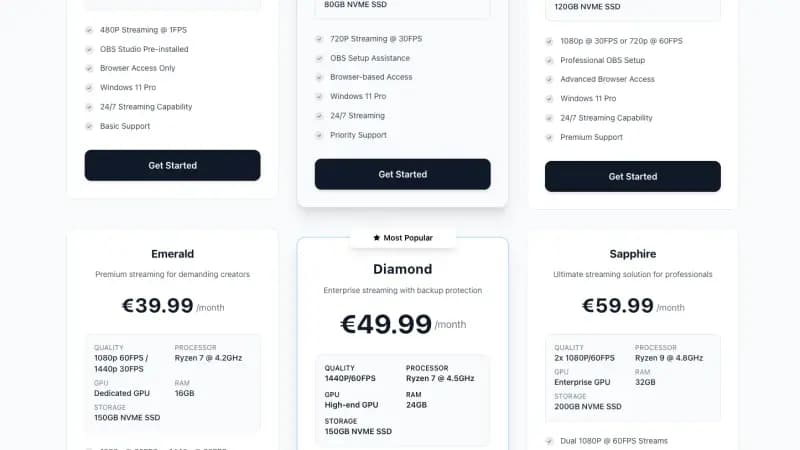
Ready to launch your 24/7 stream on reliable infrastructure that actually stays online? Explore our streaming VPS plans with OBS pre-installed, Windows OS, browser access, and enterprise hardware starting at €9.99/month. Purpose-built for YouTube, Twitch, and Kick continuous streaming with 99.9% uptime guarantee.